Using Emojis
Emojis are small, digital images or icons used to communicate or express concepts such as emotions and physical gestures in your messages.
Adding Emojis to messages
Selecting Emojis
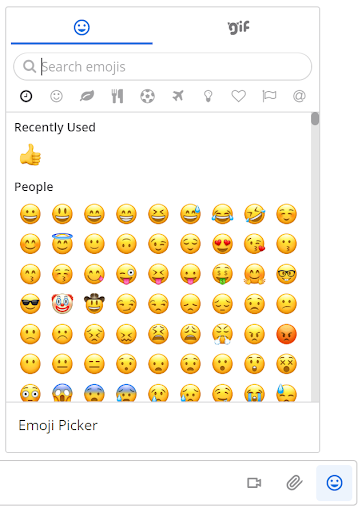
Select the smile icon inside the Mattermost message input box to open the Emoji Picker.
Typing Emojis
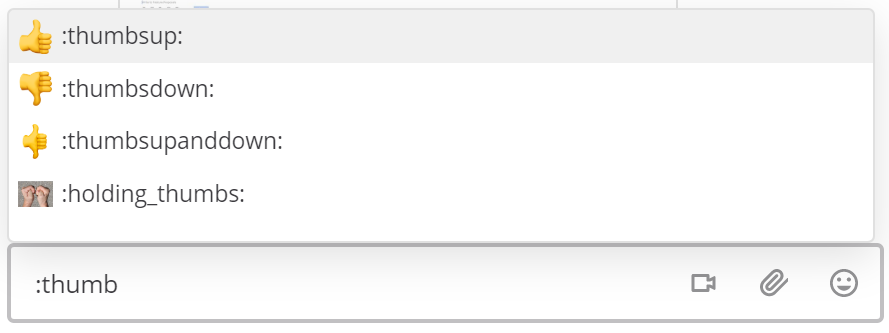
Alternatively, open the emoji autocomplete by typing : followed by at least two characters of the word describing the emoji.
It’s also possible to create your own Custom Emoji if the emoji you want to use doesn’t exist.
Accessing Alternate Skin Tones
The Mattermost Emoji Picker and Emoji autocomplete use generic skin tones. To access alternate skin tones, you can use the native emoji pickers provided on your platform or device.
Windows 10
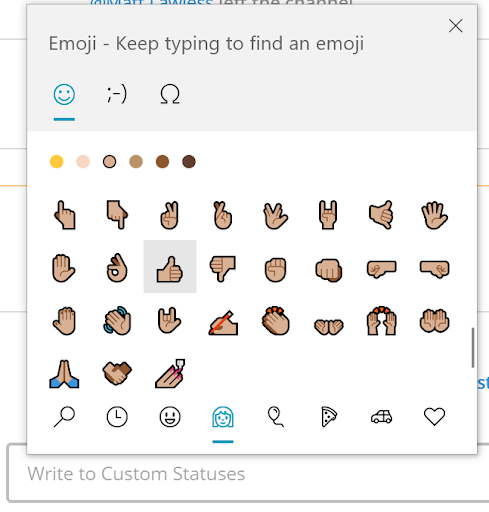
Use the keyboard shortcut: Windows Key + . (period) to open the native emoji picker for Windows 10.
Select an alternate skin tone and then select an emoji.
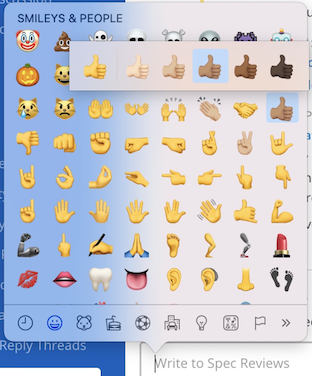
macOS
Use the keyboard shortcut: CMD+CTRL+Space Bar to open the native emoji picker for macOS.
Select and hold an emoji to choose an alternate skin tone.
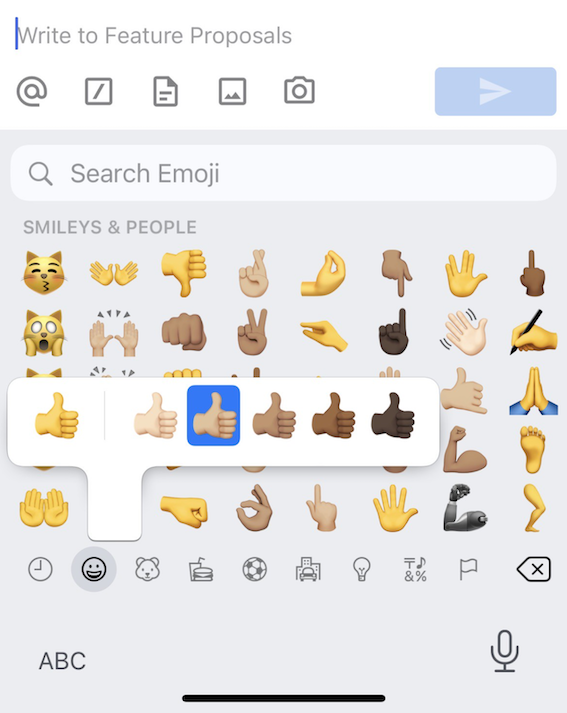
iPhone and iPad
Open the emoji keyboard.
Touch and hold an emoji to choose an alternate skin tone.
Tip
If you don’t see the emoji keyboard for your Apple device, you can enable it. See Use emoji on your iPhone, iPad, and iPod touch for details.
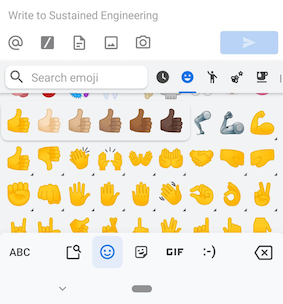
Android
Open the Android emoji keyboard.
Touch and hold an emoji to choose an alternate skin tone.
Custom Emojis
You can create Custom Emojis which are available to everyone on your Mattermost server.
To create and find Custom Emojis, open the Main Menu at the top right of the channels sidebar and select Custom Emoji.
Note
If you can’t see the Custom Emoji option in the menu, then your Mattermost System Admin may have restricted access to certain users. Contact your Mattermost System Admin for help.
For further assistance, review the Troubleshooting forum for previously reported errors, or join the Mattermost user community for troubleshooting help.
Creating Custom Emojis
Small, square pictures work best when selecting an image. The file can be any JPG, GIF, or PNG and up to 1 MB in size.
Open the Main Menu at the top-right of the channels sidebar.
Select Custom Emoji.
Choose Add Custom Emoji.
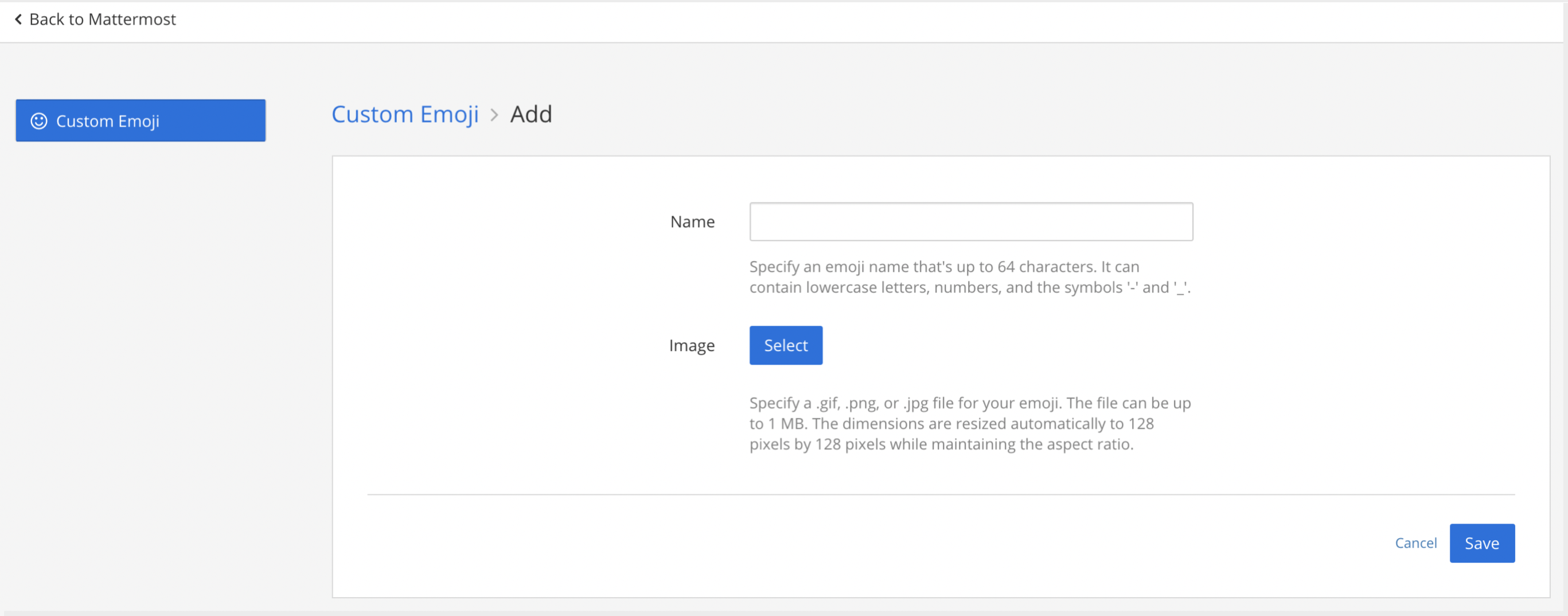
Enter a name for your Custom Emoji. This is the name that will show up in the emoji autocomplete.
Choose Select, and choose what image to use for the emoji.
Choose Save.
Once saved, your emoji will be added to the list of Custom Emoji.
To use your Custom Emoji in a message, simply type “:” followed by your emoji name to bring it up in the emoji autocomplete. Other users on the site will also be able to see your emoji in the autocomplete, and will be able to use it in their own messages.
Deleting Custom Emojis
You can delete Custom Emojis that you created.
Open the Main Menu at the top-right of the channels sidebar.
Select Custom Emoji.
If required, use the Search Bar to find your Custom Emoji in the list.
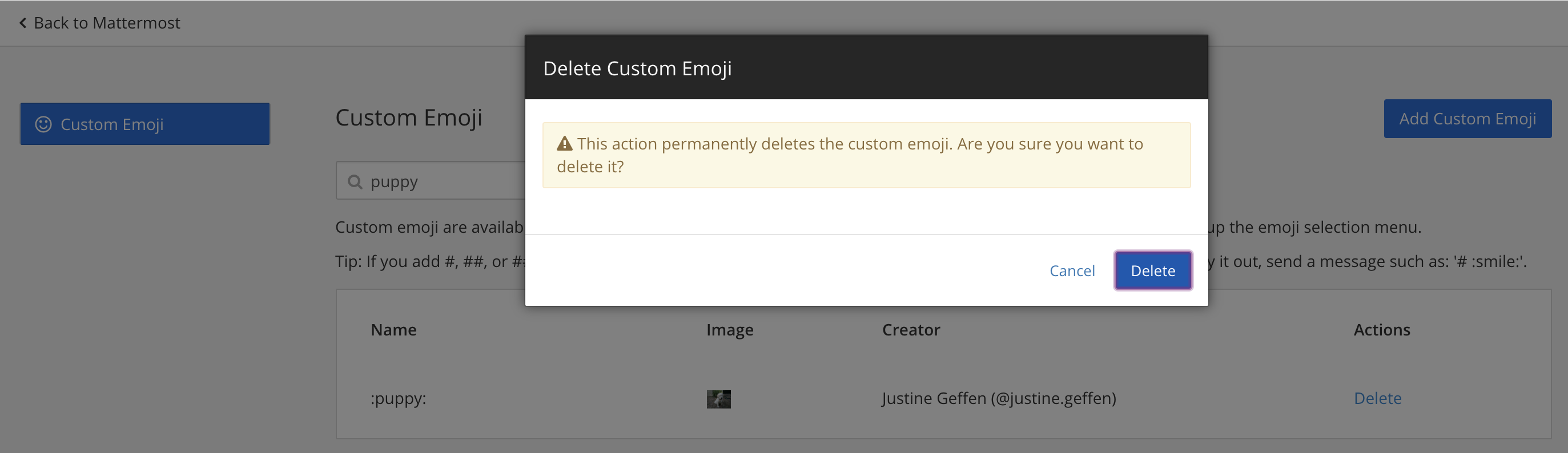
Under Actions select Delete.
Choose Delete to confirm.