Running Playbooks
Use slash commands to initiate playbook runs, make announcements, and get information about an incident.
Slash commands
The /incident slash command allows interaction with incidents via the post textbox on desktop, browser, and mobile for:
/incident start- Start a new incident./incident end- End an ongoing incident./incident update- Update the current incident’s status./incident restart- Restart an ended incident./incident check [checklist item]- Check/uncheck the specified task./incident announce ~[channels]- Announce the current incident in other channels./incident list- List all your incidents./incident commander [@username]- Show or change the current commander./incident info- Show a summary of the current incident.
To run a playbook use the /incident start slash command from any channel. You can also use the desktop or browser to:
Select the Incidents icon in the channel header, and select Start Incident from the right-hand sidebar.
Use the context menu of a post and select Start incident.
Running a playbook opens an interactive dialog. Provide an incident name and select a playbook to be used with the incident. Optionally provide a description to offer immediate context into the newly started incident. Only playbooks of which you are a member are listed in the Playbook drop-down menu.
The creator of a playbook run is automatically added as the first member and becomes the commander.
When the playbook run is created, it’s announced in the configured channel. If that channel is archived or deleted, the bot posts a notification in the incident channel.
Joining an incident
Join an incident by joining the incident channel. If the incident channel is public, you may join the channel without permission. Search for and join the channel via Browse Channels.
If the incident channel is private, an existing member of the incident channel must invite you. System Admins may join private incident channels without permission.
Working with tasks
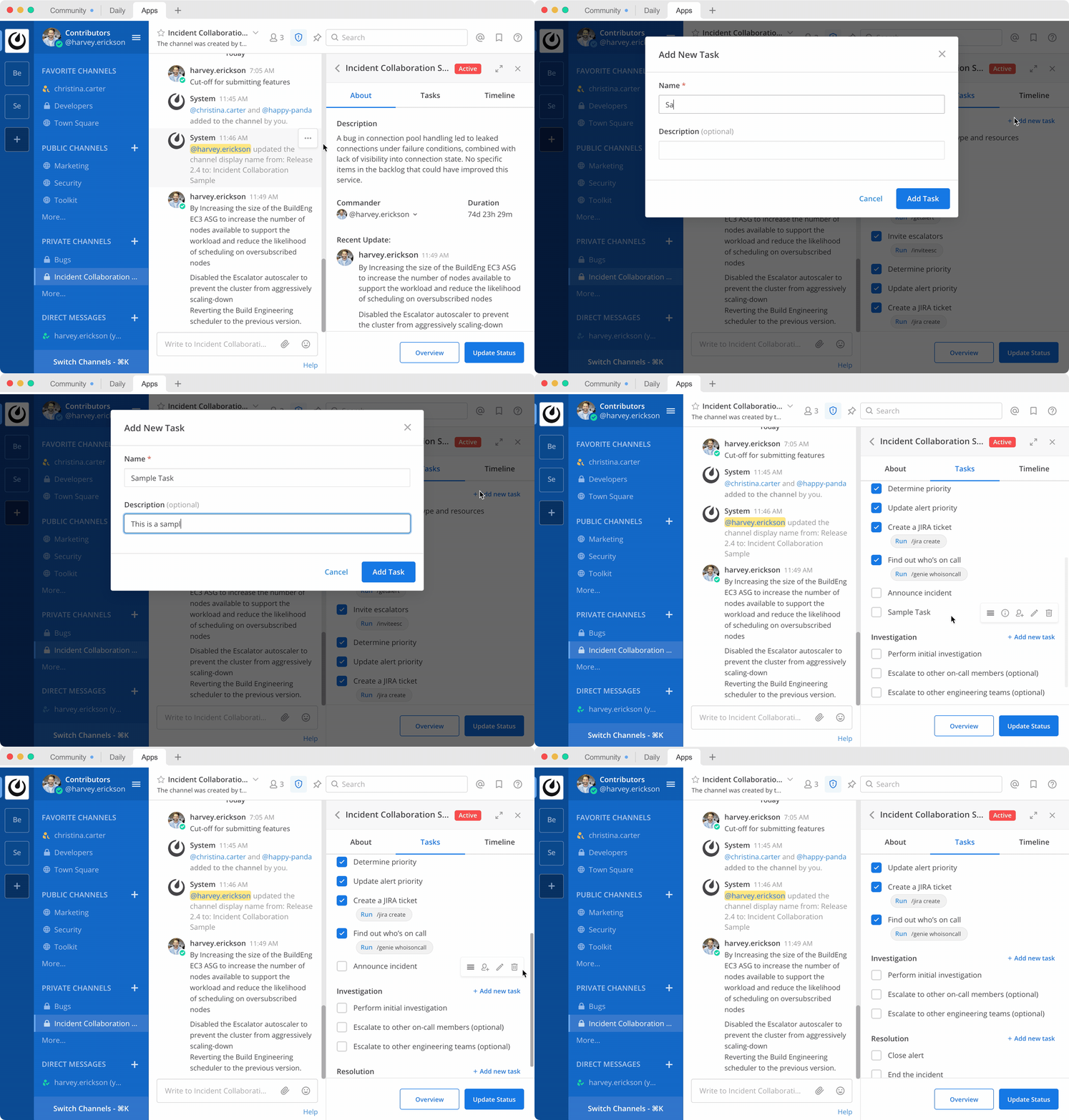
Tasks can be part of pre-configured task templates in playbooks and they can also be added, edited, and removed as needed during an active incident. Any member of the incident channel can work with tasks:
To mark a task as completed, select the unchecked checkbox next to the task. To undo this, clear the checkbox.
To assign a task to a member of the incident channel, select No Assignee (or the existing assignee’s username), then select a user.
To view any description associated with a task, select the information icon to the right of the task name.
To execute a slash command associated with a task, select Run next to the listed slash command. Configured slash commands may be run as often as necessary.
Changing commanders
To change commanders you can run the /incident commander @username slash command from the incident channel. You can also use the desktop or browser to:
Select the Incidents icon in the channel header to open the right-hand sidebar.
Select the Summary tab.
Within the Summary tab, select the current commander’s name in the right-hand sidebar, then select the new commander.
To change the commander to a user who is not in the channel, first add the user to the channel.
Providing a status update
Incident status updates ensure that stakeholders remain informed about the progress toward incident resolution. To post a status update:
Select the Incidents icon in the channel header to open the right-hand sidebar.
Find the incident you’re looking for and select Go to Incident Channel.
Select the Summary tab.
Within the Summary tab, select Update Status.
Add a Markdown-formatted message.
If this is the first status update and the playbook has a defined template, that template will be pre-populated here.
If this is a subsequent status update, the message from the last status update will be pre-populated here.
Optionally set a reminder to prompt for the next status update.
If this is the first status update and the playbook has a defined default reminder timer, that timer will be pre-selected here.
If this is a subsequent status update, the last reminder timer will be pre-populated here.
Select Update Status to post your status update.
Status updates are posted to the incident channel as a message from the user providing the status update.
If the playbook has a defined broadcast channel, status updates are copied to the broadcast channel as a message from the incident bot.
The most recent status post will also appear in the right-hand sidebar of the incident channel. To correct or remove a status post, edit or delete the post as needed. Status updates that are broadcast to another channel will not be edited or deleted.
Ending an incident
Incident members can end an incident using the /incident end slash command. Incidents can also be ended from the desktop or browser:
Select the Incidents icon in the channel header to open the right-hand sidebar.
Find the incident you’re looking for and select Go to Incident Channel.
Select Update Status.
From the Status drop-down menu, select Resolved.
Enter a message with additional details.
Select Update Status.
Ending an incident signals to all members of the channel that the incident is no longer ongoing. Members of the team can continue to post in the channel, mark tasks as complete, and change the commander if needed.
Restarting an incident
If an incident was ended prematurely, it can be restarted within the incident channel using the /incident restart slash command. Incidents can also be restarted from the desktop or browser:
Select the Incidents icon in the channel header to open the RHS.
Find the incident you’re looking for and select Go to Incident Channel.
Select Update Status.
From the Status drop-down menu, select Active.
Enter a message with additional details.
Select Update Status.
