 Mattermost v11.0 is now available! Learn what's new »


Team settings
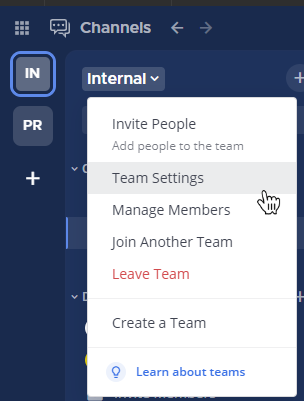
Team settings enable system and team administrators to adjust settings applied to a specific team. Using Mattermost in a web browser or the desktop app, select the team name to access Team Settings.
Info settings
Info settings provide configuration options for how teams are displayed to users.
Team name
Your Team Name is displayed on the login screen, and in the top of the channel sidebar for your team.
Team names can contain any letters, numbers, or symbols, must be 2 - 64 characters in length, and are case-sensitive.
Note
Team names don’t support some unicode characters.
Team description
Your Team Description is displayed when viewing the list of teams available to join and in the tooltip when hovering over the team name in the team sidebar.
You can enter a description up to 50 characters in length.
Note
Team descriptions don’t support some unicode characters.
Team icon
A Team Icon displays in the team sidebar. By default, the team icon contains the first two letters of the team name.
To customize the team icon:
Select Team Settings.
Select the Team Icon Edit option.
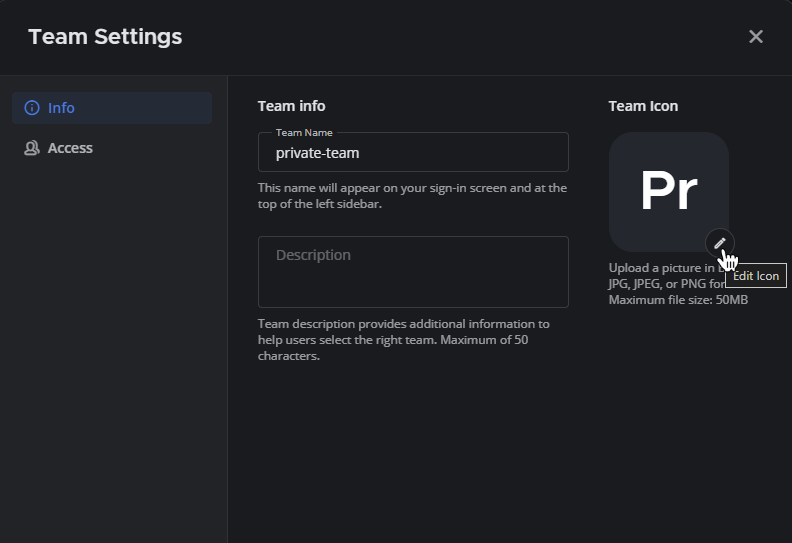
Select an icon image in BMP, JPG, or PNG format. We recommend using square images with a solid background color since transparency in PNG icons fills with a white background in the team sidebar.
Select Save.
Tip
When a team icon is configured, select Remove image to reset the team icon to the default icon containing the first two letters of the team name.
Access settings
Access settings enable the ability to control who can join the team.
Discoverability
System and team administrators control whether the team is public or private using two selection cards:
Public Team — anyone on the server can find the team, and join it if they meet any other join restrictions, such as approved email domains. The team appears on the server landing page and in the Teams you can join page.
Private Team — only invited members can join. The team isn’t listed for users who aren’t already members.
Note
From Mattermost v11.10, these cards replace the Allow any user to join checkbox. This change applies to every team on every deployment. Public Team is equivalent to the checkbox being enabled, and Private Team is equivalent to it being disabled.
Important
Switching a team from Public Team to Private Team regenerates the team’s invite code. This creates a new invitation link and invalidates any link shared previously.
Tip
When a team is set to Public Team, users looking for more teams to join will also see this team in the list when they select the  icon in the team sidebar.
On teams managed by AD/LDAP group synchronization, the cards aren’t shown. Instead, the Access tab displays a message noting that members of the team are added and removed by linked groups.
Users with a specific email domain
System and team administrators can limit who can join the team based on their email domain. Enable this option to specify approved email domains. Separate multiple email domains using spaces, commas, pressing Tab, or pressing Enter.
When enabled, only users that have an email domain from the approved domain list is able to join the team. The setting’s intent is solely to gate joining a team. Once joined, team members will be able to update their email to a non-approved domain without any restrictions. Additionally, team members who joined prior to approved domains being specified won’t be removed from the team once approved email domains are configured and enforced.
Important
Mattermost deployments using email authentication must also enable the require email verification configuration setting for domain restrictions to be effective.
Invite code
The Invite Code is used as part of the URL in team invitation links. Select Regenerate to create a new invitation link and invalidate any previous link.
Team Membership
 Available on Entry and Enterprise Advanced plans
From Mattermost v11.10, the Team Membership tab is available to Team Admins when Attribute-Based Access Control (ABAC) is enabled by a System Admin. It allows Team Admins to view the system policy applied to their team and define attribute-based rules that control who can be a member of the team itself.
On private teams these rules are enforced: users who don’t match can’t join, and members who no longer match are removed at the next sync. On public teams the rules are advisory — qualifying users are highlighted as recommended, but anyone can still join.
See Team membership access policies for full details.
Channel Membership
Available on Entry and Enterprise Advanced plans
The Channel Membership tab is available to Team Admins when Attribute-Based Access Control (ABAC) is enabled by a System Admin. It allows Team Admins to create and manage attribute-based membership policies for private and public channels within the team. On private channels the policies are enforced. On public channels they’re advisory — matching users can be added automatically or shown the channel as recommended, but no one is removed.
Note
This tab was previously labelled Membership Policies. It was renamed in Mattermost v11.10 to distinguish it from the new Team Membership tab.
See Team-level channel membership policies for full details.