 Mattermost v11.0 is now available! Learn what's new »


Join and leave channels
 Available on
 Join a channel
Channels are either public or private.
Public channels are identified with a Globe
 icon. Anyone on the team can join a public channel.
Private channels are typically used for sensitive topics, and are identified with a Lock
 icon. You must be invited to private channels by another channel member.
Note
To join a private channel, you need to be added to the channel by a member of that channel.
To join a public channel:
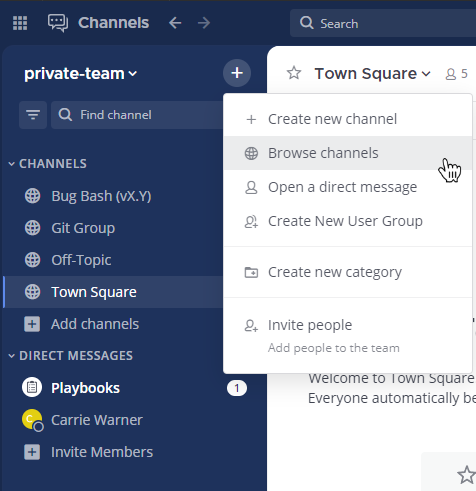
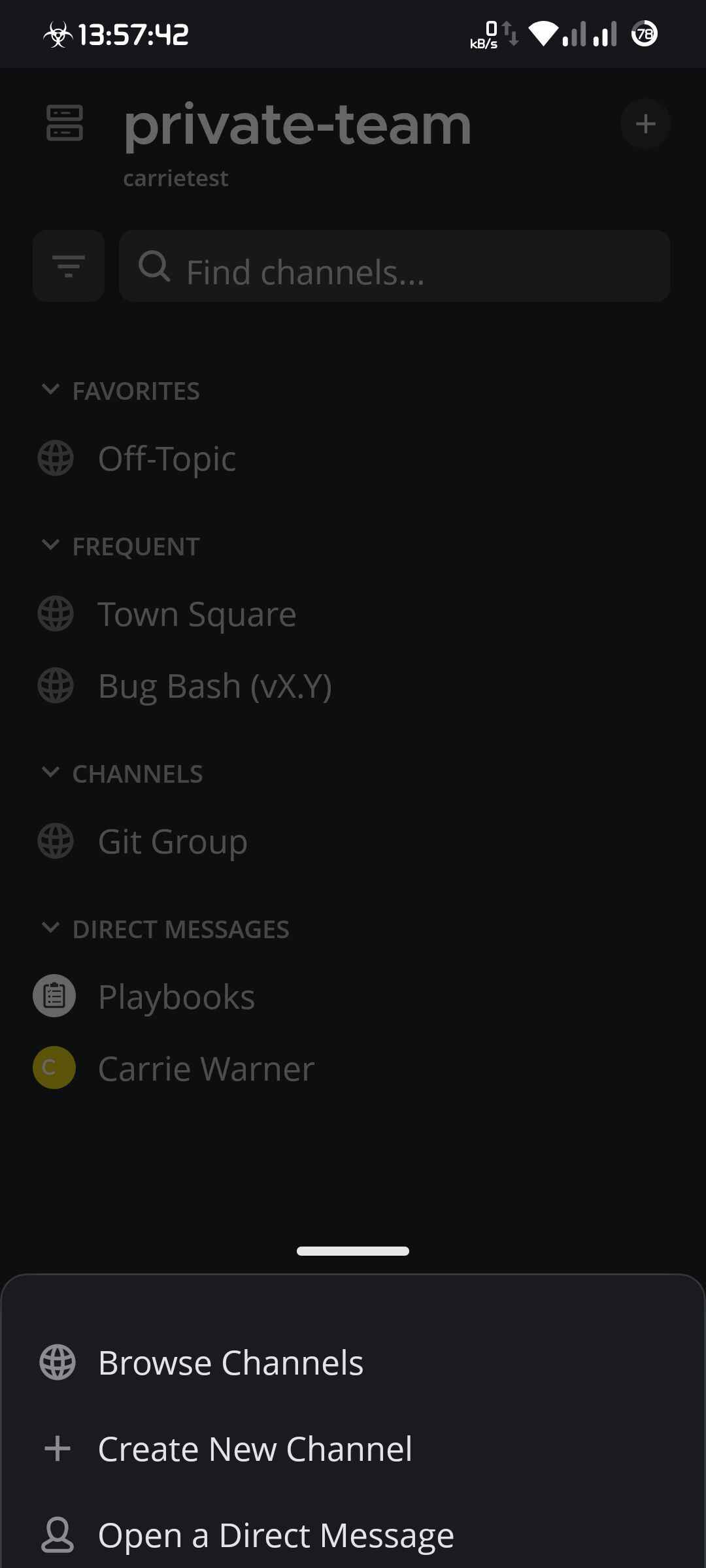
Select the Add channels button in the channel sidebar, then select Browse Channels.
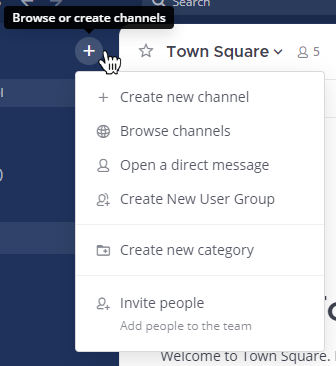
Alternatively, you can select
at the top of the channel sidebar, then select Browse Channels.
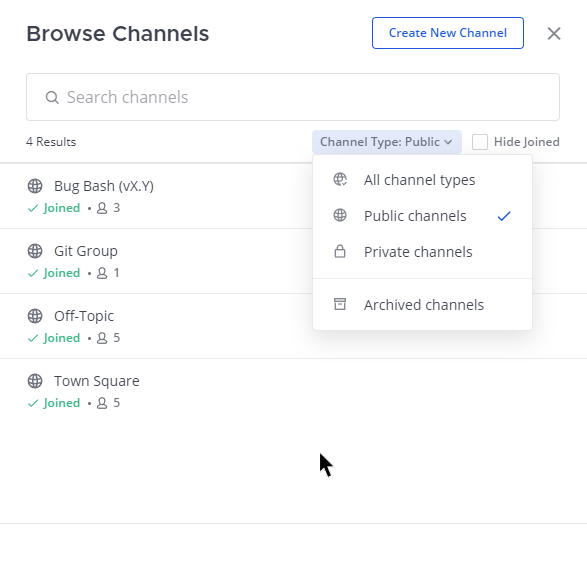
Select Join next to the public channel you want to join.
Tap
located in the top right corner the app.
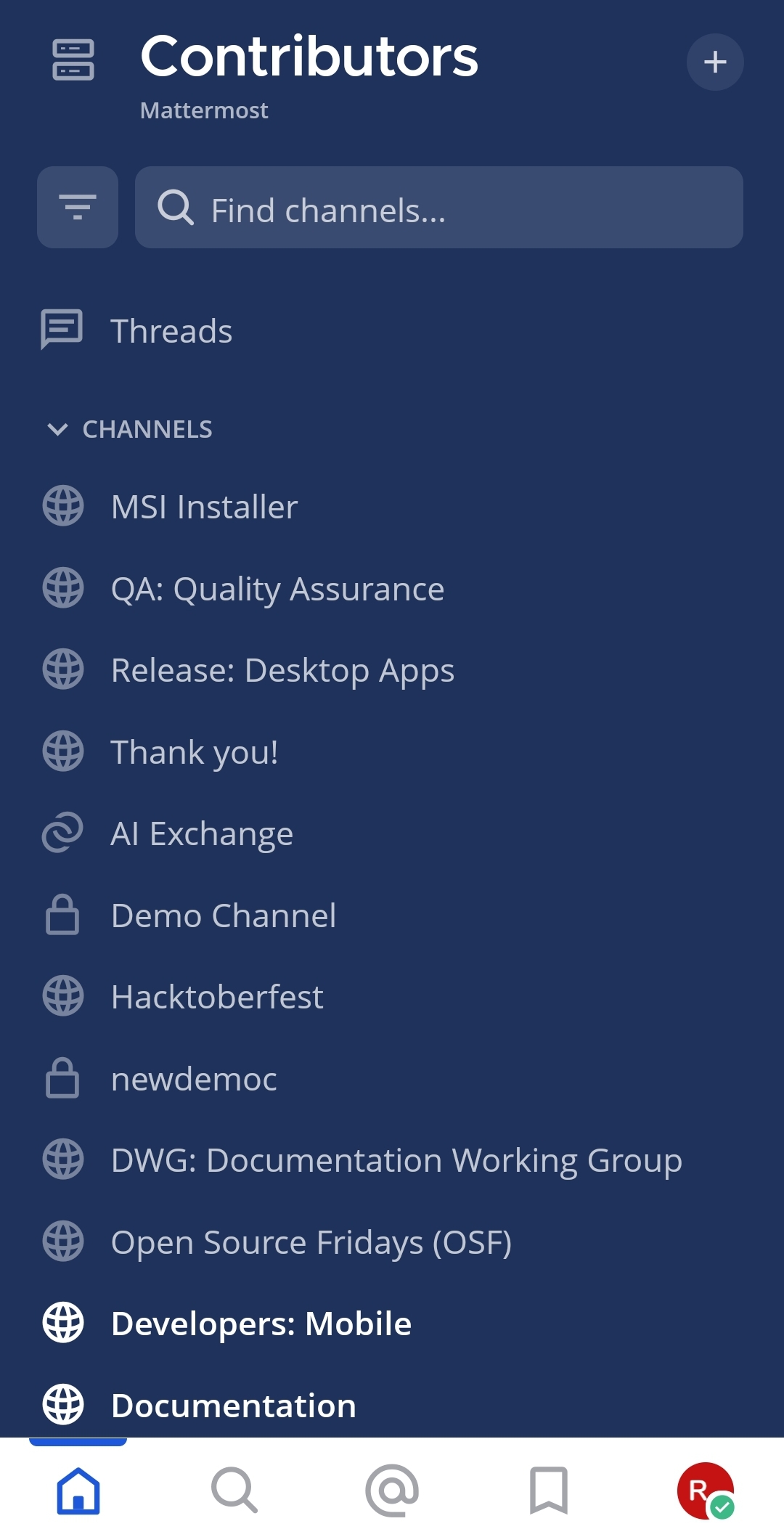
Tap Browse Channels.
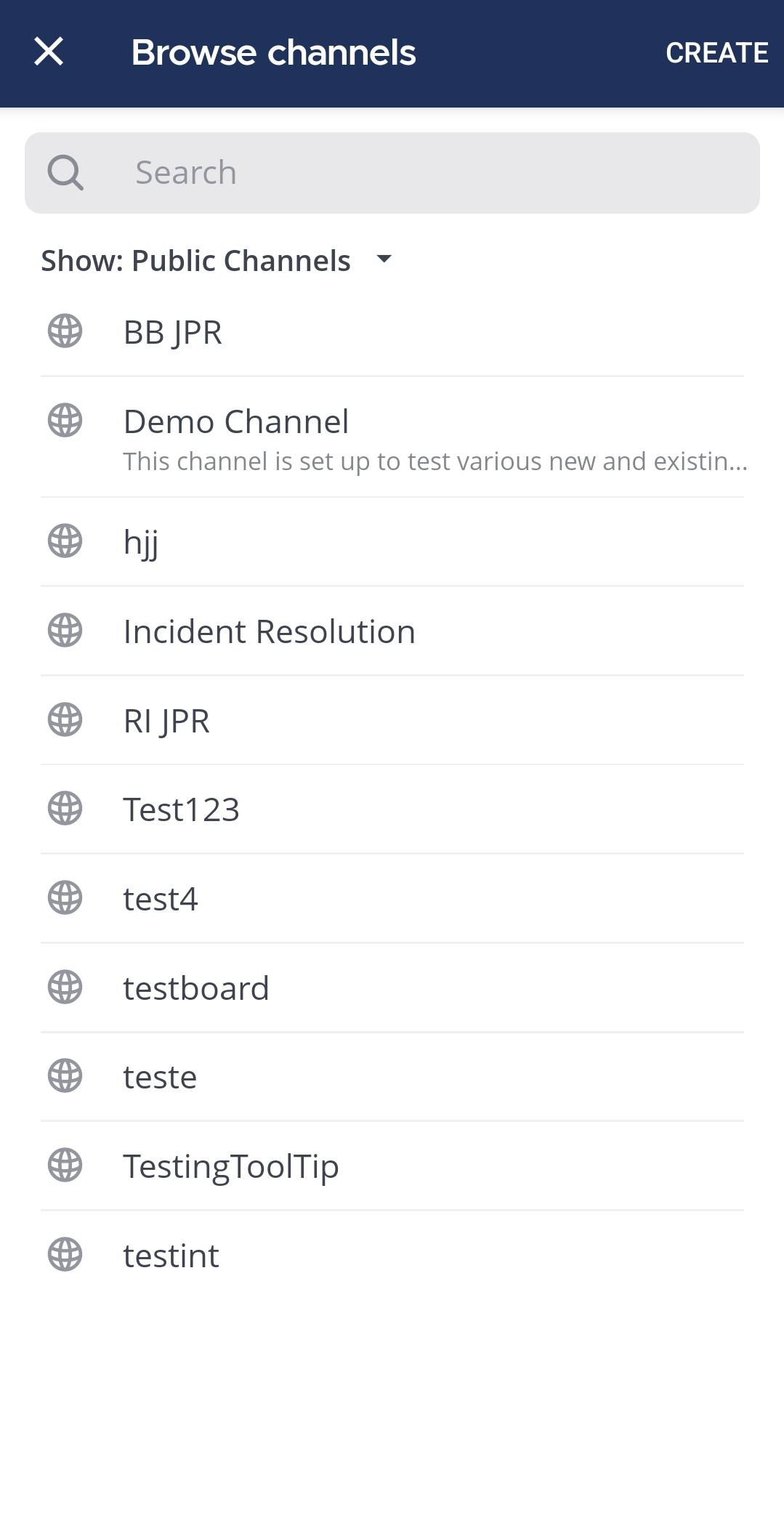
Tap the public channel you want to join.
Tip
When you join channels, depending on the channel actions configured, you may see a welcome message, and channels may be added to a category in your channel sidebar automatically. Using Mattermost in a web browser or the desktop app, access Channel Actions from the channel name drop-down menu in the center pane to see what automatic actions have been configured.
See the following documentation to learn more about working with channels:
Leave a channel
When you leave a private channel, you must be re-added by another channel member to rejoin. You won’t receive mention notifications from a channel if you’re not a member of that channel.
Note
All users are added to the Town Square channel automatically. This means that users can’t archive, unarchive, or leave the Town Square channel. However, guests who are manually invited to Town Square can leave the channel.
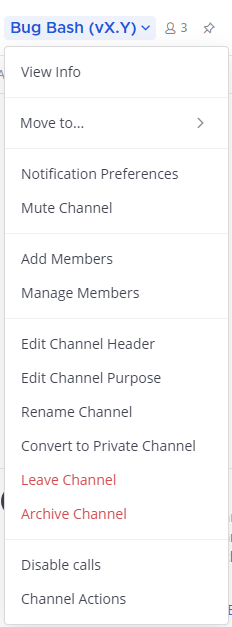
Select the channel name at the top of the center pane to access the drop-down menu, then select Leave Channel.
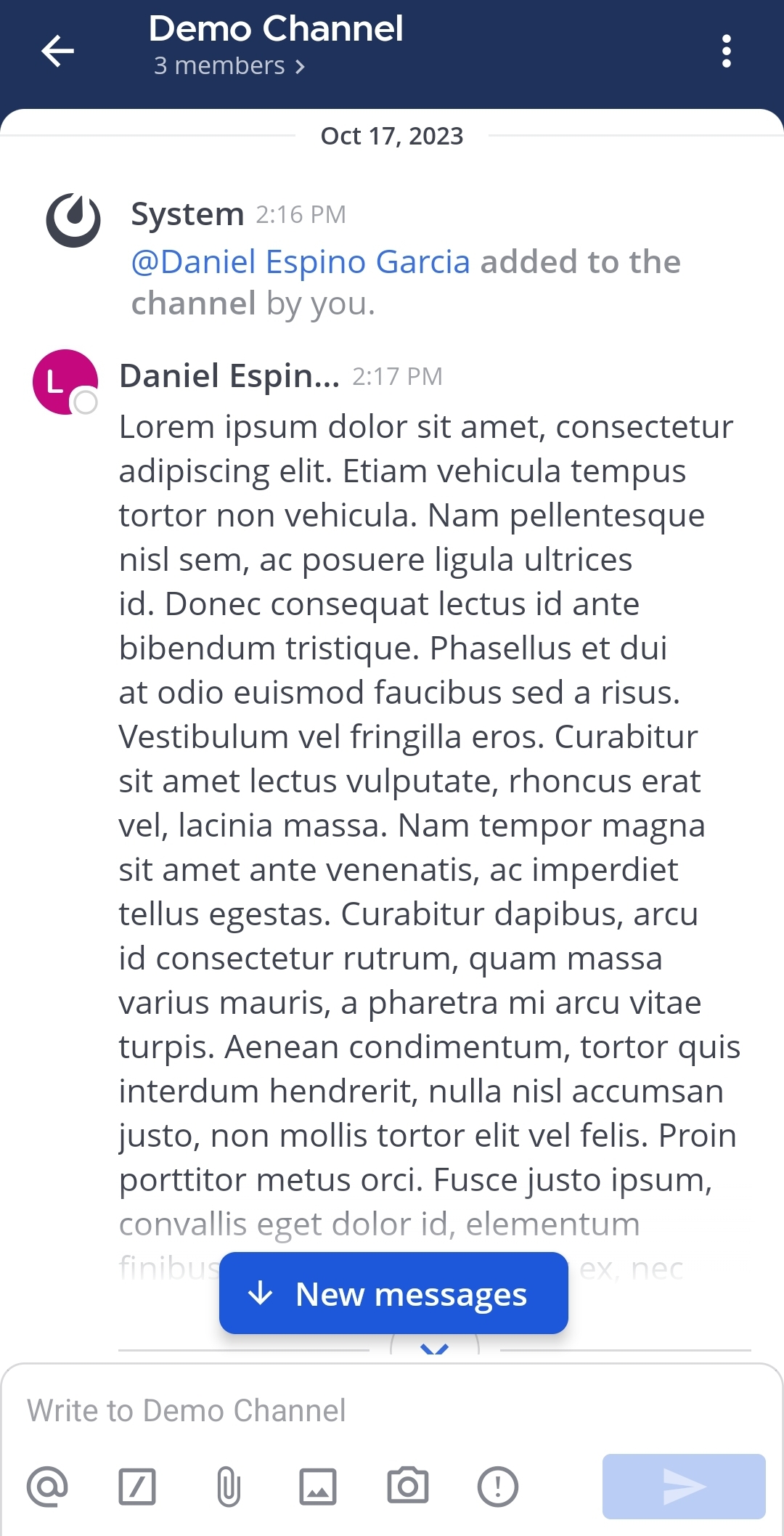
Tap the channel you want to leave.
Tap the More
 icon located in the top right corner of the app.
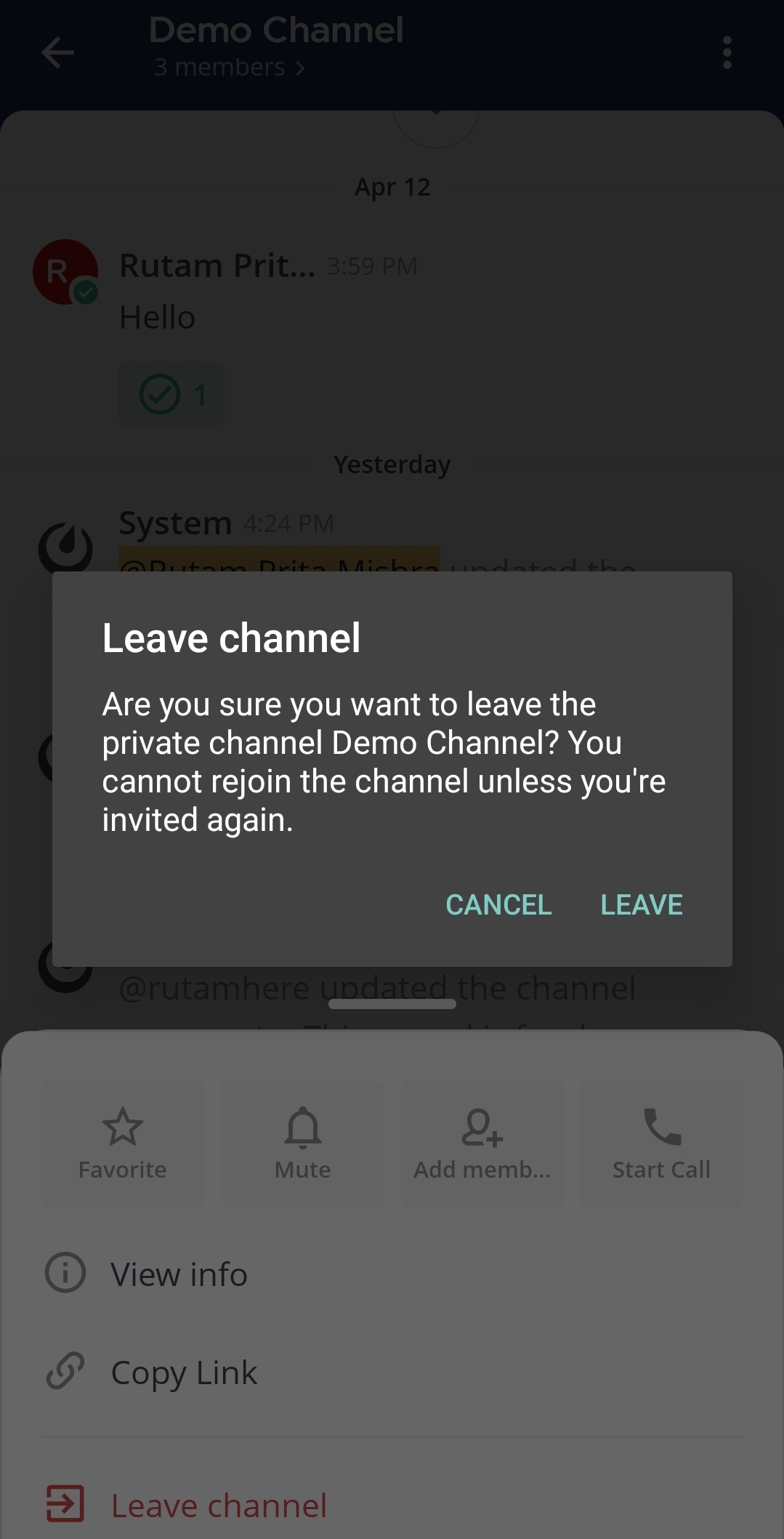
Tap Leave channel.
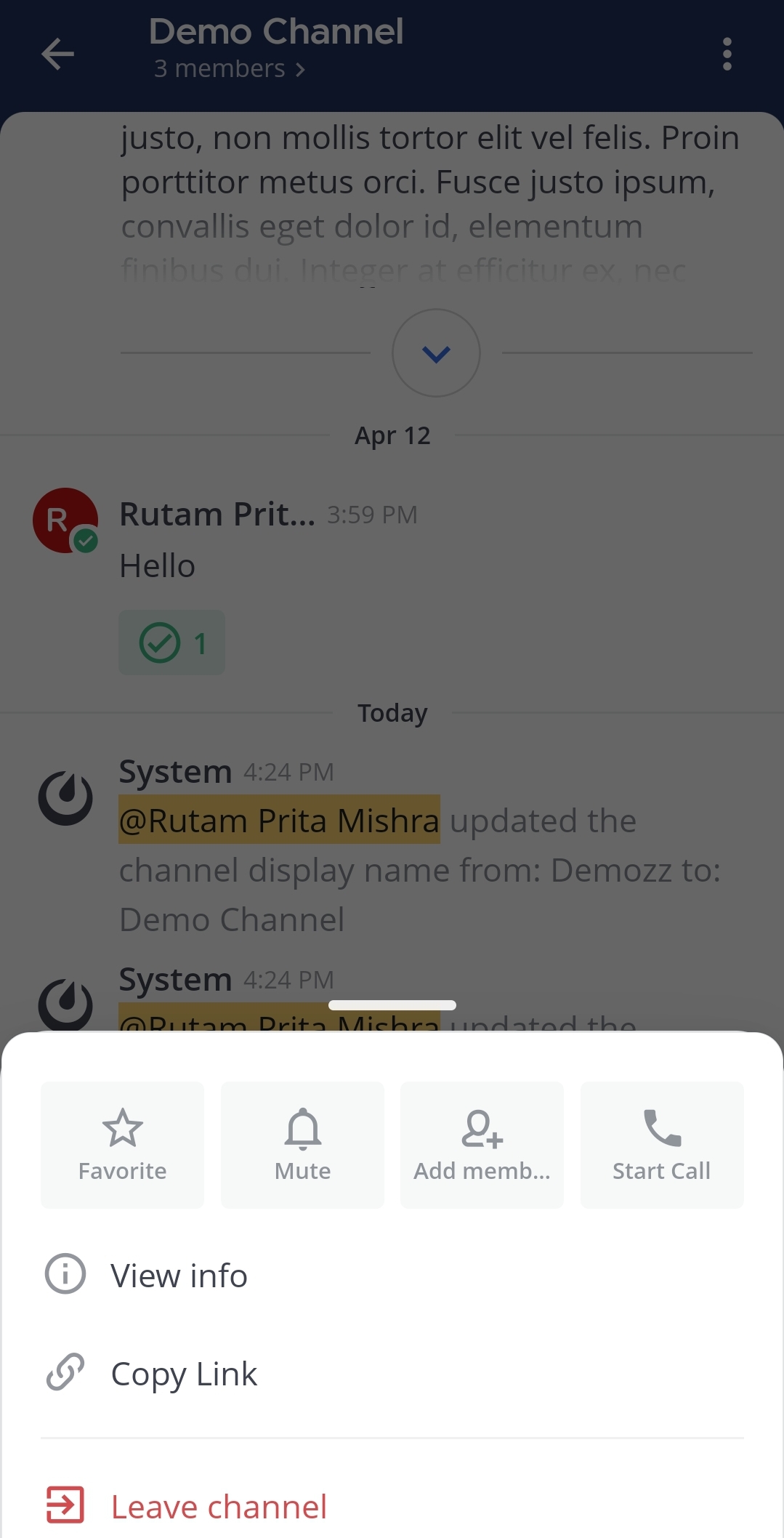
Tap on Leave to confirm you choice.
Leave a public channel added by a membership policy
From Mattermost v11.8.0, when you leave a public channel you were added to by a membership policy, Mattermost asks you to confirm:
Choosing Leave channel removes you from the channel.
Choosing Mute instead keeps you in the channel and mutes its notifications.
If the channel is already muted, Mattermost shows Cancel and Leave channel instead of Mute instead.