 Mattermost v11.0 is now available! Learn what's new »


Configure SAML with Microsoft Entra ID
 Available on
 This page provides guidance on configuring SAML with Microsoft Entra ID for Mattermost.
Tip
Need to configure Entra ID for OpenID Connect authentication instead? See the Entra ID Single Sign-On documentation for details.
See the encryption options documentation for details on what encryption methods Mattermost supports for SAML.
Before you begin
Before you begin, you need to generate encryption certificates for encrypting the SAML connection.
You can use the Bash script from the
mattermost/docsrepository on GitHub, or any other suitable method. See the generate self-signed certificates documentation for details on generating a self-signed x509v3 certificate for use with multiple URLs / IPs.Save the two files that are generated. They are the private key and the public key. In the System Console, they are referred to as the Service Provider Private Key and the Service Provider Public Certificate respectively.
Prerequisites
A Microsoft Entra tenant containing applicable user data.
A verified custom domain for your tenant. See Microsoft’s Add your custom domain name to your tenant documentation for details.
A Microsoft Entra ID P1 or P2 license.
An account with at least the Application Administrator role in your Entra tenant.
Set up an enterprise app for Mattermost SSO in Entra ID
Sign in to the Microsoft Entra admin center with an account that has at least the Application Administrator role.
In the left navigation menu, select Entra ID > Enterprise applications.
Select + New application.
Select + Create your own application.
In the What’s the name of your app? field, enter Mattermost.
Under What are you looking to do with your application?, select Integrate any other application you don’t find in the gallery (Non-gallery).
Select Create. Entra provisions the application; this may take a few seconds.
In the Mattermost enterprise application settings, select Manage > Users and groups, then assign the approved users and/or groups that should have access to Mattermost.
Warning
Alternatively, you can select Manage > Properties, set Assignment required? to No, then select Save. This grants Mattermost access to all users in your Entra tenant — evaluate whether this aligns with your organization’s access control requirements before proceeding.
In the Mattermost enterprise application settings, select Manage > Single sign-on, then select SAML under Select a single sign-on method.
Select Edit in the Basic SAML Configuration section, then set the fields below and select Save:
Identifier (Entity ID):
https://<your-mattermost-url>Reply URL (Assertion Consumer Service URL):
https://<your-mattermost-url>/login/sso/samlSign on URL:
https://<your-mattermost-url>/login
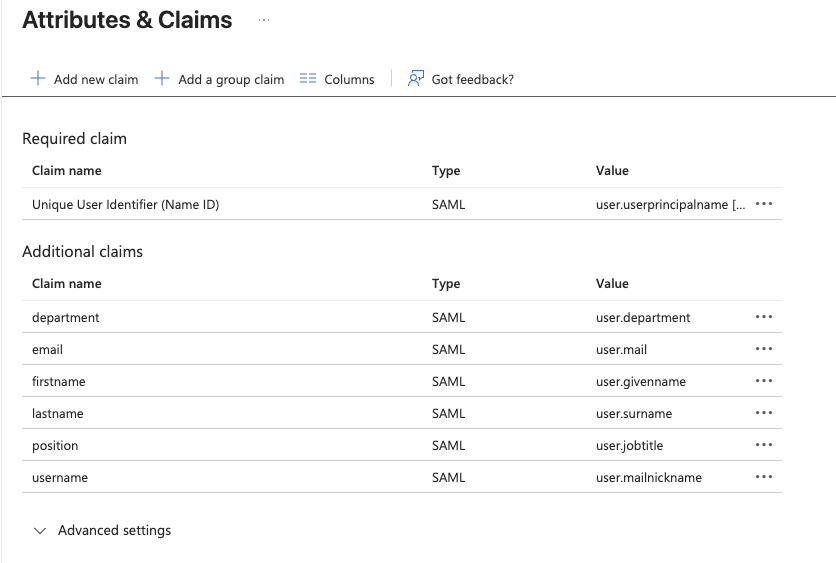
Select Edit in the Attributes & Claims section, then configure the required claim and additional claims as described below.
How Entra claims map to Mattermost
The SAML assertion Entra sends to Mattermost contains a set of claims — name/value pairs describing the user. Mattermost reads these claims based on the attribute names you configure in System Console > Authentication > SAML 2.0 > Attributes (for example, Email Attribute, Username Attribute, First Name Attribute).
The Claim name you set in Entra must match the value you enter in the corresponding Mattermost attribute field exactly, character for character. The Value (also called Source attribute) tells Entra which user property to send — for example,
user.mailsends the user’s email address.Required claim — Unique User Identifier (Name ID)
Set the Name identifier format and Source attribute values as required for your environment. The Name ID is part of the SAML assertion, but Mattermost account binding is controlled by the Id Attribute (SAML) setting if you configure it, or by email otherwise. If you want immutable user binding in Mattermost, add a separate
Idclaim under Additional claims and set its Value (source attribute) to an immutable Entra attribute such asuser.objectid.user.userprincipalnameis also a common choice for Name ID when a human-readable identifier is preferred, with the trade-off that renames in Entra can orphan the corresponding Mattermost account if you rely on it for identity matching.Additional claims
By default, Entra populates this section with four claims using the
http://schemas.xmlsoap.org/ws/2005/05/identity/claims/...namespace. These work, but we recommend replacing them with short, readable names that match the attribute fields in Mattermost. To edit a claim, select it, update the Name field (and clear the Namespace field), then save.Important
Mattermost matches each attribute by its full claim name, including the namespace, exactly as it appears in the SAML assertion. By default, Entra emits its built-in claims under the namespace
http://schemas.xmlsoap.org/ws/2005/05/identity/claims/— so the claim that appears in the Claim name column asemailaddressis actually sent in the assertion ashttp://schemas.xmlsoap.org/ws/2005/05/identity/claims/emailaddress.Entering only the short name (for example,
emailorname) in a Mattermost attribute field will not match, and login will fail with an error such asSAML login was unsuccessful because one of the attributes is incorrect... <attribute> attribute is missing.You have two options:
Clear the namespace on each claim in Entra ID (the approach shown in the table below) so the claim name becomes the short value (for example,
email), then enter that same short value in Mattermost; orLeave the default namespace in Entra ID and enter the fully-qualified claim name in Mattermost (for example,
http://schemas.xmlsoap.org/ws/2005/05/identity/claims/emailaddress).
If a login fails, the safest way to confirm the exact claim names being sent is to capture and decode the SAML response from the browser (for example, with the SAML-tracer browser extension) and read the
Nameattribute of each<Attribute>element.The following claim configuration covers a typical Mattermost setup (using the clear-namespace option):
Mattermost attribute field
Entra claim name
Entra source attribute
Email Attribute
emailuser.mailUsername Attribute
usernameuser.mailnicknameFirst Name Attribute
firstnameuser.givennameLast Name Attribute
lastnameuser.surnamePosition Attribute
positionuser.jobtitleNote
Use
user.mailnicknamerather thanuser.userprincipalnameas the source for the username claim. The user principal name is typically formatted as an email address (user@domain.com), but Mattermost usernames cannot contain the@character, so SAML logins usinguser.userprincipalnamewill fail. The mail nickname is the local part of the email address (the portion before@) and maps cleanly to a valid Mattermost username.If your organization doesn’t populate
mailnicknameconsistently, another option is a custom Entra attribute or a transformation that strips the domain from the UPN.After editing, your Attributes & Claims page should look similar to the screenshot below:
The Guest, Admin, Nickname, and Preferred Language attributes are also configurable in Mattermost if you want to drive them from Entra. Use the same pattern: pick a short claim name in Entra, set its source attribute, and enter the matching claim name in the corresponding Mattermost attribute field.
Select Edit in the SAML Certificates section. Select Sign SAML response and assertion for Signing Option and SHA-256 for Signing Algorithm, then select Save.
Select the Certificate (Base64) Download link in the SAML Certificates section. This is the Identity Provider Public Certificate to be uploaded to Mattermost.
In the Mattermost enterprise application settings, select Security > Token encryption. Select Import Certificate to import the Service Provider certificate. If you used the Bash script referenced in the Before you begin section, this is the
mattermost-x509.crtfile. The Import dialog says to upload a certificate with a file extension.cer, but.crtfiles are also accepted. Upload the file then select Add.Select the
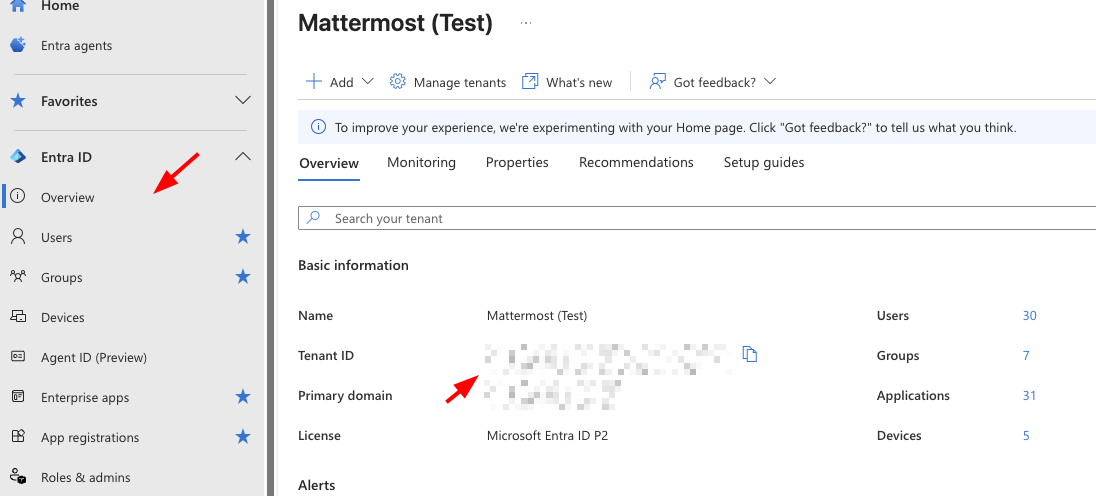
...to the right of the imported certificate details, select Activate token encryption certificate, then select Yes to activate.Copy the Tenant ID for use in the Mattermost SAML 2.0 URL settings.
Note
Entra exposes three different GUIDs during this setup, and it’s easy to confuse them. The Tenant ID identifies your entire Entra directory, while the Application ID and Object ID (visible on the enterprise application’s Properties page) identify the Mattermost SAML application within that directory. Mattermost uses the Tenant ID and Application ID; the Object ID is not used.
To find the Tenant ID, select Entra ID from the admin center home, then locate the Tenant ID value in the Basic information panel on the Overview page.
Copy the Application ID for use in the Identity Provider Metadata URL setting in the Mattermost SAML 2.0 settings.
To find the Application ID, select Entra ID > Enterprise applications from the left navigation menu, select the Mattermost application, then copy the Application ID from the Properties page (shown alongside the Object ID, which is not needed).
Configure SAML Sign-On for Mattermost
In the Mattermost System Console, select Authentication > SAML 2.0.
Set Enable Login With SAML 2.0 to True.
Set Identity Provider Metadata URL:
https://login.microsoftonline.com/<your-tenant-id>/federationmetadata/2007-06/federationmetadata.xml?appid=<your-app-id>Select Get SAML Metadata From IdP to verify that the SAML metadata can be retrieved successfully.
Set SAML SSO URL:
https://login.microsoftonline.com/<your-tenant-id>/saml2Set Identity Provider Issuer URL (trailing slash is required):
https://sts.windows.net/<your-tenant-id>/Choose the Identity Provider Public Certificate file from step 13 of Set up an enterprise app for Mattermost SSO in Entra ID then upload.
Set Verify Signature to True.
Set Service Provider Login URL:
https://<your-mattermost-url>/login/sso/samlSet Service Provider Identifier:
https://<your-mattermost-url>Set Enable Encryption to True.
Choose your Service Provider Private Key file then upload. If you used the Bash script referenced in the Before you begin section, this is the
mattermost-x509.keyfile.Choose your Service Provider Public Certificate then upload. If you used the Bash script referenced in the Before you begin section, this is the
mattermost-x509.crtfile.Set Sign Request to True if you want Mattermost to sign outbound AuthnRequests sent to Entra ID — this is distinct from Entra signing its SAML responses and assertions (configured in step 12 of the Entra setup). If enabled, set Signature Algorithm to RSAwithSHA256 (Entra ID requires RSA-SHA256 for signed requests) and upload Mattermost’s public certificate to Entra ID for request verification: in the enterprise application, select SAML Certificates, then upload the
mattermost-x509.crtfile under Verification certificates.
Note
The Test single sign-on with Mattermost SAML tool in Microsoft Entra ID does not sign the request even if Sign Request is set to True in Mattermost. Depending on your security settings and key length, the Entra ID testing tool may successfully sign in while an actual sign in request from your Mattermost login page results in the error AADSTS90015: Requested query string is too long. since Entra ID handles the initial request with an HTTP GET redirect rather than HTTP POST.
Set attribute settings to match the attributes configured in step 11 of the Set up an enterprise app for Mattermost SSO in Entra ID section. Each value must match the full claim name sent in the assertion, including the namespace, exactly. See the important note under step 11 for details and a common failure mode.
Set the Login Button Text to suit your environment.
Select the Save button.
Configure SAML synchronization with AD/LDAP
In addition to configuring SAML sign-in, you can optionally configure synchronizing SAML accounts with AD/LDAP. When configured:
Mattermost queries AD/LDAP for relevant account information and updates SAML accounts based on changes to attributes (first name, last name, and nickname)
Accounts disabled in AD/LDAP are deactivated in Mattermost, and their active sessions are revoked once Mattermost synchronizes attributes.
To configure SAML synchronization with AD/LDAP:
Go to System Console > Authentication > SAML 2.0, then set Enable Synchronizing SAML Accounts With AD/LDAP to true.
Go to System Console > Authentication > AD/LDAP to open the AD/LDAP wizard, navigate to the Connection Settings section, then set Enable Synchronization with AD/LDAP to true.
To ignore guest users when sychronizing, go to System Console > Authentication > SAML 2.0, then set Ignore Guest Users when Synchronizing with AD/LDAP to true.
Set the rest of the AD/LDAP settings based on configuration settings documentation to connect Mattermost with your AD/LDAP server.
If you don’t want to enable AD/LDAP sign-in, go to System Console > Authentication > AD/LDAP wizard, navigate to the Connection Settings section, then set Enable sign-in with AD/LDAP to false.
To specify how often Mattermost synchronizes SAML user accounts with AD/LDAP, go to System Console > Authentication > AD/LDAP wizard, navigate to the Sync Performance section, then set a Synchronization Interval in minutes. The default setting is 60 minutes. If you want to synchronize immediately after disabling an account, go to the Sync History section and select AD/LDAP Synchronize Now.
To confirm that Mattermost can successfully connect to your AD/LDAP server, go to System Console > Authentication > AD/LDAP wizard, navigate to the Connection Settings section, then select Test Connection.
Once the synchronization with AD/LDAP is enabled, user attributes are synchronized with AD/LDAP based on their email address. If a user with a given email address doesn’t have an AD/LDAP account, they will be deactivated in Mattermost on the next AD/LDAP sync.
To re-activate the account:
Add the user to your AD/LDAP server.
Purge all caches in Mattermost by going to System Console > Environment > Web Server, then select Purge All Caches.
Run AD/LDAP synchronization by going to System Console > Authentication > AD/LDAP wizard, navigating to the Sync History section, then select AD/LDAP Synchronize Now.
Purge all caches again in Mattermost by going to System Console > Environment > Web Server, then select Purge All Caches again. This re-activates the account in Mattermost.
Note
If a user is deactivated from AD/LDAP, they will be deactivated in Mattermost on the next sync. They will be shown as “Deactivated” in the System Console users list, all of their sessions will expire and they won’t be able to log back in to Mattermost.
If a user is deactivated from SAML, their session won’t expire until they’re deactivated from AD/LDAP. However, they won’t be able to log back in to Mattermost.
SAML synchronization with AD/LDAP is designed to pull user attributes such as first name and last name from your AD/LDAP, not to control authentication. In particular, the user filter cannot be used to control who can log in to Mattermost, this should be controlled by your SAML service provider’s group permissions.
See technical description of SAML synchronization with AD/LDAP for more details.
Override SAML data with AD/LDAP data
Alternatively, you can choose to override SAML bind data with AD/LDAP information. For more information on binding a user with the SAML ID Attribute, please refer to this documentation.
This process overrides SAML email address with AD/LDAP email address data or SAML Id Attribute with AD/LDAP Id Attribute if configured. We recommend using this configuration with the SAML ID Attribute to help ensure new users are not created when the email address changes for a user.
To ensure existing user accounts do not get disabled in this process, ensure the SAML IDs match the LDAP IDs by exporting data from both systems and comparing the ID data. Mapping ID Attributes for both AD/LDAP and SAML within Mattermost to fields that hold the same data will ensure the IDs match as well.
Set the SAML
Id Attributeby going to System Console > Authentication > SAML 2.0 > Id Attribute.Set System Console > Authentication > SAML 2.0 > Override SAML bind data with AD/LDAP information to true.
Set System Console > Authentication > SAML 2.0 > Enable Synchronizing SAML Accounts With AD/LDAP to true.
Run AD/LDAP sync by going to System Console > Authentication > AD/LDAP wizard, navigating to the Sync History section, then select AD/LDAP Synchronize Now.
Frequently Asked Questions
What encryption options are supported for SAML?
See the encryption options documentation for details on what encryption methods Mattermost supports for SAML.
How to bind authentication to Id attribute instead of email
Alternatively, you can use an Id attribute instead of email to bind the user. We recommend choosing an ID that is unique and will not change over time.
Configuring with an Id attribute allows you to reuse an email address for a new user without the old user’s information being exposed. For instance, if a user with an email address joe.smith@mattermost.com was once an employee, a new employee named Joe Smith can use the same email. This configuration is also useful when a user’s name changes and their email needs to be updated.
This process was designed with backwards compatibility to email binding. Here is the process applied to new account creations and to accounts logging in after the configuration:
A user authenticated with SAML is bound to the SAML service user using the Id Attribute (as long as it has been configured) or bound by email using the email received from SAML.
When the user tries to login and the SAML server responds with a valid authentication, then the server uses the “Id” field of the SAML authentication to search the user.
If a user bound to that ID already exists, it logs in as that user.
If a user bound to that ID does not exist, it will search base on the email.
If a user bound to the email exists, it logs in with email and updates the autentication data to the ID, instead of the email.
If a user bound to the ID or email does not exist, it will create a new Mattermost account bound to the SAML account by ID and will allow the user to log in.
Note
Existing accounts won’t update until they log in to the server.
Why does login fail with “one of the attributes is incorrect” / “<attribute> attribute is missing”?
A login failure with the error SAML login was unsuccessful because one of the attributes is incorrect. Please contact your System Administrator. — accompanied in the server logs by a detail such as email attribute is missing or name attribute is missing — means the assertion from your Identity Provider (IdP) did not contain an attribute whose name exactly matches what you configured in the Mattermost SAML attribute settings.
Mattermost matches each attribute by its full Name (or FriendlyName) as it appears in the assertion, character-for-character. The named attribute in the error message is the value you entered in Mattermost that could not be found.
This most often happens because the IdP sends attributes under a namespace. For example, Microsoft Entra ID emits its built-in claims under http://schemas.xmlsoap.org/ws/2005/05/identity/claims/ by default, so an attribute that looks like email in the Entra ID admin UI is actually sent in the assertion as http://schemas.xmlsoap.org/ws/2005/05/identity/claims/email. Entering only email in Mattermost will not match.
To resolve this:
Capture and decode the SAML response (for example, with the SAML-tracer browser extension) and read the
Nameattribute of each<Attribute>element in the<AttributeStatement>.Set each Mattermost attribute field to the exact
Namevalue from the assertion — including any namespace prefix — or reconfigure the IdP to emit the claim under the short name you want to use in Mattermost.
Can SAML via Microsoft ADFS be configured with Integrated Windows Authentication (IWA)?
Yes. IWA is supported on the browser, with support added to iOS and Android mobile apps in Q2/2019 (mobile apps v1.18 and later).
However, IWA is not supported on the Mattermost Desktop Apps due to a limitation in Electron. As a workaround you may create a browser desktop shortcut for quick access to Mattermost, just like a Desktop App.
Can I provision and deprovision users who log in via SAML?
Yes, but this relies on AD/LDAP to do so. Currently, we do not support SCIM. See “How do I deactivate users?” for more information.
How do I migrate users from one authentication method (e.g. email) to SAML?
See the mmctl user migrate-auth command documentation for details.
How is SAML different from OAuth 2.0 and OpenId Connect?
OAuth 2.0 was primarily intended for delegated authorization, where an app is authorized to access resources, such as Google contact list. It doesn’t deal with authentication.
OpenID Connect is built on top of OAuth 2.0, which supports authentication and thus direct SSO.
SAML is like OpenID Connect, except typically used in enterprise settings. OpenID Connect is more common in consumer websites and web/mobile apps.
Learn more at https://hackernoon.com/demystifying-oauth-2-0-and-openid-connect-and-saml-12aa4cf9fdba.