 Mattermost v11.0 is now available! Learn what's new »


Mattermost Calls Deployment Guide
 Available on Entry, Professional, Enterprise, and Enterprise Advanced plans
This guide walks System Administrators step-by-step through deploying Mattermost Calls, from preparation and network readiness through to pilot testing and production rollout. You’ll find clear decision points, verification checks, and troubleshooting tips to help you confirm each phase of the deployment is working before you move on.
No prior experience with Mattermost Calls is required - this guide assumes you’re starting fresh and will introduce essential concepts and best practices.
Calls Overview
Mattermost Calls offers self-hosted audio calling and screen sharing, enabling sovereign real-time collaboration fully contained within your infrastructure. This means no call media or metadata traverses third-party systems.
Calls is uniquely suited for mission-critical operations across defense, intelligence, security and critical infrastructure - where data sovereignty, control, and compliance are non-negotiable. It is designed to function in isolated networks without internet access, supporting deployments that demand full airgap compliance.
Functionality includes:
1:1 and Group Calling: Initiate real-time voice communication between two or more participants.
Screen Sharing: Share your screen during calls to collaborate visually on tasks, review documents, or troubleshoot live issues.
Call Recording and Transcription: Record voice sessions for asynchronous review. (Enterprise, Enterprise Advanced)
Live Captioning: Generate real-time subtitles for accessibility. (Enterprise, Enterprise Advanced)
Deployment Overview
This guide is organized into sequential deployment phases with numbered steps. Each phase begins with prerequisites and ends with verification checks. Before you begin any phase, make sure the listed prerequisites are met, then move to the next phase only after the verification checks are passing. This structure helps you catch and fix issues early, when they are easiest to isolate.
Deployment Phases:
-
Choose your deployment architecture, make networking decisions, provision required servers, and confirm the required network ports and paths are open before deployment.
-
Complete the installation and configuration for the deployment architecture you selected in Phase 1.
Path A: Configure Integrated Calls
Use the built-in Calls service on the Mattermost server for simpler deployment at small scale.
Path B: Install and Configure RTCD (Optional)
RTCD (Real-Time Communication Daemon) is a service built to offload media processing tasks from the Mattermost server.
Install and Configure Recording (Optional)
Calls Offloader is a service required to deliver recording, transcription and live captions.
-
Expand testing to a small group of pilot users to watch for client, network, and environment-specific issues under real usage.
-
Rollout to all users in controlled waves with appropriate communication and monitoring, and be ready to pause or roll back if needed.
Deployment Prerequisites
Use this checklist to confirm you have the infrastructure, skills, and access required before you begin deploying Calls. Completing these prerequisites now helps prevent delays caused by missing dependencies later in the deployment process.
Deployment Infrastructure Requirements
You have a running Mattermost server on v10.0+.
See System Information to check your Mattermost edition and version.
Your Mattermost server is configured to use HTTPS.
See Configure TLS if you need to set up HTTPS.
You know how many active users you have in your current Mattermost deployment
See Site Statistics to access usage metrics.
You can provision at least one dedicated Linux server or VM if you plan to use the RTCD service.
See Infrastructure Decisions (Step 1.2) if you’re unsure if you need RTCD.
You can provision a dedicated Linux server or VM for the
calls-offloaderservice if you need recording, transcription, or live captions.You are prepared to deploy a TURN server if your users cannot reliably reach the media service on UDP or TCP
8443.See Networking Decisions (Step 1.3) if you’re unsure if you need a TURN server.
You have the appropriate Mattermost edition and license for the features you need:
Mattermost Entry or Team Edition: 1-1 calling and screen sharing (Up to 40 minutes)
Mattermost Professional: Group calling and screen sharing (No time limit)
Mattermost Enterprise or Enterprise Advanced: Required for:
RTCD service for scale (50+ users) and production reliability.
Recording, transcription, or live captions.
Skills and Access Requirements
You are comfortable with basic Linux administration, or you have someone available who is. You will need to connect to servers over SSH, edit configuration files, manage systemd services, inspect logs, and run shell commands.
You have System Admin access to your Mattermost server.
See Mattermost roles to learn about roles and permissions.
Networking Requirements
You know how end users will connect to Calls (From private networks, VPN, or from the public internet)
This impacts your networking decisions (Step 1.3)
You can open the required inbound and outbound firewall rules, or you can engage the network or security team that manages them.
Validation Resources
You have two test accounts available for smoke testing during Calls installation and configuration.
You have a small pilot group (5-10 users) available for validation across the client types and networks you care about.
Contacting Support
You know how to open a request with Mattermost support if you encounter issues.
Please include the exact step number (e.g. 2A.2.1) that failed, along with your Mattermost support packet and Calls logs.
Note
If you need expert help deploying Calls, contact your Account Manager or talk to a Mattermost expert to learn about professional service offerings.
Phase 1: Preparation and Networking
1.1 Prerequisites
Before you start, confirm the following:
You know how many active users you have in your current Mattermost deployment.
You know whether recording, transcription, or live captions are required for your deployment.
You can provision additional servers if your chosen architecture requires RTCD or Recording services.
You can open inbound and outbound network ports on the servers involved in your deployment.
If a network or security team manages your firewalls, you’ll need to involve them before continuing.
1.2 Infrastructure Decisions
Here you will make two important infrastructure decisions: First you’ll choose your media processing architecture, then decide whether you need recording. Reference topology for each architecture is provided.
1.2.1 Media Service: RTCD or Integrated
Integrated
This is the simplest deployment model, since you do not need to provision a separate service to handle media processing. In Integrated mode, the Calls plugin runs its built-in media service directly on the Mattermost server.
RTCD
RTCD is a dedicated real-time communications service for Mattermost Calls that processes call media outside the main Mattermost server. In most production deployments, RTCD is the recommended deployment model because it improves performance, scalability, and stability by isolating call traffic and reducing load on the Mattermost server.
To determine if you’ll need RTCD, start by answering the following questions about your deployment:
Are you deploying Calls on Kubernetes?
Yes: You’ll need to deploy RTCD as it’s the only supported way to run Calls. See the Kubernetes Calls deployment guide for details.
No: Continue to the next question.
What is the Total User count of your existing Mattermost deployment? (Check Site Statistics)
Up to 50: You can use the Integrated deployment model.
More than 50: You’ll need to deploy RTCD to avoid impacting messaging performance of the Mattermost server.
Use the tabs below to view the reference architecture for each deployment model:
An Integrated deployment does not require any additional infrastructure:
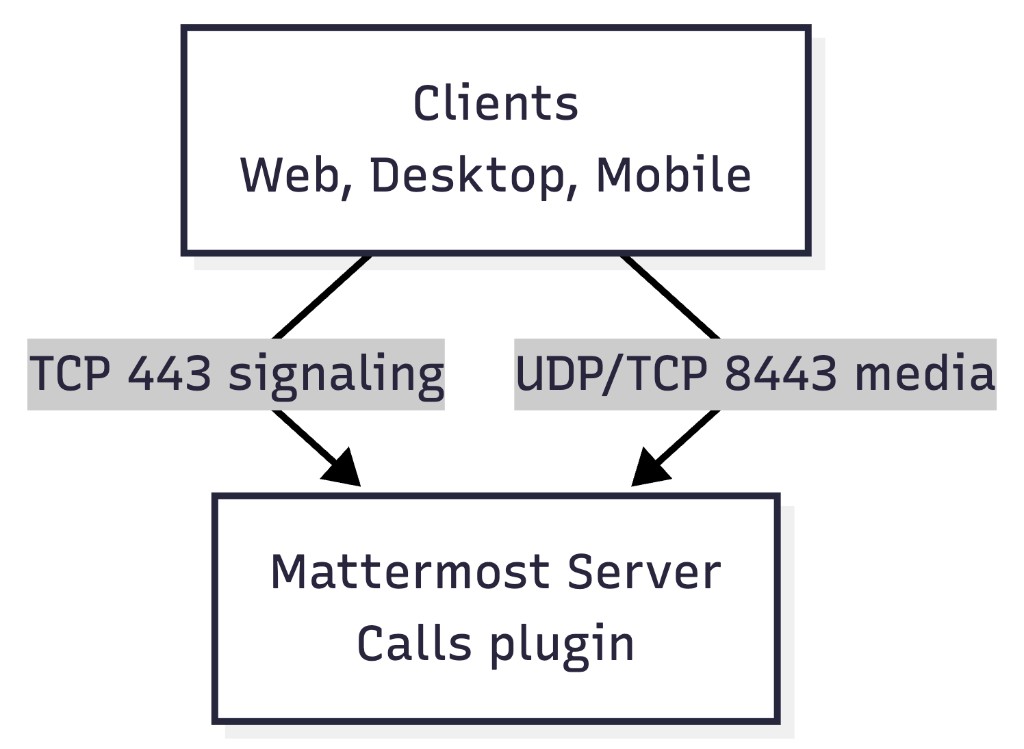
When to use it
You are evaluating Calls for the first time.
You expect fewer than 50 people to use Calls.
You want the simplest possible deployment.
Components
Mattermost server: Calls plugin is pre-installed, and no additional infrastructure is needed.
License
Mattermost Entry: 1:1 Calls + Screen Sharing (Up to 40 minutes)
Mattermost Professional, Enterprise, or Enterprise Advanced: Group Calls + Screen Sharing (No time limit)
An RTCD Server is added as a dedicated media service that processes all call audio and screen sharing media. The Mattermost server is still responsible for signaling (setting up, managing, and ending calls) and channel state (who is joining or leaving, who has muted, and overall call status), but the call media itself flows directly between clients and the RTCD server, completely bypassing the Mattermost server.
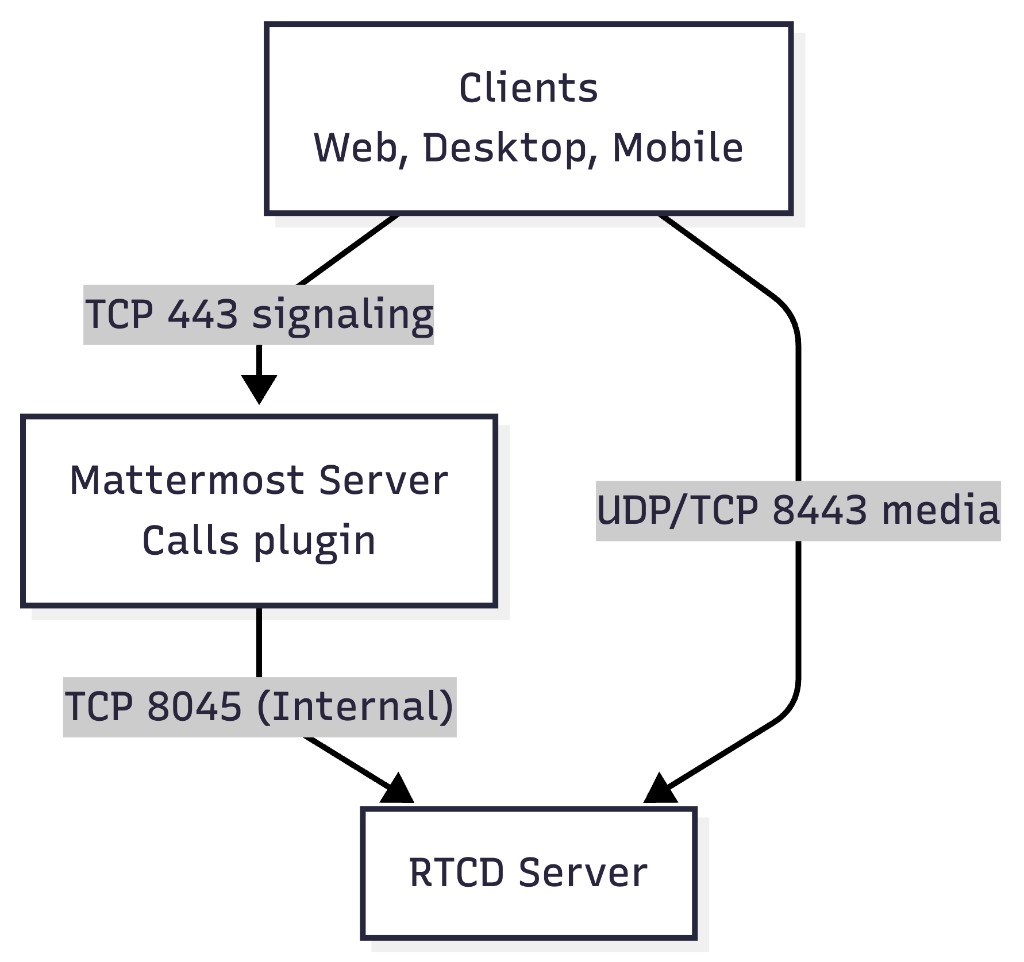
When to use it
Use RTCD if you need optimized performance, scalability, and the best possible user experience for Mattermost Calls. Specifically:
You want to keep call media traffic off your main Mattermost server to improve overall server performance and reduce CPU usage spikes.
You need your deployment to easily scale as call volume increases; additional RTCD servers can be added for load balancing.
You want the lowest possible media latency and highest reliability for Calls.
You are deploying Mattermost on Kubernetes, where RTCD is required.
Components
Mattermost server: Calls plugin is pre-installed.
RTCD Server: Dedicated media service. Clients connect to it directly for media traffic.
License
Mattermost Enterprise or Enterprise Advanced
1.2.2 Recording
The Recording service (calls-offloader) can be added to an Integrated or RTCD Calls deployment to enable recording, transcription, and live captions.
Use the tabs below to view the reference architecture for each deployment model when the recording service is added:
Reference architecture when using the Recording service with Integrated Calls:
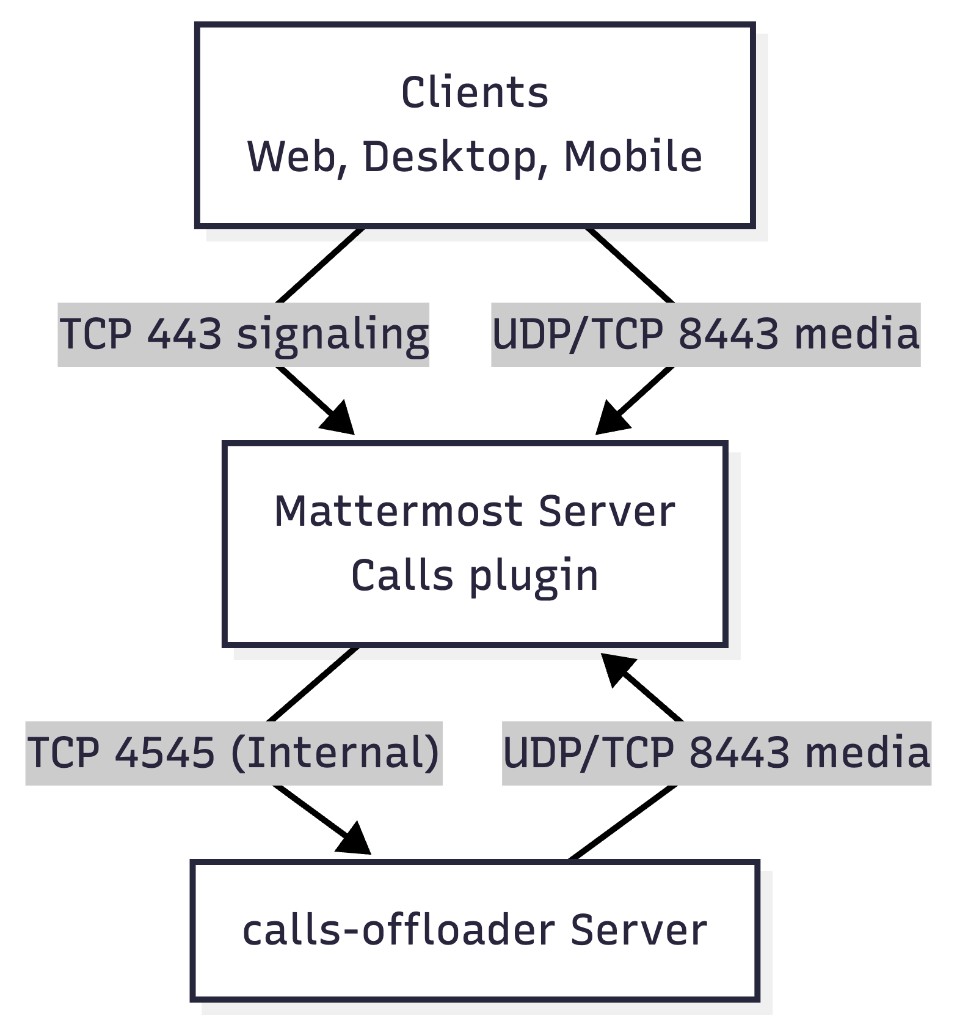
Components
Mattermost server: Calls plugin is pre-installed.
Calls Offloader: Job service that manages recording, transcription and live captions.
License
Mattermost Enterprise or Enterprise Advanced
Reference architecture when using the Recording service with RTCD:
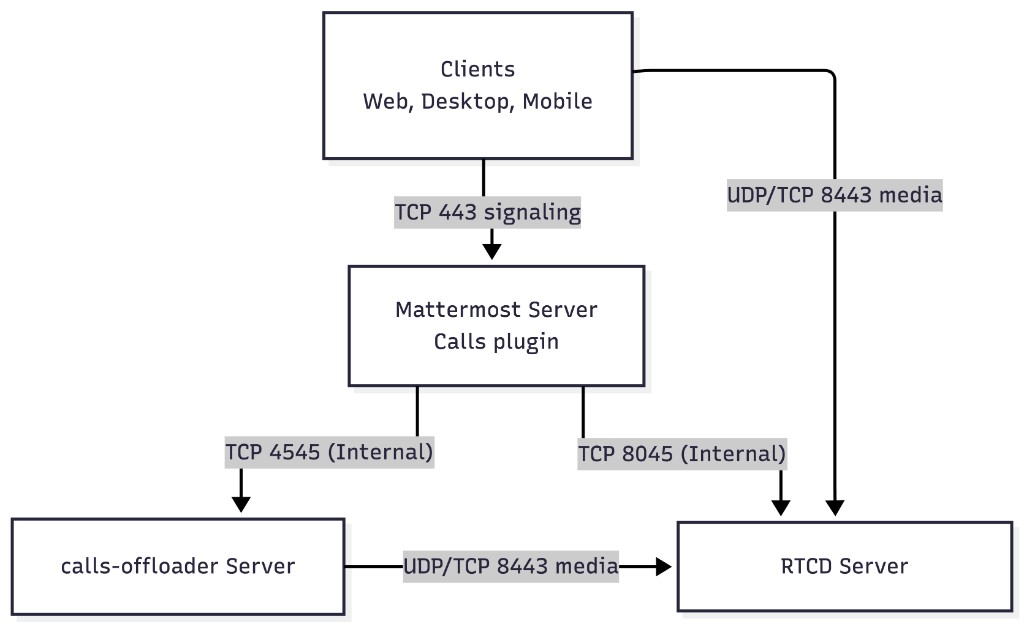
Components
Mattermost server: Calls plugin is pre-installed.
RTCD Server: Dedicated media service. Clients connect to it directly for media traffic.
Calls Offloader: Job service that manages recording, transcription and live captions.
License
Mattermost Enterprise or Enterprise Advanced
Note
For most production deployments that need recording, RTCD plus calls-offloader is the recommended combination because it keeps call media off the Mattermost server and scales more predictably.
1.3 Networking Decisions
1.3.1 STUN for Public IP Discovery
STUN is a protocol that helps the media server discover its public IP address automatically so remote clients can connect to Calls.
Mattermost provides a default STUN server (stun.global.calls.mattermost.com). No call media or signaling traffic is sent through this service; it is used only for STUN lookups. Use this decision tree to determine if you need to allow outbound access from your media server to the Mattermost global STUN service for public IP discovery.
Note
Your media server is the Mattermost server in the case of an Integrated Calls deployment, or it’s the RTCD server in the case of an RTCD Calls deployment.
STUN Decision Tree
Are all users and your media server in the same private network, VPN, or air-gapped environment, with no outside clients?
Yes: You do not need STUN for public IP discovery. You will use the private address of your media server for configuration in Phase 2.
No: Continue to the next question.
Does your media server have a stable public IP address or DNS name that clients on the public internet can reach?
Yes: You do not need STUN for public IP discovery. You will use the stable public address of your media server for configuration in Phase 2.
No: You will need STUN. You must open outbound UDP 3478 from your media server to
stun.global.calls.mattermost.com.
If your deployment requires STUN for public IP discovery, note that now so you can include it when opening ports in Step 1.5.
1.3.2 TURN Server
TURN is a relay service used only when clients cannot reach the Calls media service directly. If STUN helps clients discover where to connect, TURN acts as a backup route when direct connectivity is not possible.
Provisioning a TURN server is necessary if both of these conditions are true:
Clients connect from networks that cannot reliably use UDP on port
8443for media traffic (preferred).Clients connect from networks that cannot reliably use TCP on port
8443(fallback).
TURN is typically a last resort as it adds latency and infrastructure complexity. Only plan to deploy TURN if your answers indicate that you cannot rely on UDP or TCP for media, and users need an alternative route.
1.4 Provision Infrastructure
Now you’ll provision the servers or VMs required to support your Calls deployment. You are only preparing infrastructure here; software installation and service configuration happen in later phases. This step matters because you need the IP addresses or DNS names of these servers before you can finish the networking configurations in the next step.
Infrastructure requirements depend on the deployment infrastructure you selected in Step 1.2. If you provision additional hardware, write down the IP addresses or DNS names now because you will use them in Step 1.5:
Integrated
Since the Mattermost server is handling all media processing, you can skip this step and proceed to network configuration in Step 1.5.
RTCD
You will need to provision a new server for RTCD. Use the performance baselines for benchmark examples of hardware sizing. The RTCD service supports horizontal scaling, but we recommend starting with one server and then scaling out if your expected workload requires it.
Recording
You will need to provision a new server for the calls-offloader service. The recommended starting point is 8 vCPU / 16 GB RAM, or you can use these performance benchmarks to estimate recording capacity and transcription load.
TURN Server
If you’ve determined in Step 1.3.2 that your users cannot reliably reach the media server over UDP or TCP 8443, you will need to provision your TURN server now.
Mattermost recommends installing coturn.
Before moving to Step 1.5, confirm the following:
Every required server or VM has been created.
Every required server has the IP address or DNS name you plan to use later in configuration.
You have administrative access to every required server. (validate with
ssh <user>@<SERVER_IP>)
1.5 Network Configuration
This section lists the network ports that must be opened for each server involved in your Calls deployment. The server instances must exist before you can configure these rules, which is why provisioning in Step 1.4 comes first.
How you open ports depends on your environment:
Cloud deployments (AWS, Azure, GCP): Configure inbound and outbound rules in your cloud console security group or network ACL for each instance.
On-premises or self-managed VMs: Use
firewalld(RHEL, Rocky Linux, AlmaLinux) orufw(Ubuntu/Debian) commands directly on each server.Centrally managed firewall: If a network team manages your firewall, share the tables below with them and request the rules before proceeding.
Work through one server at a time so you can verify nothing is missed before moving on. Use only the tables that apply to your chosen deployment architecture (Integrated or RTCD):
Mattermost server ports
Port |
Protocol |
Direction |
Source |
Destination |
Notes |
|---|---|---|---|---|---|
443 |
TCP |
Inbound |
Mattermost clients |
Mattermost server |
HTTPS and WebSocket signaling. |
8443 |
UDP |
Inbound |
Mattermost clients |
Mattermost server |
Media traffic (Integrated mode). |
8443 |
TCP |
Inbound |
Mattermost clients |
Mattermost server |
Media traffic fallback (Integrated mode). |
3478 |
UDP |
Outbound |
Mattermost server |
|
(Optional - Step 1.3.1) Public IP discovery using STUN. |
Important
If you use NGINX as a reverse proxy in front of Mattermost, note that NGINX cannot forward UDP traffic. Port 8443 must be opened directly on the server running the media service - not on NGINX. Port 443 is the only port NGINX handles for Calls.
Recording server ports
If you deployed a calls-offloader server in Step 1.4, open these ports:
Port |
Protocol |
Direction |
Source |
Destination |
Notes |
|---|---|---|---|---|---|
4545 |
TCP |
Inbound |
Mattermost server |
calls-offloader server |
Job service API (Internal only) |
8443 |
UDP |
Outbound |
calls-offloader server |
Mattermost server |
Recorder and transcriber jobs connect to the media service as call participants. |
8443 |
TCP |
Outbound |
calls-offloader server |
Mattermost server |
Media traffic fallback. |
443 |
TCP |
Outbound |
calls-offloader server |
Mattermost server |
Recorder and transcriber jobs post results back to Mattermost. |
TURN server ports
If you deployed a TURN server in Step 1.4, open these ports. If you are using coturn, these are the common defaults:
Port |
Protocol |
Direction |
Source |
Destination |
Notes |
|---|---|---|---|---|---|
3478 |
UDP / TCP |
Inbound |
Mattermost clients |
TURN server |
TURN relay. |
5349 |
UDP / TCP |
Inbound |
Mattermost clients |
TURN server |
(Optional) If you configure TLS on TURN. |
49152-65535 |
UDP |
Inbound |
Mattermost clients |
TURN server |
TURN relay port range required to relay media. |
Mattermost server ports
Port |
Protocol |
Direction |
Source |
Destination |
Notes |
|---|---|---|---|---|---|
443 |
TCP |
Inbound |
Mattermost clients |
Mattermost server |
HTTPS and WebSocket signaling. |
3478 |
UDP |
Outbound |
Mattermost server |
|
(Optional - Step 1.3.1) Public IP discovery using STUN. |
RTCD server ports
Port |
Protocol |
Direction |
Source |
Destination |
Notes |
|---|---|---|---|---|---|
8443 |
UDP |
Inbound |
Mattermost clients and calls-offloader server |
RTCD server |
Media traffic. |
8443 |
TCP |
Inbound |
Mattermost clients and calls-offloader server |
RTCD server |
Media traffic fallback. |
8045 |
TCP |
Inbound |
Mattermost server |
RTCD server |
RTCD API (Internal only) |
3478 |
UDP |
Outbound |
RTCD server |
|
(Optional - Step 1.3.1) Public IP discovery using STUN. |
Important
If you use NGINX as a reverse proxy in front of Mattermost, note that NGINX cannot forward UDP traffic. Port 8443 must be opened directly on the server running the media service - not on NGINX. Port 443 is the only port NGINX handles for Calls.
Recording server ports
If you deployed a calls-offloader server in Step 1.4, open these ports:
Port |
Protocol |
Direction |
Source |
Destination |
Notes |
|---|---|---|---|---|---|
4545 |
TCP |
Inbound |
Mattermost server |
calls-offloader server |
Job service API (Internal only) |
8443 |
UDP |
Outbound |
calls-offloader server |
Mattermost server and RTCD server |
Recorder and transcriber jobs connect to the media service as call participants. |
8443 |
TCP |
Outbound |
calls-offloader server |
Mattermost server and RTCD server |
Media traffic fallback. |
443 |
TCP |
Outbound |
calls-offloader server |
Mattermost server |
Recorder and transcriber jobs post results back to Mattermost. |
TURN server ports
If you deployed a TURN server in Step 1.4, open these ports. If you are using coturn, these are the common defaults:
Port |
Protocol |
Direction |
Source |
Destination |
Notes |
|---|---|---|---|---|---|
3478 |
UDP / TCP |
Inbound |
Mattermost clients |
TURN server |
TURN relay. |
5349 |
UDP / TCP |
Inbound |
Mattermost clients |
TURN server |
(Optional) If you configure TLS on TURN. |
49152-65535 |
UDP |
Inbound |
Mattermost clients |
TURN server |
TURN relay port range required to relay media. |
1.6 Networking Checks
These checks test firewall rules and network reachability only. They do not require Calls, RTCD, or calls-offloader to be installed yet.
First, install nmap on each machine you will run checks from. For example:
Ubuntu or Debian:
sudo apt install nmapRHEL, Rocky Linux, or AlmaLinux:
sudo dnf install nmap
When you execute each check below, nmap returns open, closed, or filtered.
Pass:
open: Port is reachable and the service is running. Expected if you’ve already installed the RTCD or Recording services in Phases 2-3.closed: Port is reachable but the service is not running. Expected if you just provisioned the infrastructure in Step 1.4.
Fail:
filtered: Firewall is blocking the port. Revisit your networking configuration in Step 1.5 before continuing.
Note
In the commands below, replace TARGET_IP with the actual IP address of the server you are testing. For example, if your Mattermost server IP is 10.0.1.50, run sudo nmap -sU -p 8443 10.0.1.50.
Integrated deployments
Run from a client machine on the same network as your users:
Check |
Command |
|
Description |
|---|---|---|---|
1.6.1 |
|
Mattermost server IP |
Clients can send UDP media to the Mattermost server |
1.6.2 |
|
Mattermost server IP |
Clients can reach the Mattermost server for TCP media fallback |
RTCD deployments
Run from a client machine on the same network as your users:
Check |
Command |
|
Description |
|---|---|---|---|
1.6.3 |
|
RTCD server IP |
Clients can send UDP media to the RTCD server |
1.6.4 |
|
RTCD server IP |
Clients can reach the RTCD server for TCP media fallback |
Run from the Mattermost server:
Check |
Command |
|
Description |
|---|---|---|---|
1.6.5 |
|
RTCD server IP |
Mattermost can reach the RTCD API |
Recording deployments
Run from the Mattermost server:
Check |
Command |
|
Description |
|---|---|---|---|
1.6.6 |
|
calls-offloader server IP |
Mattermost can reach the calls-offloader API |
Run from the calls-offloader server:
Check |
Command |
|
Description |
|---|---|---|---|
1.6.7 |
|
RTCD server IP (or Mattermost server IP if using Integrated mode) |
Calls Offloader can send UDP media to the media service to join calls for recording |
1.6.8 |
|
RTCD server IP (or Mattermost server IP if using Integrated mode) |
Calls Offloader can reach the media service for TCP media fallback |
1.6.9 |
|
Mattermost server IP |
Calls Offloader can post recordings back to Mattermost |
TURN deployments
Run from a client machine on the same network as your users:
Check |
Command |
|
Description |
|---|---|---|---|
1.6.10 |
|
TURN server IP |
Clients can reach the TURN server on UDP 3478 |
1.6.11 |
|
TURN server IP |
Clients can reach the TURN server on TCP 3478 |
1.6.12 |
|
TURN server IP |
(Optional) Clients can reach the TURN server over TLS |
1.6.13 |
|
TURN server IP |
Spot check of the TURN relay port range |
1.7 Verification Checks
Before proceeding to Phase 2, confirm all of the following:
You have chosen your deployment architecture and provisioned the required servers.
You have confirmed your Mattermost license supports the architecture and features you plan to deploy.
Every required firewall rule and network path for your chosen architecture has been opened.
Every relevant network check in Step 1.6 returned the expected result (
openorclosed, but notfiltered).If you need STUN, outbound UDP
3478is allowed tostun.global.calls.mattermost.com.
Important
Do not proceed to Phase 2 until all checks in this section relevant to your deployment architecture are passing. If any check fails, go to Appendix A: Troubleshooting.
Phase 2: Install and Configure Calls
Now you will configure Calls following the relevant path for your deployment architecture. Do not complete both paths for the same deployment.
Path A if you are using the Integrated Calls deployment model.
Path B if you are using the RTCD Calls deployment model.
Path A: Configure Integrated Calls
2A.1 Prerequisites
Phase 1 verification checks passed
Integrated is the base architecture you selected in Step 1.2
Two test accounts on your Mattermost server
System Admin permissions on your Mattermost server
2A.2 Configure the Calls plugin
The Calls plugin is prepackaged with Mattermost self-hosted deployments. Go to System Console > Plugins > Calls > Settings and complete the following steps:
2A.2.1: Enable the plugin
Set Enable Plugin to true. This enables editing for the rest of the configuration settings on the page.
2A.2.2: Enable test mode
Set Test mode to on, so Calls stays restricted during initial validation. In this mode, System Admins control where Calls is available and can enable it in specific channels for testing.
2A.2.3: Configure the host media address
Set ICE Host Override to the IP address or DNS name clients will use to reach the media service. ICE (Interactive Connectivity Establishment) is the protocol your users’ devices use to find a path to the media server. The ICE Host Override tells Calls which address to advertise to them. Base this value on the STUN decision tree from Step 1.3.1.
If your users are in a private network, VPN, or air-gapped environment, set it to the private address of the Mattermost server they can reach.
If your Mattermost server has a stable public IP, set it to that IP.
Otherwise, leave it empty for automatic public address discovery using STUN.
2A.2.4: Configure TURN Servers
If TURN is being used, replace or extend the ICE server configurations array with your TURN server details:
[
  {
    "urls": ["turn:turn.example.com:3478"],
    "username": "<USERNAME>",
    "credential": "<PASSWORD>"
  }
]
If your TURN deployment uses short-lived generated credentials, also set TURN Static Auth Secret and TURN Credentials Expiration.
2A.2.5: Save configuration
Click Save on the Calls settings page. It is also recommended that you restart the plugin after changing media server settings:
Go to System Console > Plugins > Plugin Management.
Disable Calls and wait a few seconds.
Enable Calls again.
2A.3 Verification Checks
Now smoke test your Calls deployment with your test accounts:
Create a test channel such as
calls-test.Open the Channel menu, then select Enable calls.
Invite your test users into the channel so you can validate a real call.
Check |
Action |
Pass criteria |
|---|---|---|
2A.3.1 |
Start a call from the test channel with a second user |
Both users are in the call |
2A.3.2 |
Speak during the call |
Both users can hear each other clearly |
2A.3.3 |
Share your screen from a desktop app or supported browser |
Screen sharing is visible to the other user |
2A.3.4 |
End the call |
The call indicator disappears from the channel |
Important
Do not continue until all of the checks pass. If any check fails, go to Appendix A: Troubleshooting.
Path B: Install and Configure RTCD
2B.1 Prerequisites
Phase 1 verification checks passed
RTCD is the base architecture you selected in Step 1.2
RTCD server is provisioned (1.4) and RTCD networking checks passed (1.6.3-1.6.5)
Mattermost Enterprise or Enterprise Advanced license is active on your server
Two test accounts on your Mattermost server
System Admin permissions on your Mattermost server
2B.2 Install RTCD
Follow the RTCD Setup and Configuration guide for the actual installation. The guide covers:
Binary installation
rtcd.tomlconfigurationService setup
TURN configuration (if applicable)
Note
If you are deploying on Kubernetes, also use the Calls Deployment on Kubernetes guide for cluster-specific installation and Helm-based configuration.
Before proceeding, run these checks from the Mattermost server to confirm RTCD is running and reachable:
Check |
Command |
Pass criteria |
|---|---|---|
2B.2.1 |
|
|
2B.2.2 |
|
Returns a JSON version string |
2B.3 Connect Mattermost to RTCD
Once RTCD is installed, configured, and reachable, update the Calls plugin to use it:
Go to System Console > Plugins > Calls > Settings.
Set Enable Plugin to
true. This enables editing for the rest of the Calls settings on the page.Set Test mode to
on, so Calls stays restricted during initial validation. In this mode, System Admins control where Calls is available and can enable it in specific channels for testing.Set RTCD Service URL to your RTCD address. If RTCD credentials were generated during setup, embed them directly in the URL:
http://clientID:authKey@rtcd.internal:8045
Replace
clientIDandauthKeywith the values generated during RTCD setup. The first connection to RTCD self-registers the client and stores the authentication key in the database.Alternatively, set credentials via environment variables on the Mattermost server:
MM_CALLS_RTCD_CLIENT_IDandMM_CALLS_RTCD_AUTH_KEY.Click Save and restart the Calls plugin so the change takes effect.
2B.4 Configure Calls Monitoring
Before your pilot, set up Calls monitoring so you can see sessions, errors, CPU, and memory while real users are testing.
Calls monitoring uses Prometheus (a tool that collects metrics from your servers) and Grafana (a dashboard that visualizes those metrics). If you don’t have these set up yet, see Mattermost monitoring setup before continuing. If you already have Prometheus and Grafana running, add the following scrape targets and import the dashboard:
RTCD metrics:
http://YOUR_RTCD_SERVER:8045/metricsCalls plugin metrics:
http://YOUR_MATTERMOST_SERVER:8067/plugins/com.mattermost.calls/metricsGrafana dashboard: Import dashboard ID
23225
See Calls Metrics and Monitoring for full configuration details.
2B.5 Verification Checks
Now smoke test your RTCD deployment with your test accounts:
Create a test channel such as
calls-test.Open the Channel menu, then select Enable calls.
Invite your test users into the channel so you can validate a real call.
Check |
Action |
Pass criteria |
|---|---|---|
2B.5.1 |
Start a call from the test channel with a second user |
Both users are in the call |
2B.5.2 |
Speak during the call |
Both users can hear each other clearly |
2B.5.3 |
Share your screen from a desktop app or supported browser |
Screen sharing is visible to the other user |
2B.5.4 |
End the call |
The call indicator disappears from the channel |
If these checks fail, try these troubleshooting techniques first:
Re-run checks
2B.2.1and2B.2.2to confirm RTCD is listening and responding.Confirm RTCD Service URL is correct and includes credentials if your RTCD setup requires them.
Check that the Mattermost server can reach RTCD on port
8045, and review RTCD logs before changing other settings.
Important
Do not continue until all of the checks pass. If any check fails, go to Appendix A: Troubleshooting.
Phase 3: Install and Configure Recording
Now we will install and configure the calls-offloader job service that handles call recording, transcription, and live captions.
You can skip this phase if you do not need recording, transcription, or live captions.
3.1 Prerequisites
calls-offloaderserver is provisioned (1.4) and relevant networking checks passed (1.6.6-1.6.9)If you are using Integrated mode: Phase 2A verification checks passed (2A.3.1-2A.3.4).
If you are using RTCD: Phase 2B verification checks passed (2B.5.1-2B.5.4).
Mattermost Enterprise or Enterprise Advanced license is active on your server
System Admin permissions on your Mattermost server
3.2 Install calls-offloader
Follow the Calls Offloader Setup and Configuration guide for installation. The guide covers:
Binary installation
config.tomlconfigurationSystemd service setup
Docker-backed jobs
Private network overrides
Air-gapped installation
Before proceeding, run these checks from the Mattermost server to confirm calls-offloader is running and reachable:
Check |
Command |
Pass criteria |
|---|---|---|
3.2.1 |
|
|
3.2.2 |
|
Returns a JSON version string |
3.3 Connect calls-offloader to Mattermost
Go to System Console > Plugins > Calls > Settings.
Set Job Service URL to the calls-offloader address, for example
http://calls-offloader.internal:4545.Enable Call Recordings if needed.
Enable Call Transcriptions if needed. Transcriptions require recordings to be enabled.
Enable Live Captions if needed. Live captions require both recordings and transcriptions to be enabled.
Click Save and restart the Calls plugin so the change takes effect.
3.4 Verification Checks
Now smoke test recording-related features with your test accounts:
Check |
Action |
Pass criteria |
|---|---|---|
3.4.1 |
Start recording as a call host |
Recording starts without error. |
3.4.2 |
End the call or stop the recording |
An MP4 file appears in the call thread after processing completes. |
3.4.3 |
With transcription enabled, end a recorded call |
An MP4 file and transcript file appear in the call thread after processing completes. |
3.4.4 |
With live captions enabled, start a recorded call |
Captions appear during the call within 1-3 seconds after participants speak. |
If a recording-related check fails, isolate the problem before retrying:
3.4.1 or 3.4.2 fails: Confirm the Job Service URL is correct, the
calls-offloaderservice is running, and the Mattermost server can reach port4545.3.4.3 fails: Confirm recordings are enabled first, then confirm transcription is enabled.
3.4.4 fails: Confirm both recordings and transcriptions are enabled before testing live captions.
Important
Do not continue until all of the checks pass. If any check fails, go to Appendix A: Troubleshooting.
Phase 4: Pilot Rollout
Now that the technical configuration is complete and validated, run a small pilot with real users before broad rollout. The goal is to confirm Calls works reliably across the clients and locations your organization uses, and that your servers stay healthy under normal usage.
4.1 Prerequisites
If using Integrated mode: Phase 2A verification checks passed (2A.3.1-2A.3.4)
If using RTCD: Phase 2B verification checks passed (2B.5.1-2B.5.4)
If using Recording: Phase 3 verification checks passed (3.4.1-3.4.4)
5 to 10 volunteer pilot users from different locations
Access to the metrics dashboard and logs on your Calls infrastructure
Pilot users have current Mattermost desktop and mobile apps
4.2 Preparation and Communication
For a successful pilot, make sure pilot users know what to test, how to start a call, and how to report problems.
After inviting your pilot users into the calls-test channel, post a short message there so everyone is testing the same things. A template is provided below:
Pilot user communication template
## Mattermost Calls pilot

Thank you for volunteering to test Mattermost Calls before a wider rollout. After 3-5 days of pilot testing, we will ask everyone to share their findings and experiences. Please keep track of any issues or feedback so you can summarize them when requested.

**How to start**

Calls is enabled in this channel for pilot testing. You can select **Start call** in the channel header to begin, or join an existing call if one is already started.

You can learn more about Mattermost Calls in the [documentation](https://docs.mattermost.com/end-user-guide/collaborate/make-calls.html).

**Test Cases**

| Test | Action | Pass criteria | Client Types |
|---|---|---|---|
| T1 | Group call with 3-5 participants | All participants can hear each other clearly | Web, Desktop, Mobile |
| T2 | Group call lasting 15 minutes or longer | No unexpected drops or audio degradation | Web, Desktop, Mobile |
| T3 | Participants join calls from outside the main office network | Call quality is acceptable from that network | Web, Desktop, Mobile |
| T4 | Participants share screen during a call | Screen sharing works and is visible to all participants | Desktop, Web |
| T5 | Record a group call, if recording is enabled | MP4 and transcription file appear in the call thread after processing completes | Web, Desktop, Mobile |
| T6 | Enable Live Captions during a group call, if captions are enabled | Captions appear during the call within 1-3 seconds after participants speak | Web, Desktop |

**Reporting Issues**

If you encounter an issue, please report it by posting in this channel and including:

- Test number
- Reproduction steps
- What you expected to happen
- What actually happened (with screenshots)
- Your client type (desktop, browser, or mobile)
4.3 Verification Checks
Monitoring
Check |
Action |
Pass criteria |
|---|---|---|
4.3.1 |
Check your metrics dashboard during a pilot call |
Active sessions and participants are visible and counted correctly |
4.3.2 |
If using RTCD, check RTCD error metrics after pilot calls ( |
No elevated error counts |
4.3.3 |
If using RTCD, check CPU and memory metrics during a pilot call ( |
No CPU or memory spikes observed |
4.3.4 |
Review Mattermost logs, plus RTCD and calls-offloader logs if those services are deployed |
No recurring |
Production readiness
Collect feedback from your pilot users after 3-5 business days and use it to evaluate production readiness:
Check |
Requirement |
|---|---|
4.3.5 |
Audio quality rated acceptable by 80%+ of pilot users |
4.3.6 |
No blocking issues found in the pilot test cases |
4.3.7 |
All pilot users confirm readiness for production rollout |
If the pilot users find issues, do not expand the rollout yet:
Fix the issue in the smallest possible scope.
Repeat the affected pilot test case.
Stay in pilot until the failing scenario is consistently passing.
You can also run /call stats in the Mattermost message area after a failed test for additional diagnostic clues.
Important
Do not continue to a production rollout until all relevant checks are passing. If any check fails, go to Appendix A: Troubleshooting.
Phase 5: Production Rollout
Now you will execute a broader rollout to all users in production.
5.1 Prerequisites
Phase 4 production readiness checks passed (4.3.1-4.3.7)
Rollback plan documented and understood
System Admin permissions on your Mattermost server
Access to the metrics dashboard and logs on your Calls infrastructure
5.2 Rollback plan
You should be familiar with your rollback options before you begin the staged production rollout. If something goes wrong, choose the smallest rollback that solves the problem:
Per-channel rollback
Disables Calls in specific channels.
Navigate to the impacted channel.
Select the Channel menu, then select Disable calls.
Test mode rollback
Restricts Calls to channels where it has been enabled by a System Admin.
Go to System Console > Plugins > Calls > Settings.
Set Test Mode to
on.
Full rollback
Disables Calls completely for everyone.
Go to System Console > Plugins > Plugin Management.
Disable the Calls plugin.
If you have an existing conferencing tool, keep it available until Calls is stable in production.
5.3 Preparation and Communication
Before announcing Calls to users, create a calls-support public channel. This gives users a clear place to report issues and gives your admins a single place to track rollout problems.
Also prepare a short announcement to share in an all-hands channel or similar high-visibility location. A template is provided below:
Production rollout communication template
## Mattermost Calls rollout

We're enabling Mattermost Calls across this server. Starting today, you can start audio calls in select channels directly within Mattermost - no need to switch to a separate tool.

We're rolling out gradually, starting with a select set of channels before expanding to everyone.

**Calls features**

- Start or join 1:1 and group audio calls
- Share your screen from the desktop app or browser
- Record calls and generate transcripts, if enabled
- Use live captions during recorded calls, if enabled

You can learn more about Mattermost Calls in the [documentation](https://docs.mattermost.com/end-user-guide/collaborate/make-calls.html).

**How to start a call**

Select **Start call** in the channel header. Anyone in the channel can join.

**Things to know**

- We recommend updating your [desktop and mobile apps](https://mattermost.com/apps/) to the latest version
- Your browser or desktop app may ask for microphone permission the first time you join a call.
- Screen sharing may also require a screen capture permission prompt.

**Need help?**

Post in `~calls-support` and include what you were trying to do, what happened, and a screenshot if possible.
5.4 Rollout Stages
We recommend enabling Calls in stages instead of enabling it everywhere at once. This way you can watch real usage, catch problems early, and rollback cleanly if needed.
Stage |
Channels / departments |
Suggested timeline |
Rollback approach |
|---|---|---|---|
Stage 1 |
IT and Admin channels |
Days 1-3 |
Per-channel rollback |
Stage 2 |
Engineering or power user channels |
Days 4-7 |
Per-channel rollback |
Stage 3 |
Full organization |
Day 8+ |
Test mode (if issues are isolated) or full rollback |
If a rollout stage introduces problems, pause the rollout, use the rollback option listed for that stage, fix the issue, and repeat the same stage before moving to the next one.
5.5 Monitor and optimize
Once Calls is live, monitor it actively for the first two weeks and tune based on what you see.
5.5.1: Watch server health during peak call hours
Monitor CPU and memory on the media server (RTCD or Mattermost server) daily during peak usage. If CPU utilization consistently exceeds 70%, consider increasing hardware specs, or adding RTCD nodes before the next rollout stage.
5.5.2: Review logs daily
Check Mattermost, RTCD, and calls-offloader logs each day for recurring ERROR or WARN lines. Address any patterns before they become user-facing problems.
5.5.3: Tune Max Call Participants
If you see resource pressure during large calls, lower Max Call Participants in System Console > Plugins > Calls. By default there is no participant limit (configured as 0, which means unlimited). A practical ceiling for most deployments is 50.
5.5.4: Track user-reported issues
Monitor ~calls-support for recurring complaints.
Check Appendix A: Troubleshooting for common issues and fixes.
Appendix A: Troubleshooting
A.2 Calls start but audio does not work
Cause |
Fix |
|---|---|
UDP |
Repeat the UDP connectivity check from Phase 1 (check 1.6.1 or 1.6.3) and confirm the firewall rule is applied |
TCP |
Repeat the TCP check (1.6.2 or 1.6.4) - clients need at least one path to the media service |
The wrong media address is being advertised |
Re-check |
Browser or desktop microphone permissions were denied |
Ask the user to check browser or OS microphone permissions and reload the app |
A.3 Remote users cannot join from outside the network
Cause |
Fix |
|---|---|
External firewall rules are blocking UDP |
Confirm external reachability to UDP |
The advertised media address is a private IP |
Set |
Client networks are too restrictive for direct UDP or TCP |
Deploy a TURN server and add it to ICE server configurations |
A.4 Recording, transcription, or captions are failing
Cause |
Fix |
|---|---|
calls-offloader is not running |
Run |
Mattermost cannot reach the Job Service URL |
Run |
The offloader service account cannot use Docker |
Confirm the service account is in the |