Mattermost v11.0 is now available! Learn what's new »


Manage channel members
 Available on
 Add members to a channel
Any member of a channel can add other members to public or private channels, unless your system admin has restricted access to do so.
When a channel has attribute-based access controls enabled, you’ll see details about which user attributes are permitted access to the channel. Only users who meet the requirements appear in search results when adding members to that channel.
To add members to a channel:
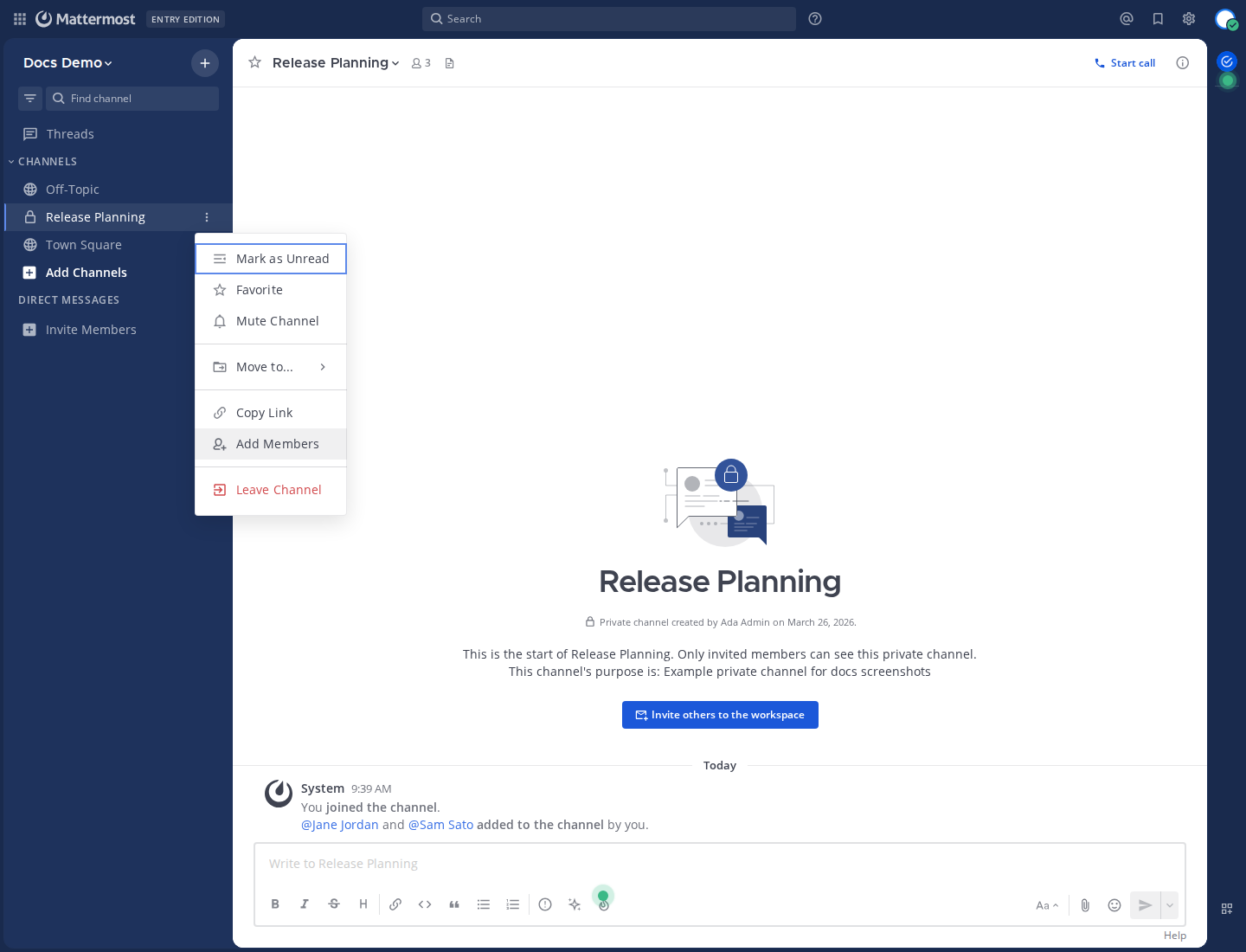
In the channel list, hover over a channel name and select the channel options menu. Then select Add Members.
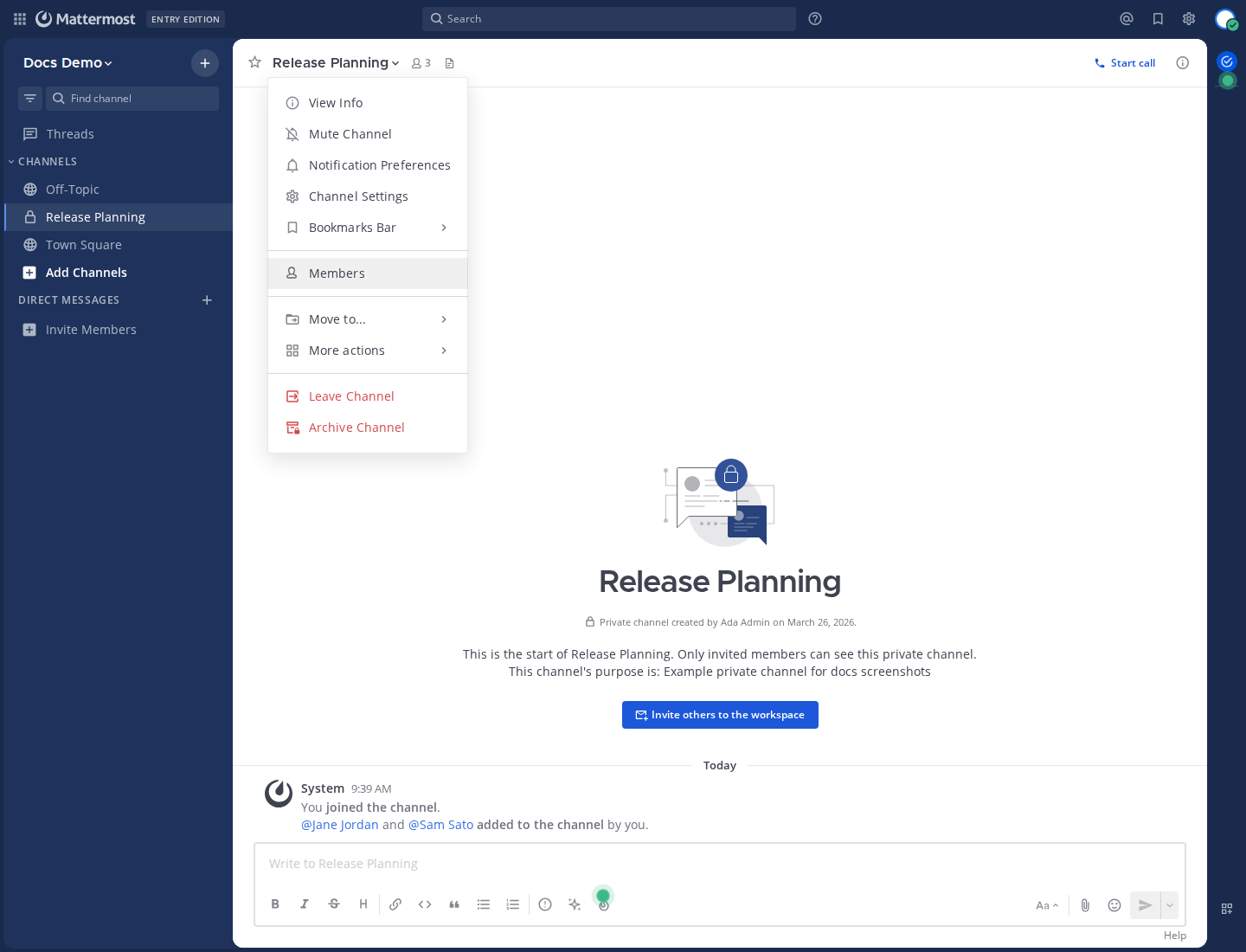
Select the channel name at the top of the center pane to access the drop-down menu, then select Members.
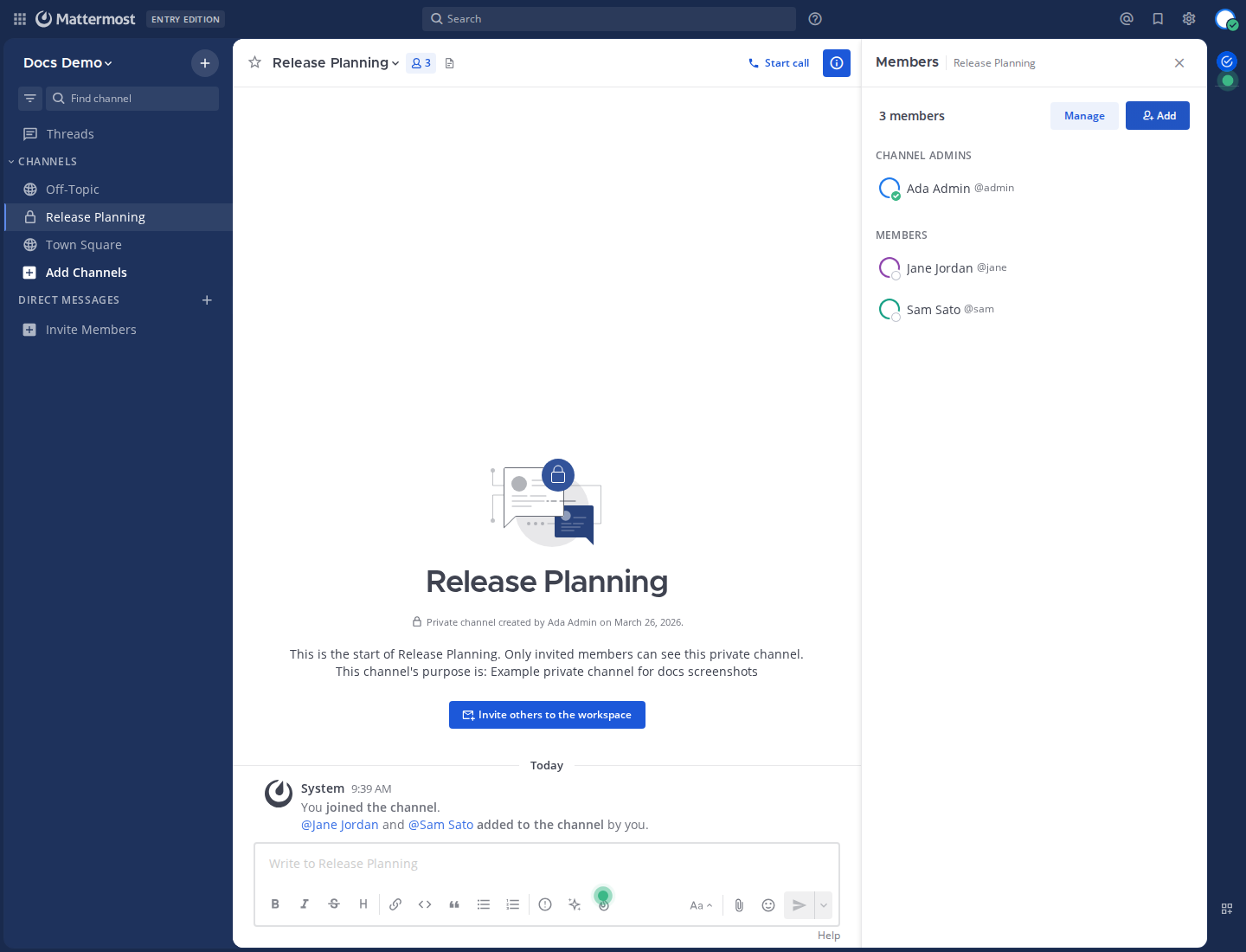
Select the member count at the top of the center pane to open the channel members right-hand pane, then select Add.
Alternatively, select the View Info
 icon in the channel header, then select Add People in the right-hand pane.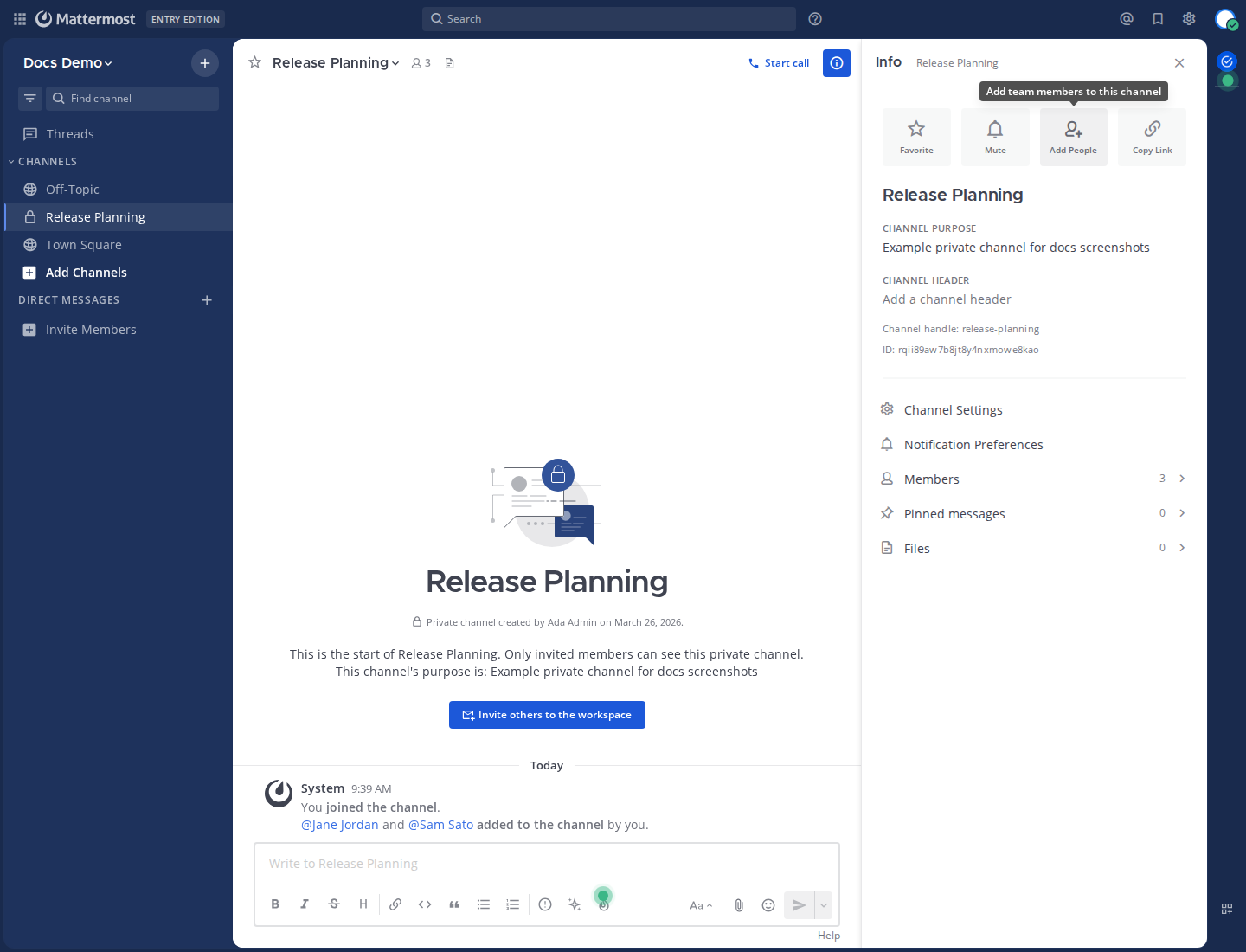
Search for users, select users, then select Add to add users to the current channel. Mattermost notifies you when a user is already a member of the channel.
Tip
From Mattermost v7.8, people you’ve messaged directly are listed first, followed by all users in alphabetical order.
If the channel has access control restrictions, you’ll see details about required attributes in the add-members flow and only eligible users appear in search results.
To add members to a channel:
Tap the channel name at the top of the screen.
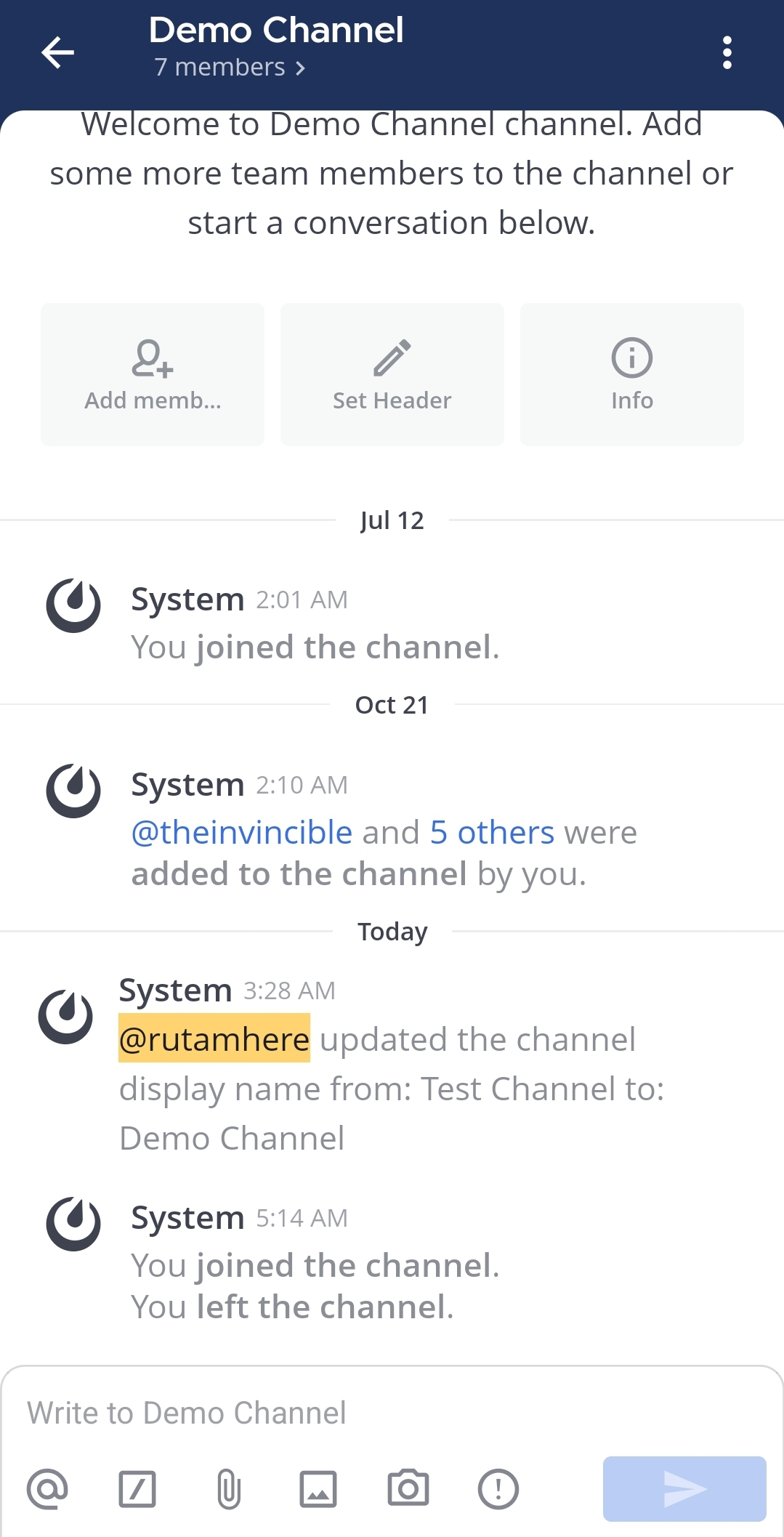
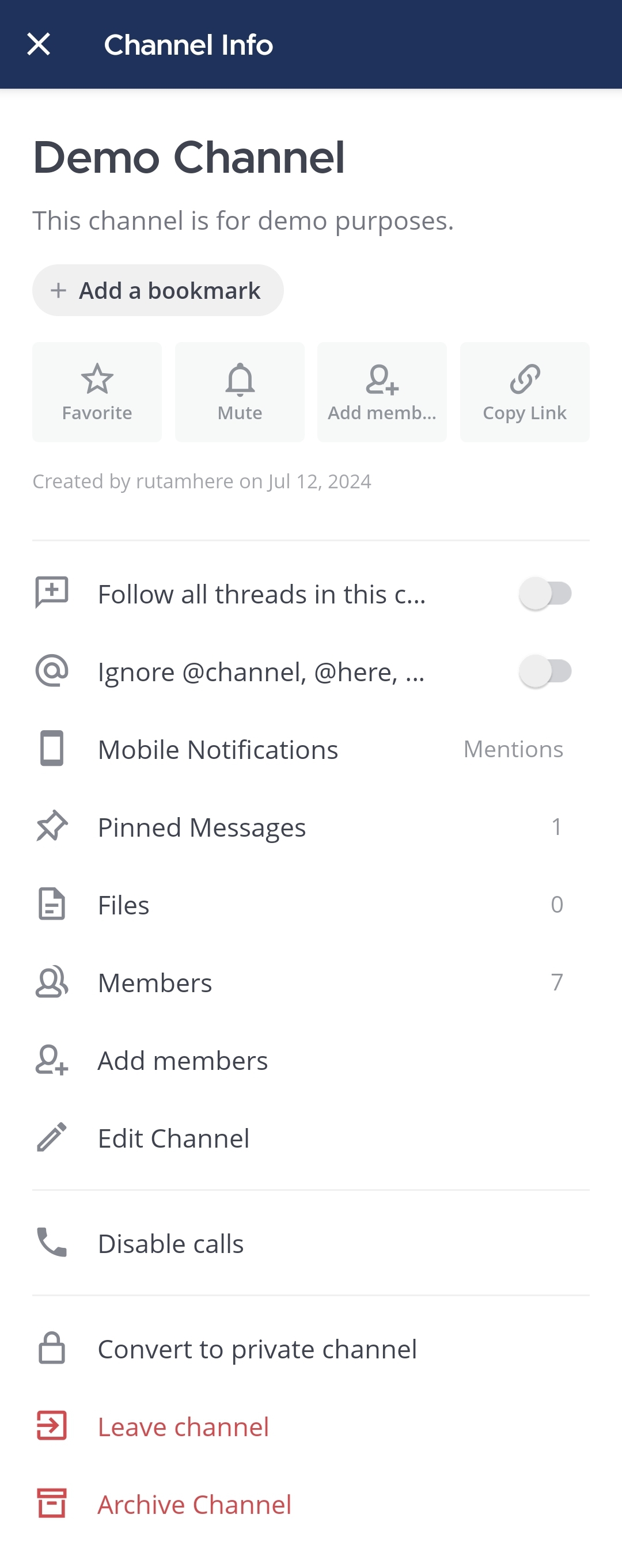
Tap Add members.
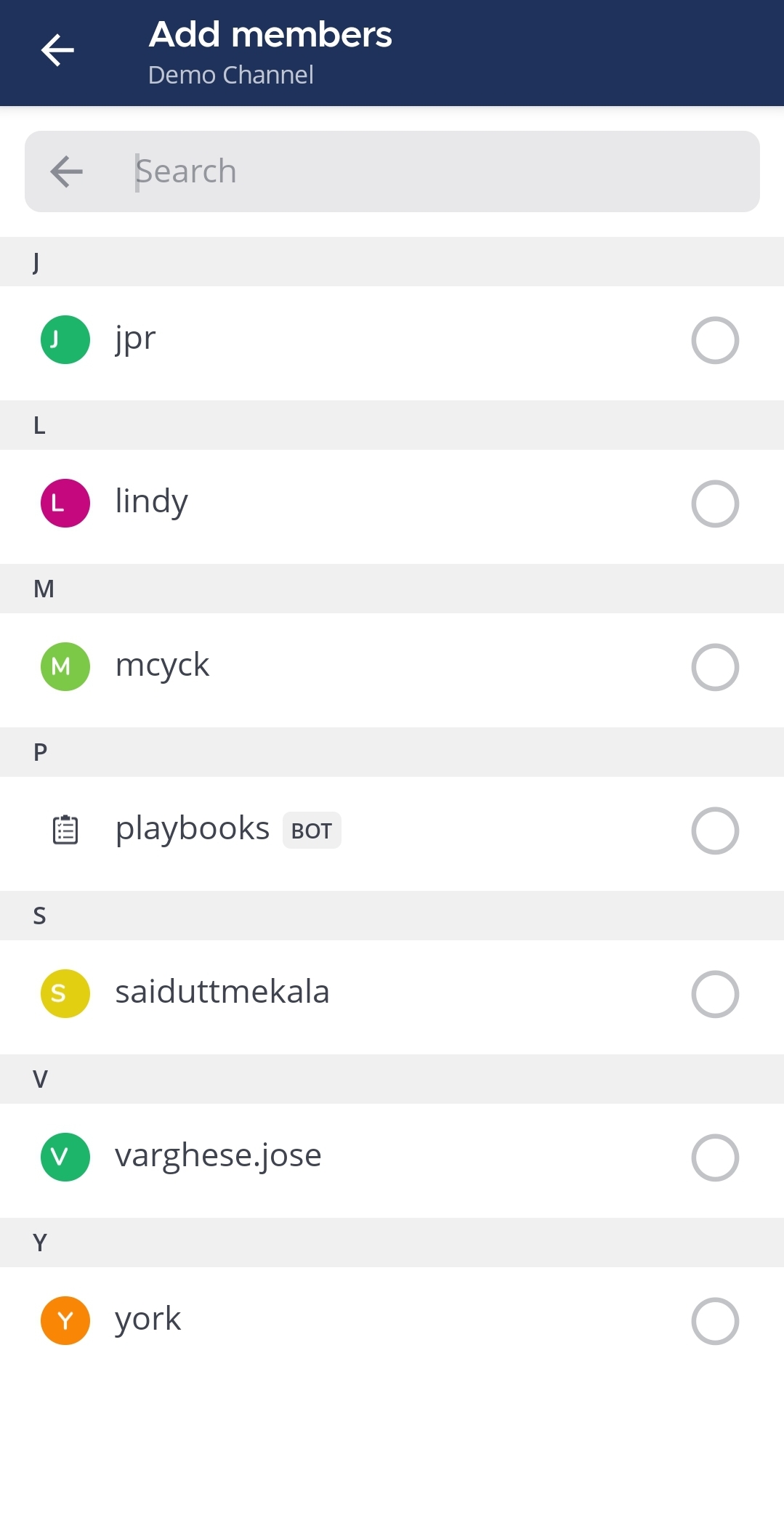
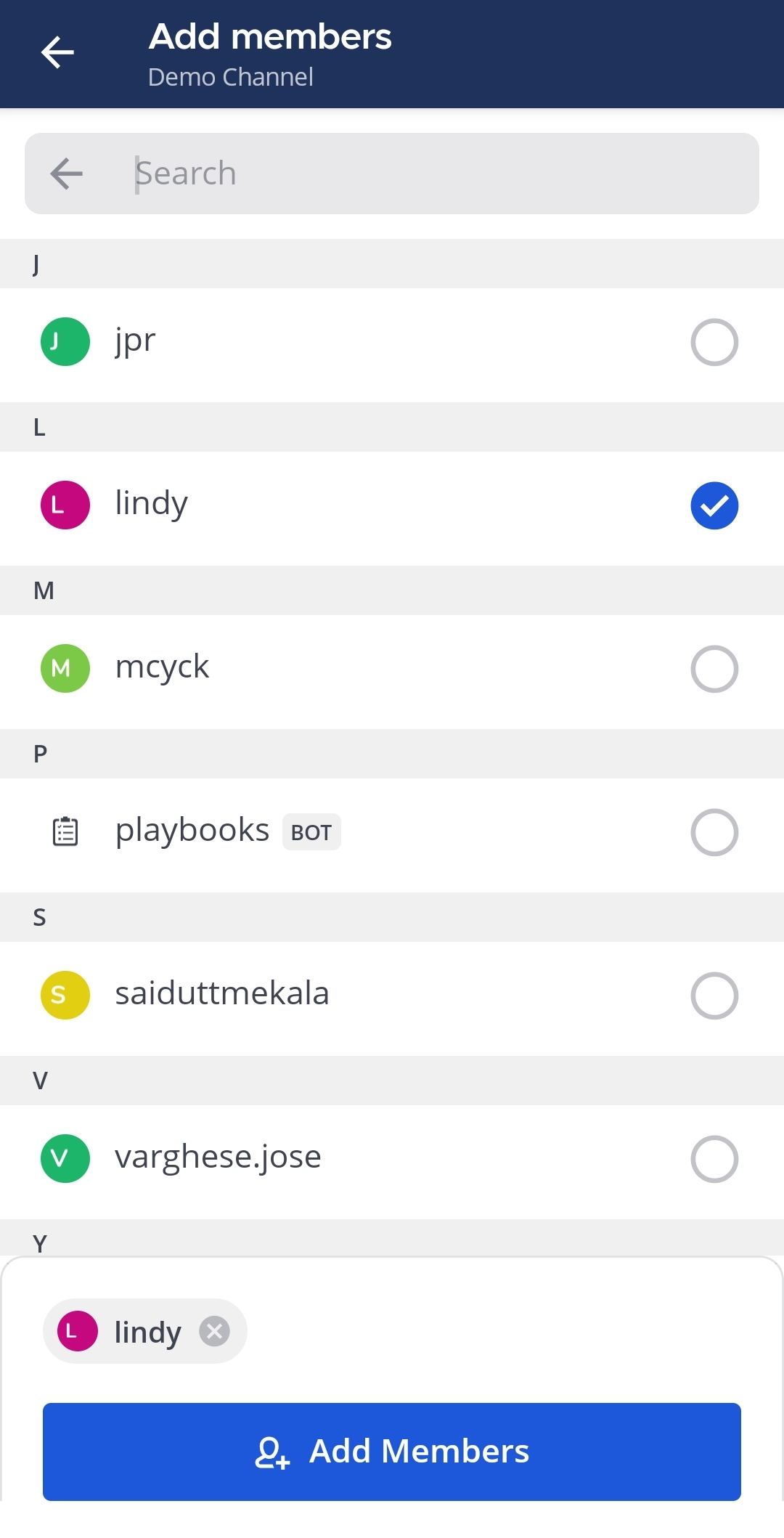
Select members to add to the channel. You can scroll through the alphabetical list of members, or search for members in the Search field.
Tap Add Members.
Mention users
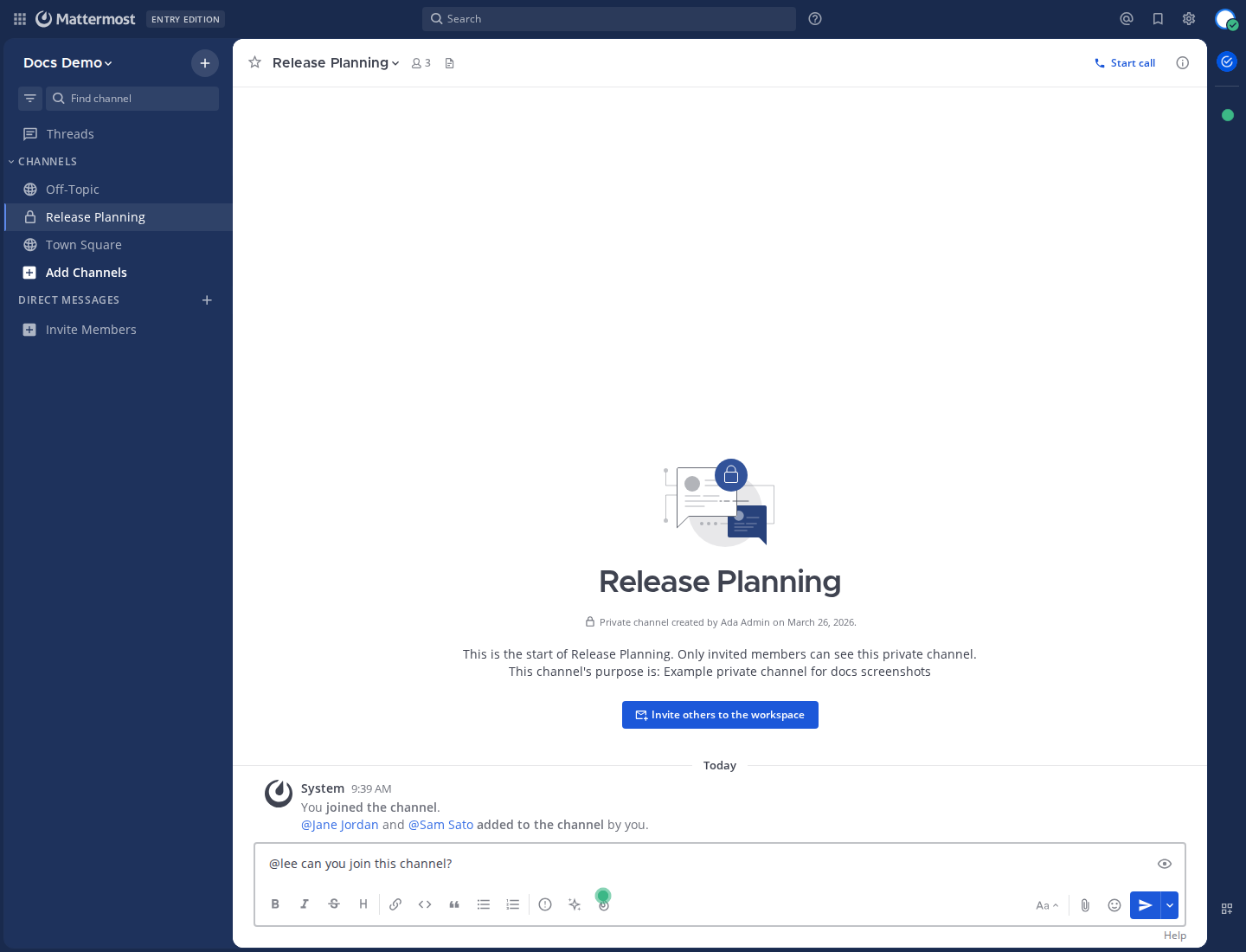
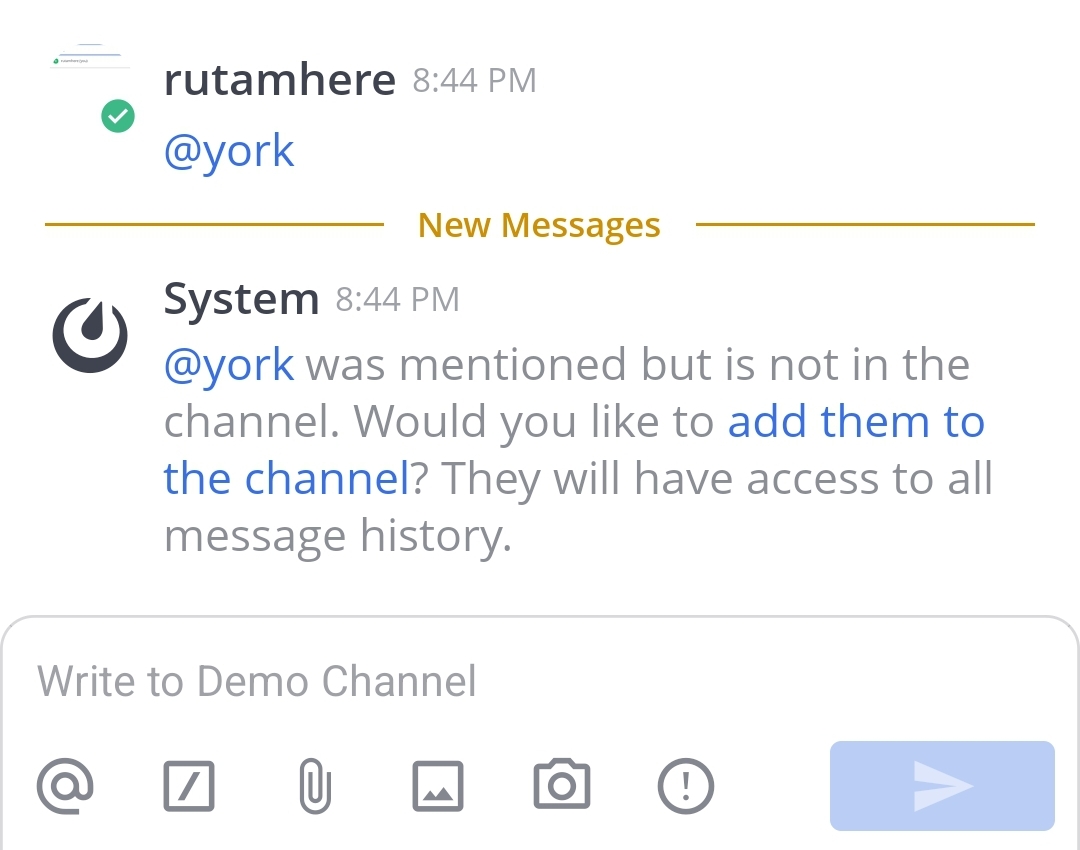
You can also @mention users to add them to a channel. If they’re not a channel member, Mattermost prompts you to add them.
Add users from their profile
Using a web browser or the desktop app, you can open a person’s profile pop-over from a message to review available actions for that user.
Find a message from the person you want to add to a channel, then select their name or profile image to open their profile pop-over.
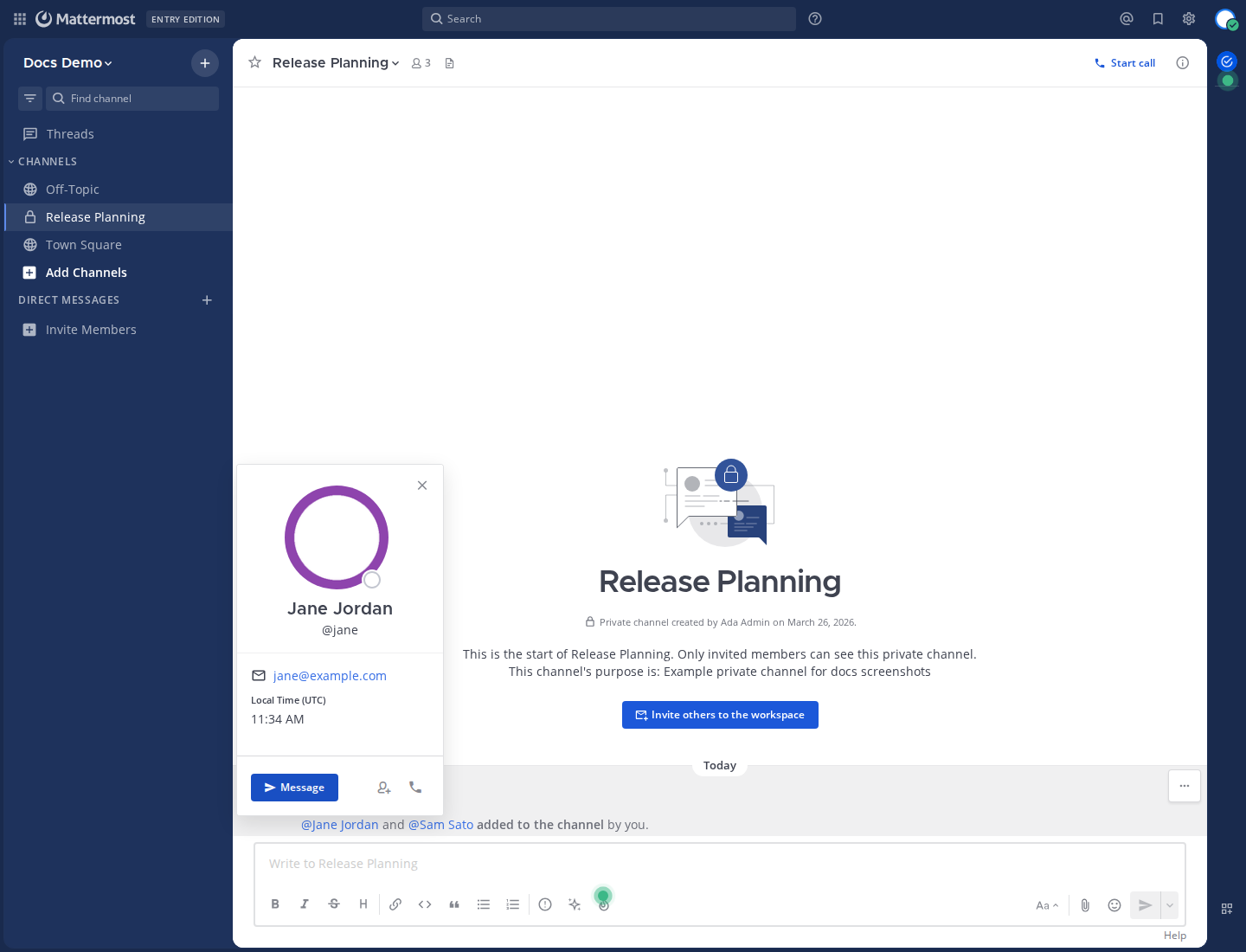
Use the options available in the profile pop-over to start a direct message or take further action for that user.
Note
The actions available in the profile pop-over can vary based on your permissions and the current Mattermost configuration.
Leave a channel
You can leave public or private channels any time.
Select the channel name at the top of the center pane to access the drop-down menu, then select Leave Channel. When you have permission to manage channel members, you can also leave a channel by going to View Info > Members > Manage and selecting your own name.
In a channel, tap
 in the top right corner.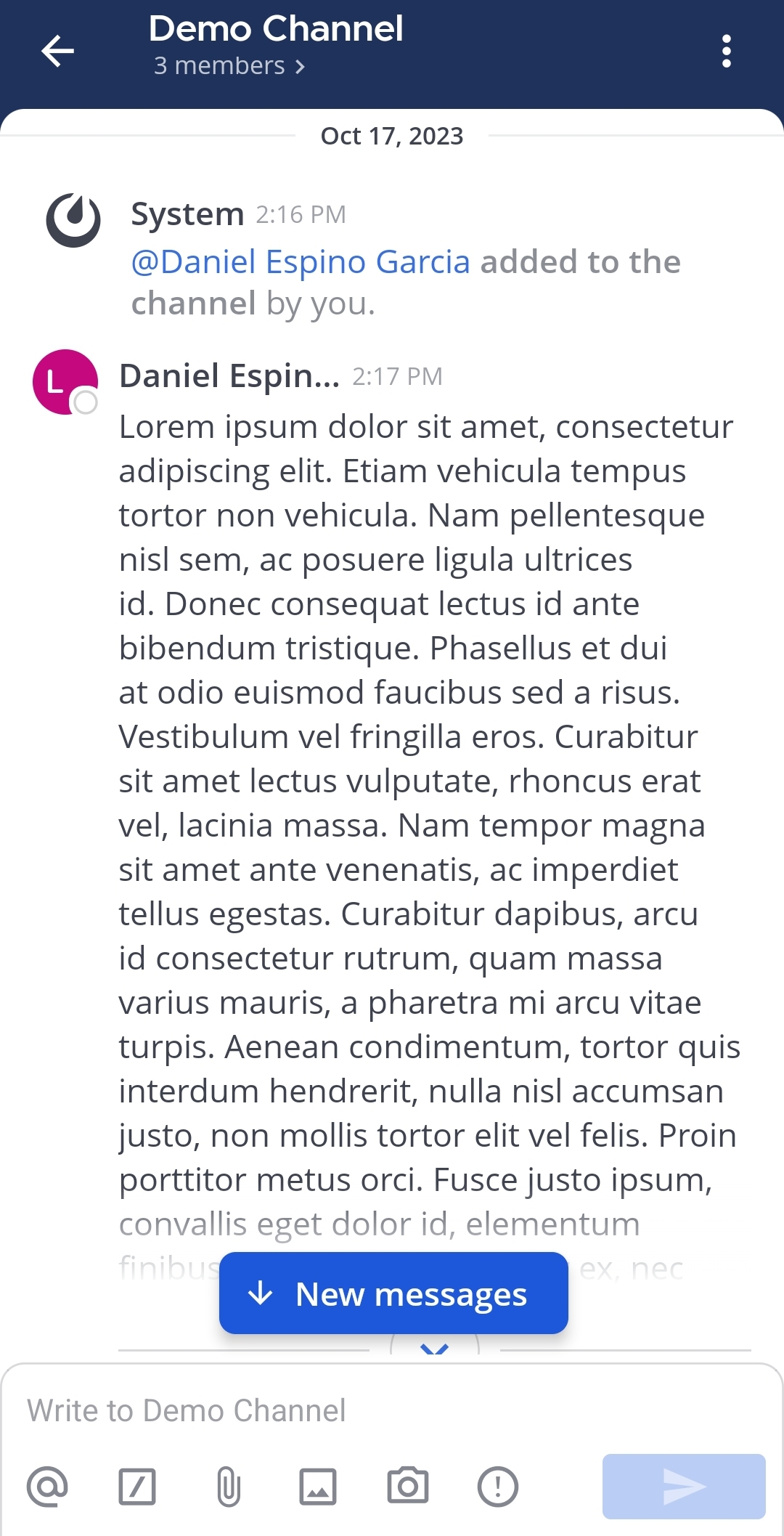
Tap Leave channel.
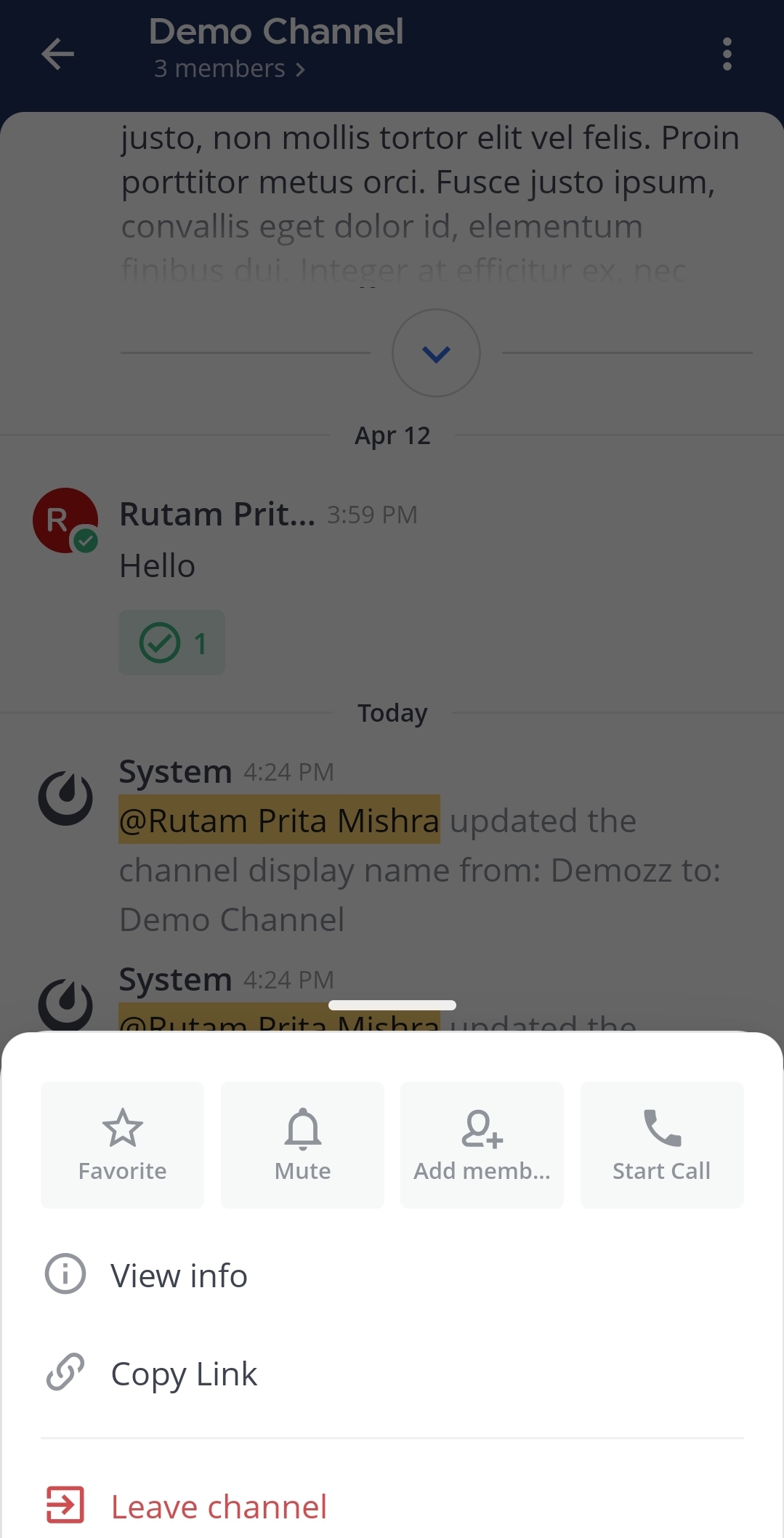
Tap on Leave to confirm you choice.
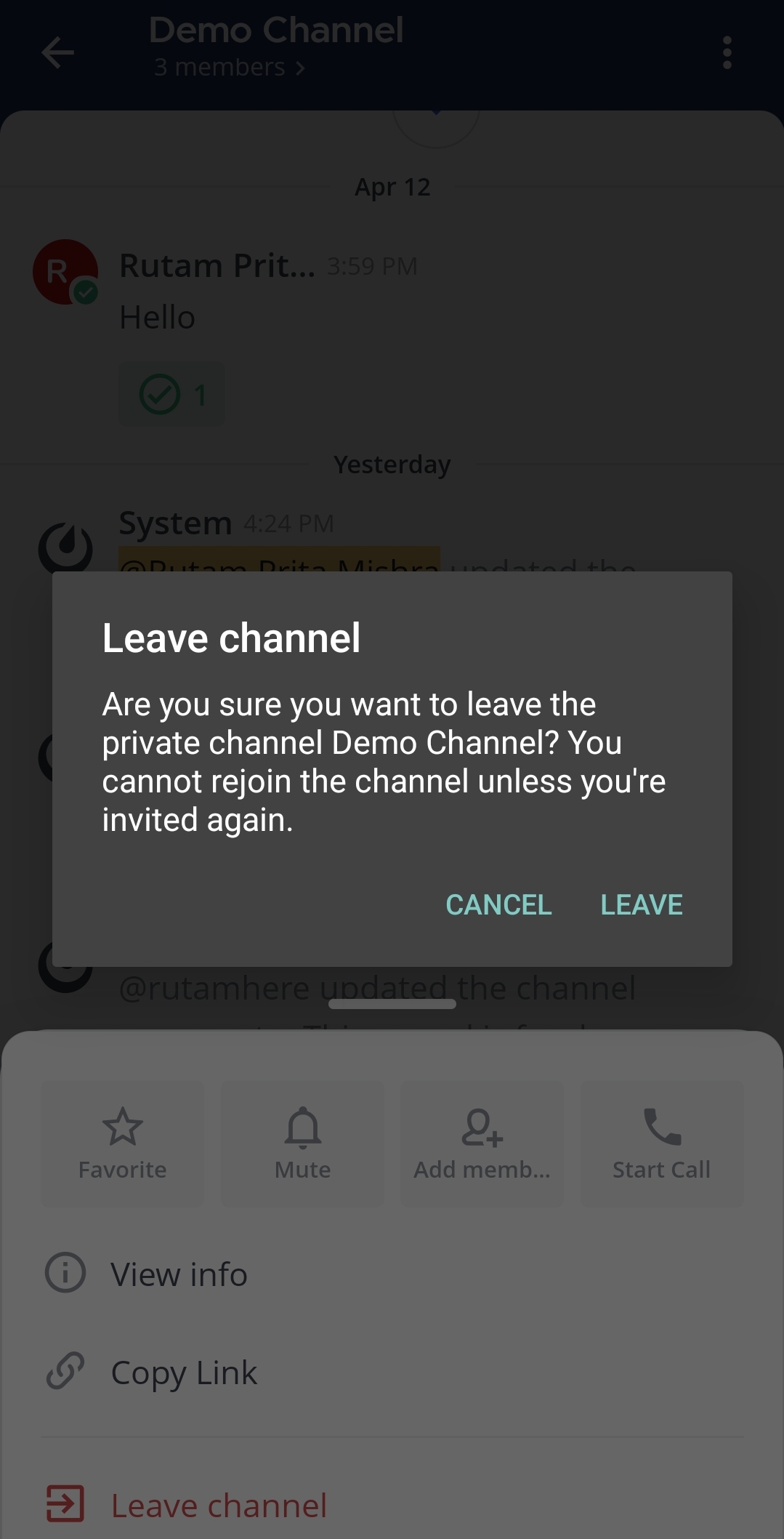
Remove other members from a channel
Any member of a channel can remove other members from a channel.
You have two ways to remove members from a channel:
Select the channel name at the top of the center pane to access the drop-down menu, then select Members. In the right-hand pane, select Manage, select the member’s user role, then select Remove from Channel.
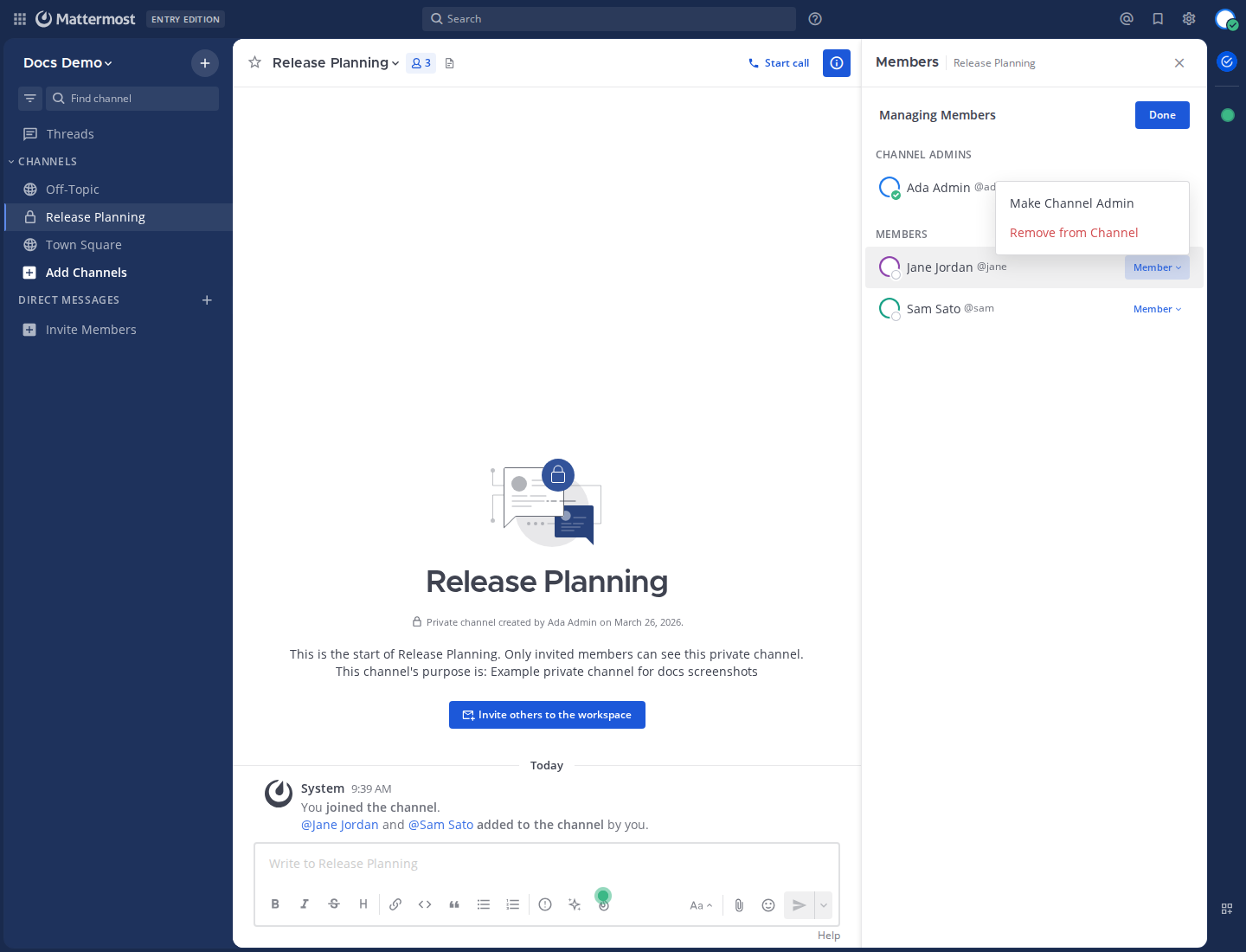
Select the channel’s View Info
icon, then select Members in the right pane. From there, select Manage, select a user’s role, then select Remove from Channel.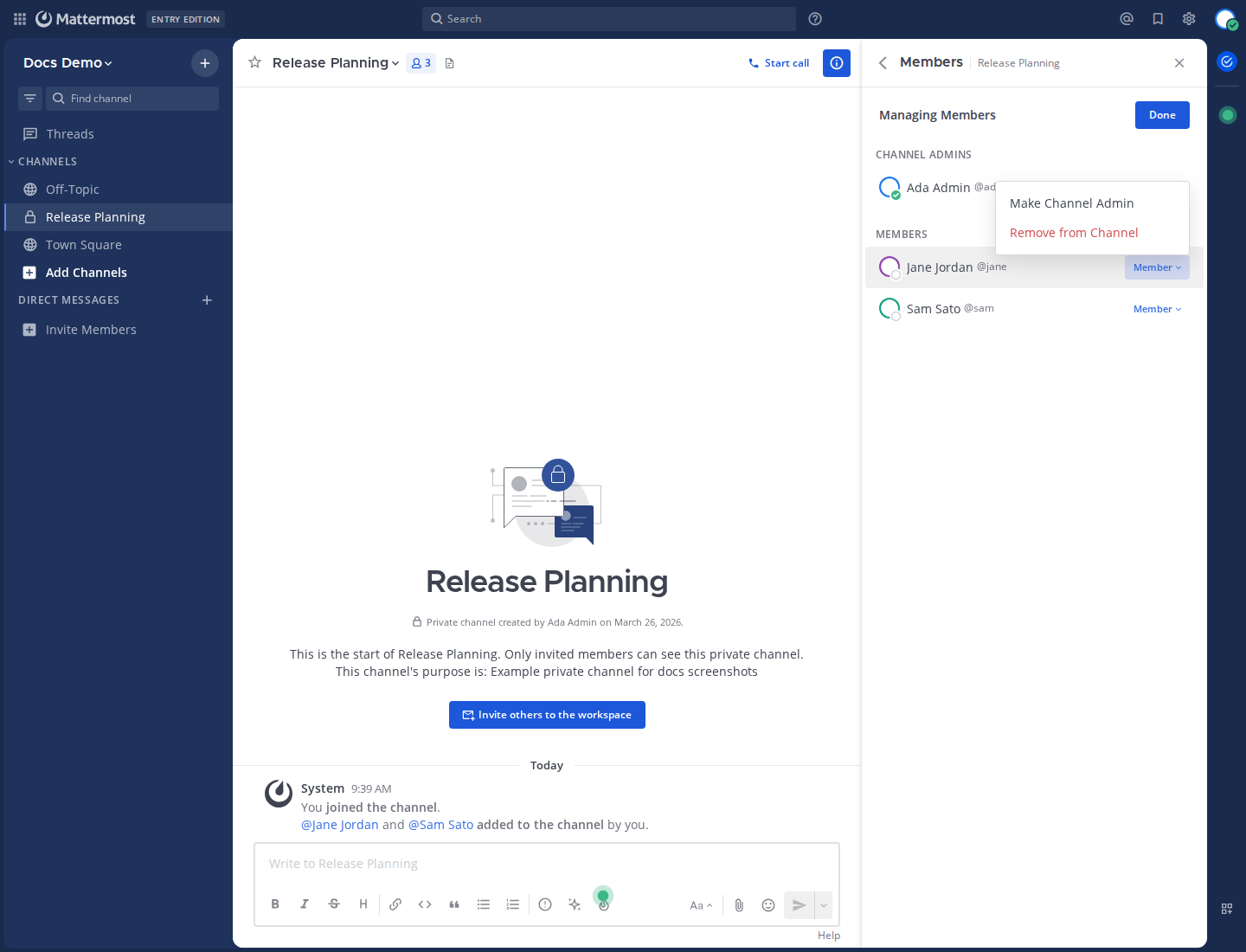
In a channel, tap
in the top right corner.
Tap View Info.
Tap Members.
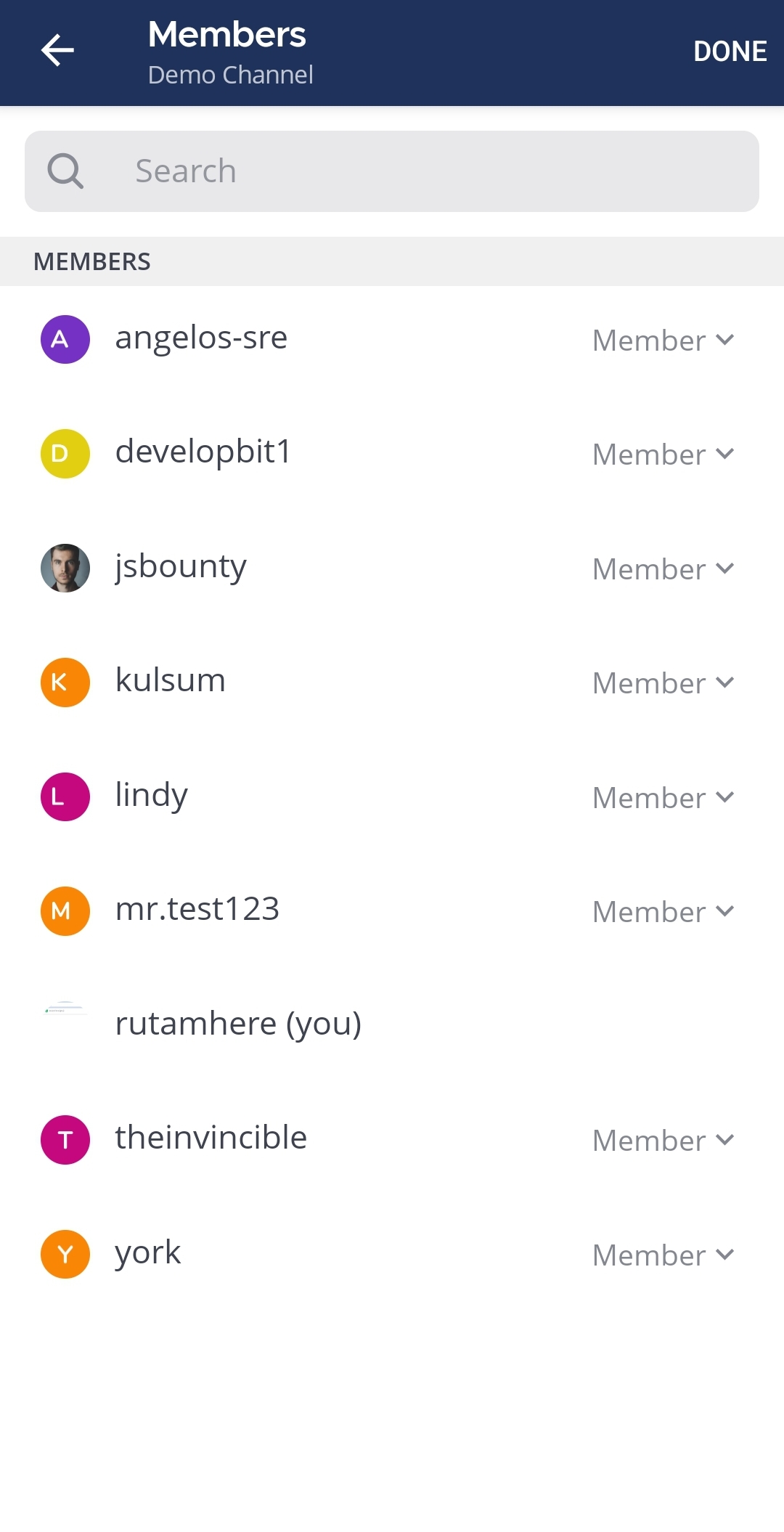
Tap Manage in the top right corner of the screen.
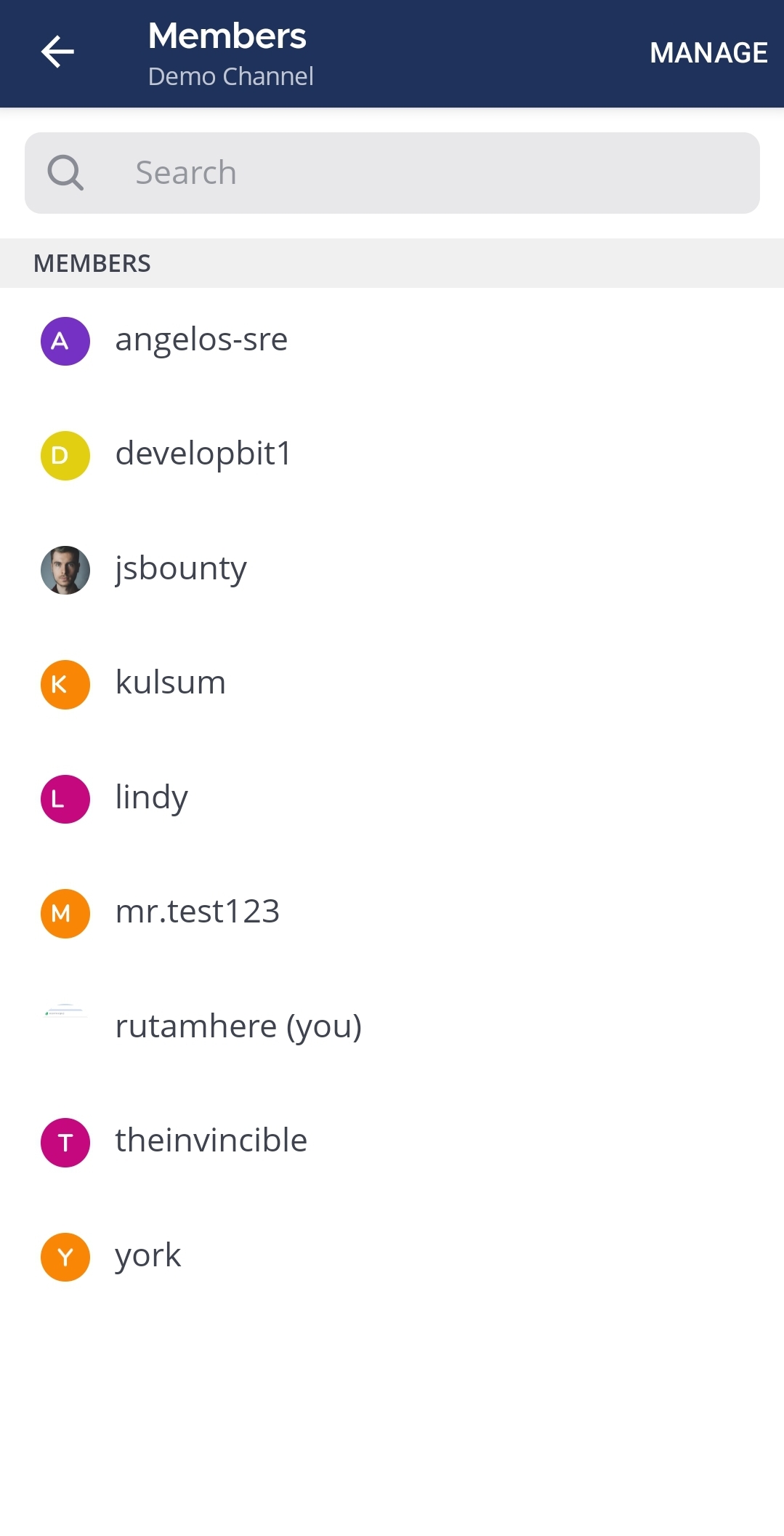
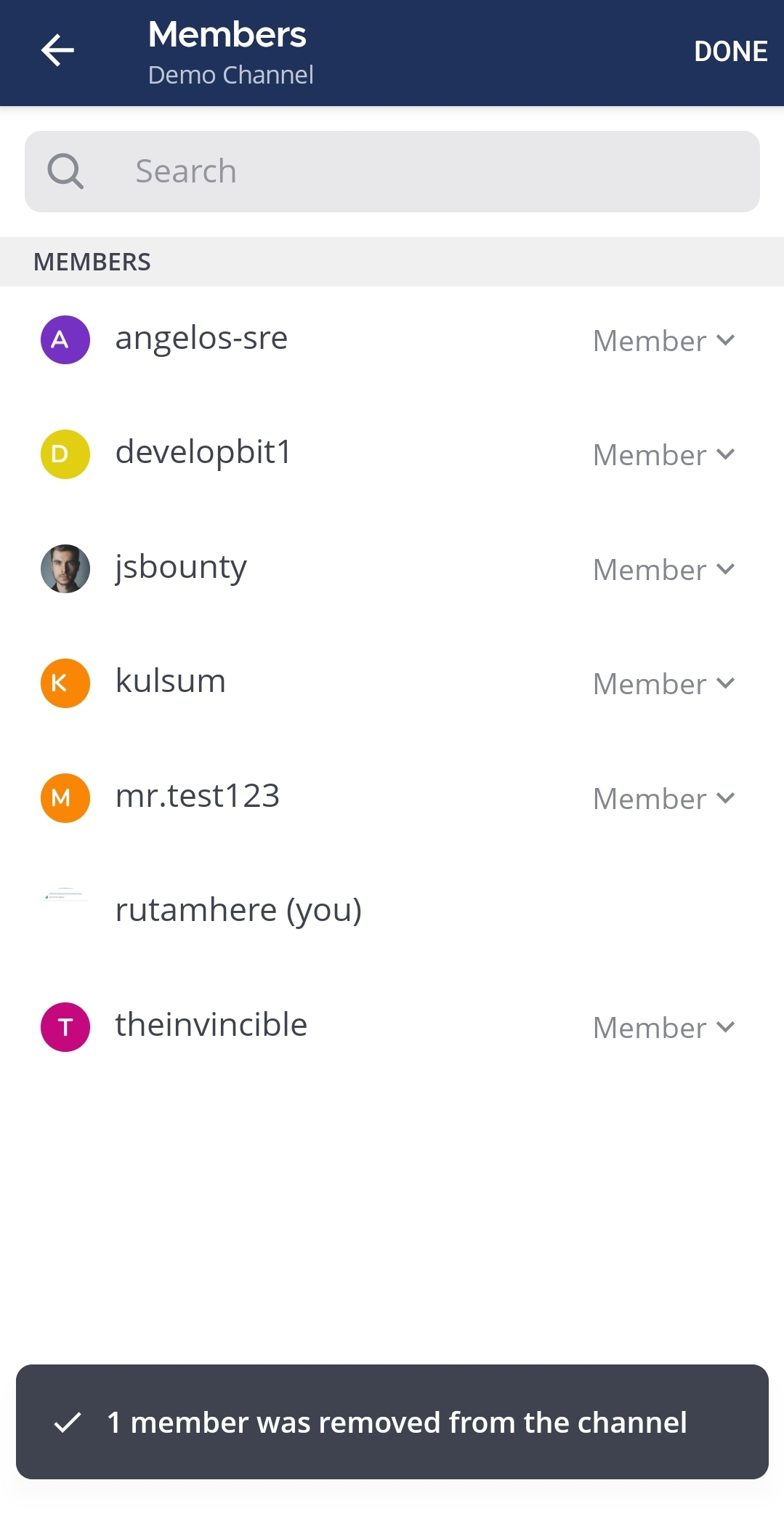
Tap a user role to change it, and tap Remove from Channel.
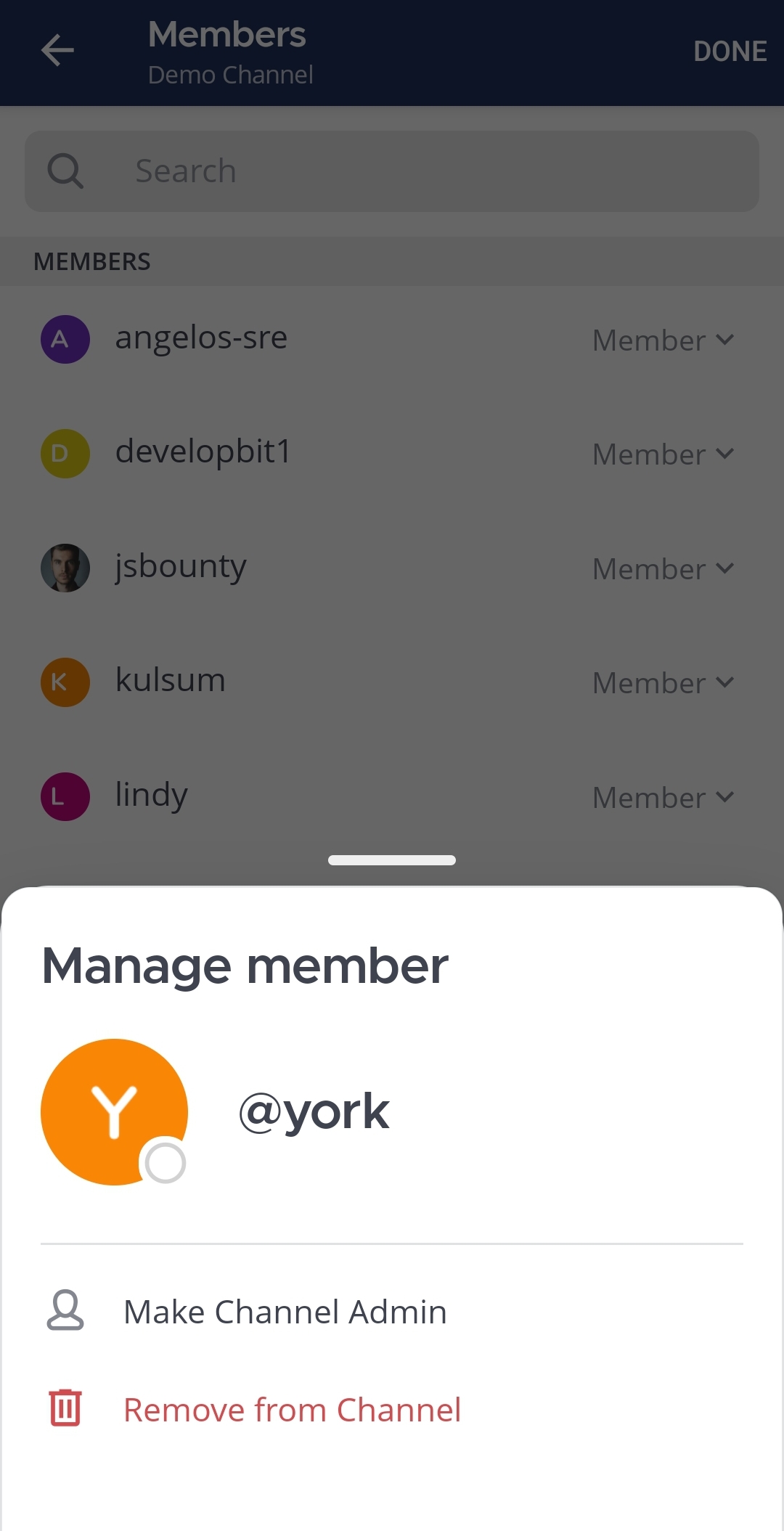
Tap Remove.
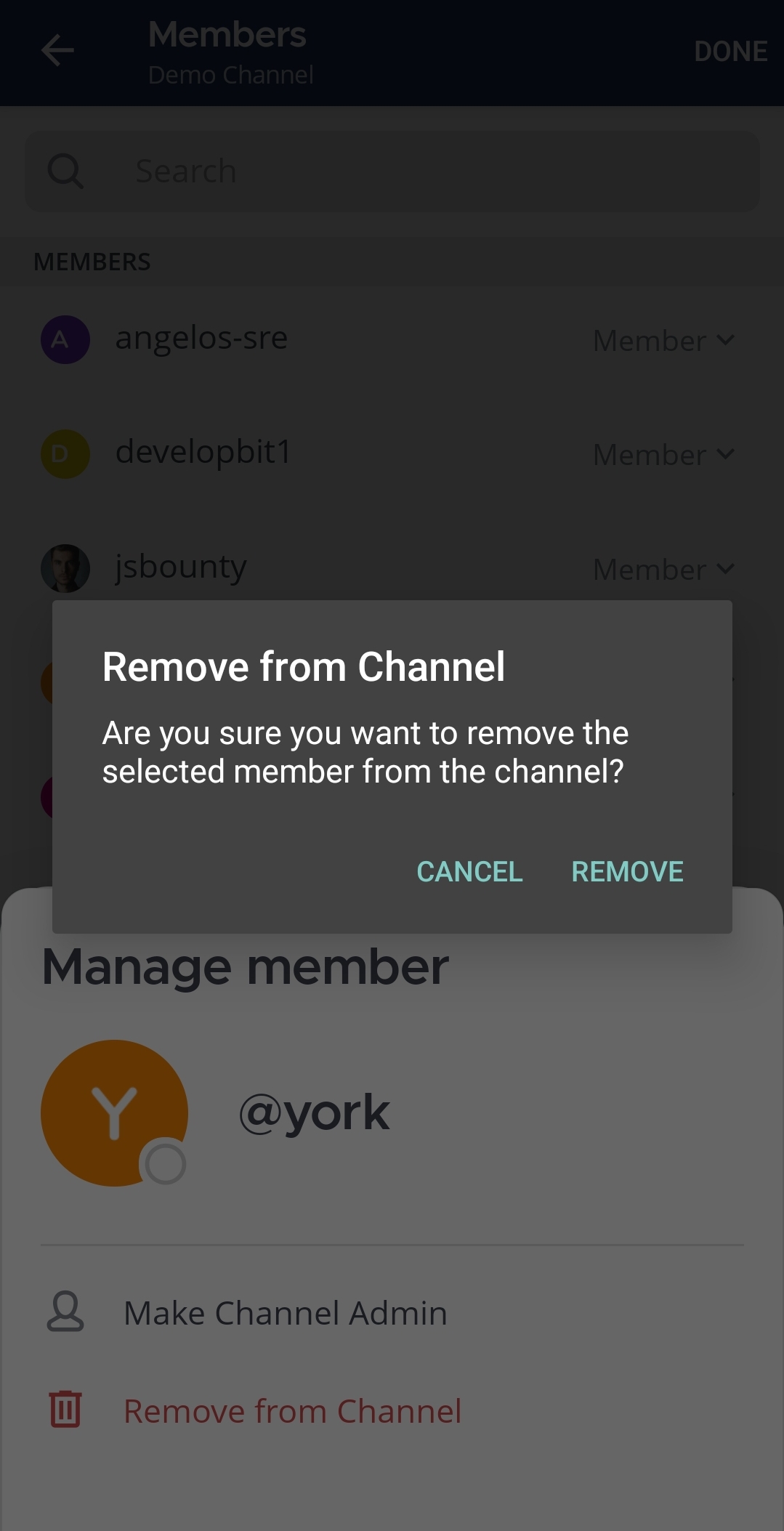
Tap Done.