 Mattermost v11.0 is now available! Learn what's new »


Desktop MSI installer and group policy guide
 Available on
 This page provides guidance on installing the desktop app MSI and use Group Policies in Windows for Mattermost Enterprise or Professional. The MSI installer package can be downloaded here.
Important
Per-machine installation from v6.1.0: From Mattermost Desktop v6.1.0, the Windows MSI installer defaults to per-machine (system-wide) installation to meet enterprise compliance requirements. This changes deployment strategies and upgrade paths. See the Deployment considerations for v6.1.0+ section below for details.
Windows distribution options
From desktop v6.1, organizations deploying on Windows have 2 primary distribution options:
Windows Store: Primary option for automatic updates. Recommended for most users. The Windows Store version handles updates automatically through the Microsoft Store infrastructure.
MSI installer: Direct download option for traditional deployment methods. This guide covers MSI deployment.
The desktop v6.1 app includes in-app update notifications that check the Mattermost website for new versions. All distribution channels (Windows Store, MSI, Mac App Store, Flathub, APT/RPM) release simultaneously to ensure users receive consistent update notifications regardless of their installation method.
Upgrading to v6.1.0 with MSI installer
Users upgrading from earlier Desktop app versions using the MSI installer may need to recreate taskbar shortcuts once after the upgrade. The v6.1.0 installer uses a more reliable method for shortcut icons that prevents shortcuts from breaking during future upgrades. This fixes a long-standing issue where shortcuts could break during MSI upgrades. This is a one-time action for the upgrade to v6.1.0. Future upgrades to v6.1.1 and later won’t require shortcut recreation. Windows Store deployments aren’t affected by this change.
We recommend telling your users in advance that they may need to re-pin the taskbar shortcut after upgrading to desktop app v6.1. Desktop shortcuts are typically unaffected while taskbar shortcuts are most commonly impacted.
If a user reports a broken shortcut after upgrading to v6.1.0, the user should:
Right-click the broken shortcut on the taskbar and select Unpin from taskbar.
Launch Mattermost Desktop from the Start Menu.
Right-click the Mattermost icon in the taskbar.
Select Pin to taskbar.
Download group policy and MSI installer files
Using a newly created Windows VM or dedicated Windows computer, make sure to use a Windows version that supports
Edit group policyout of the box (i.e. Windows 10 Pro or Enterprise).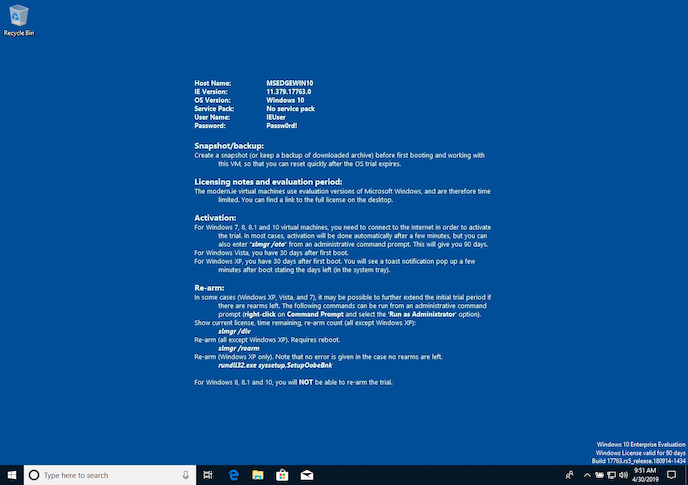
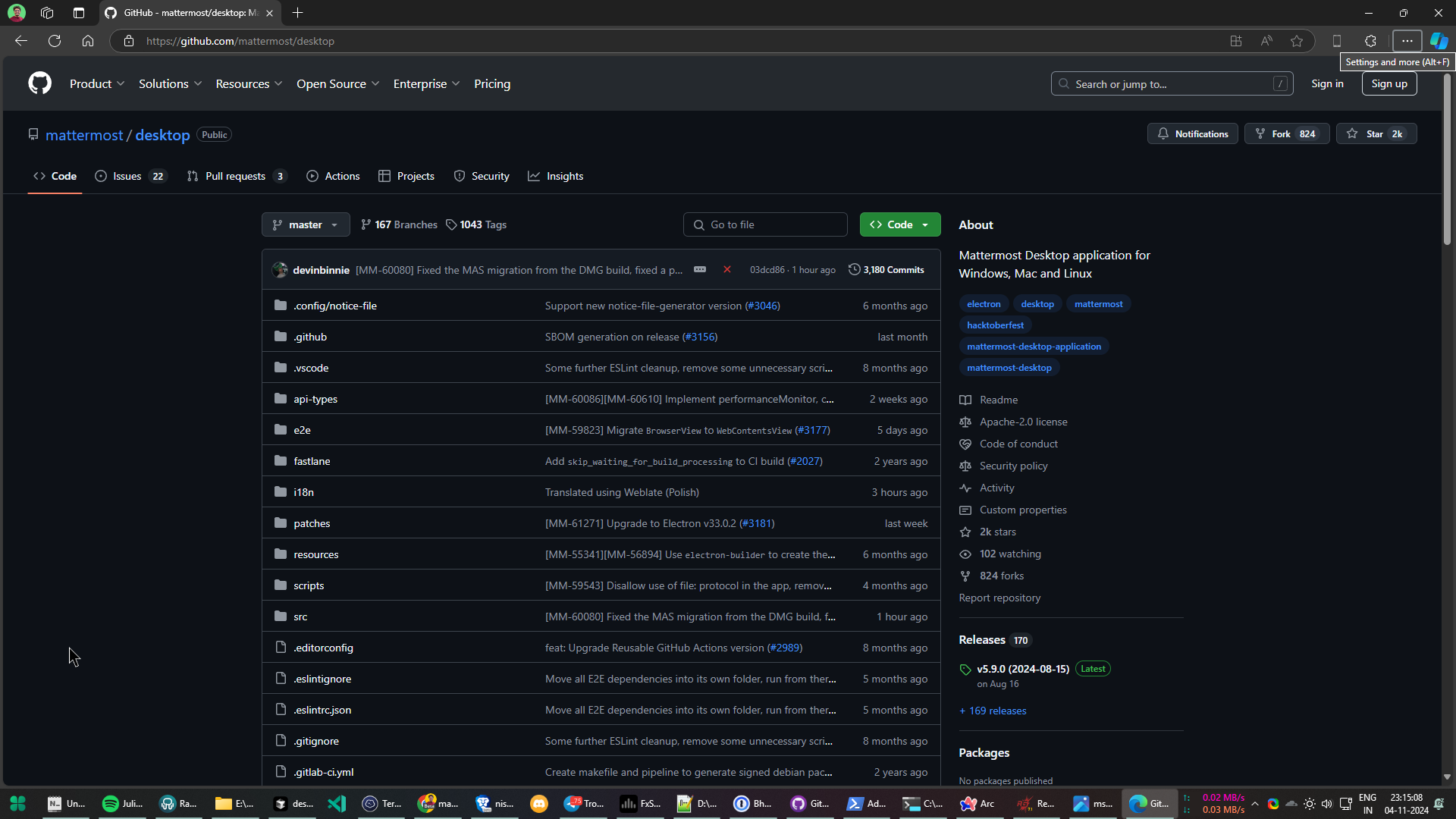
Navigate to the Mattermost Desktop repository on GitHub.com.
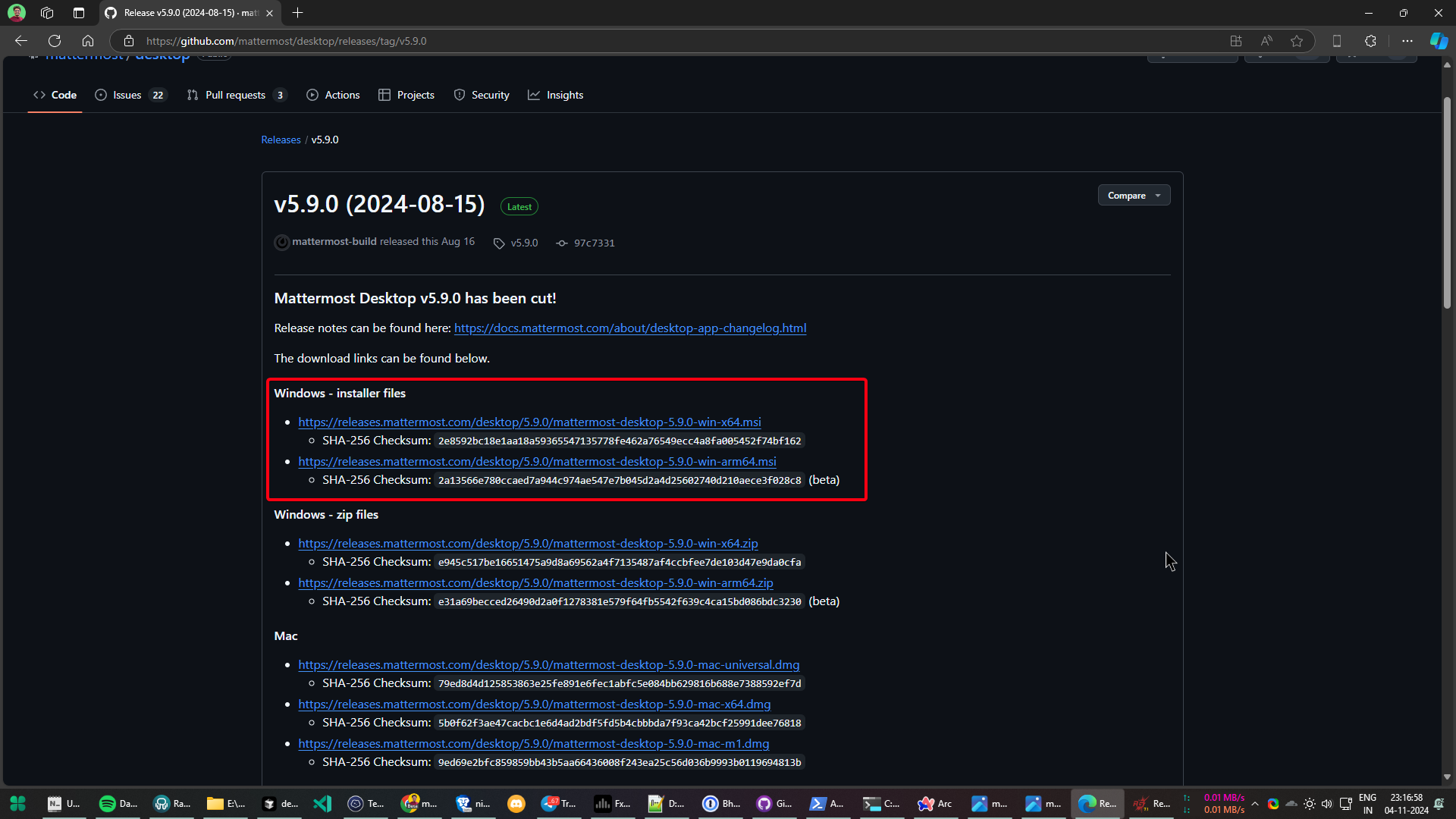
Navigate to the release page for version v6.1.0 and download the appropriate installer for your version of Windows (32-bit vs. 64-bit).
Download the source.zip file as well to extract group policy files.
Install group policy files locally
The following group policies are available supporting a state option of Not Configured, Enabled, or Disabled:
Group policy
Description
Mattermost release
Setting
Enable Server Management
If disabled, management of servers in the app settings are disabled.
v4.3 or later
EnableServerManagementDefault Server List
Define one or more default, permanent servers.
v4.3 or later
DefaultServerListUpdate Notifications
If disabled, in-app update notifications are not shown.
v5.1 or later
EnableAutoUpdates
Browse to the folder the above files were downloaded to and unzip the
desktop-6.1.0.zipfile in place.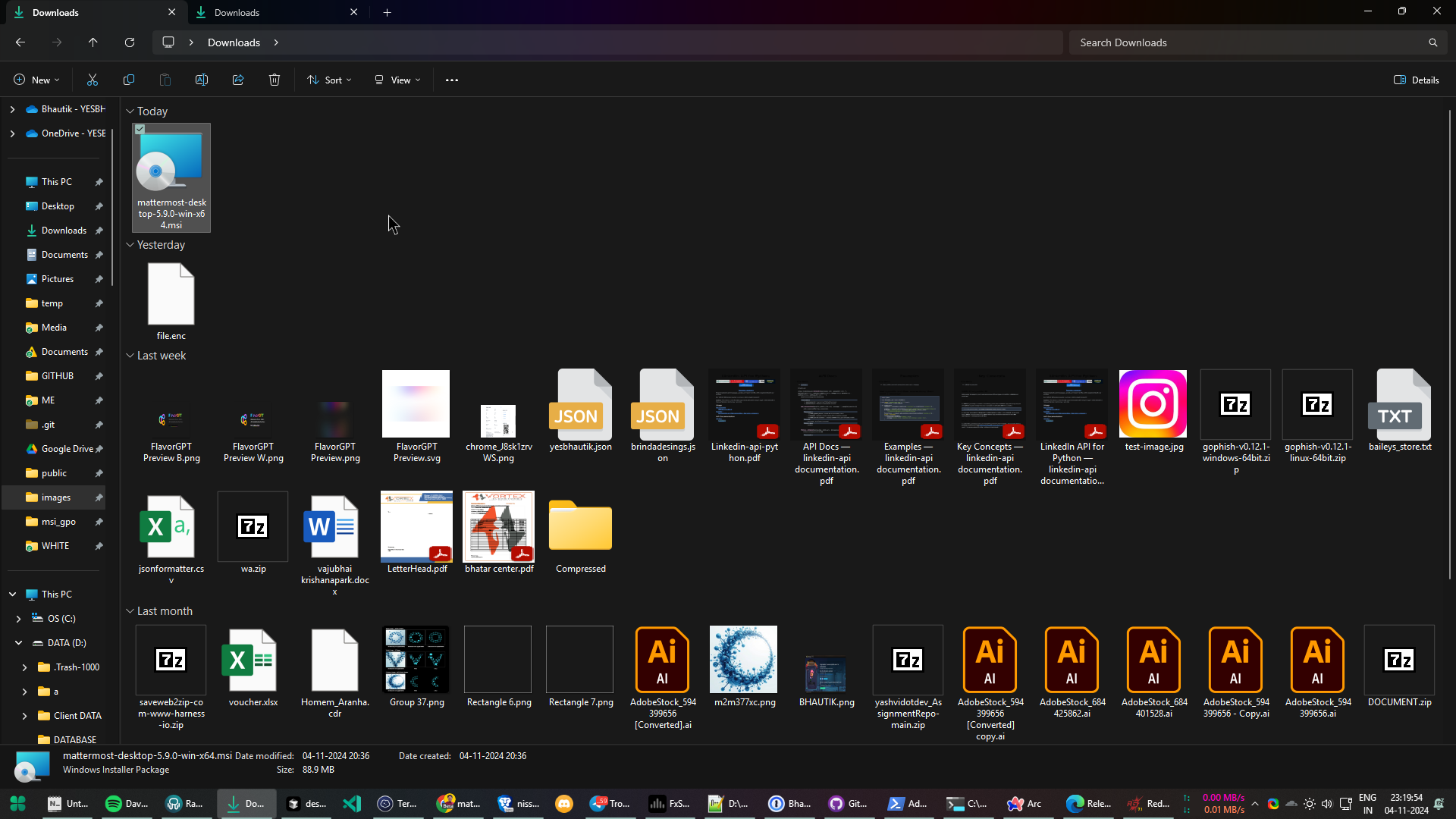
Navigate to the unzipped
desktop-6.1.0\resources\windows\gpofolder and copy the contents.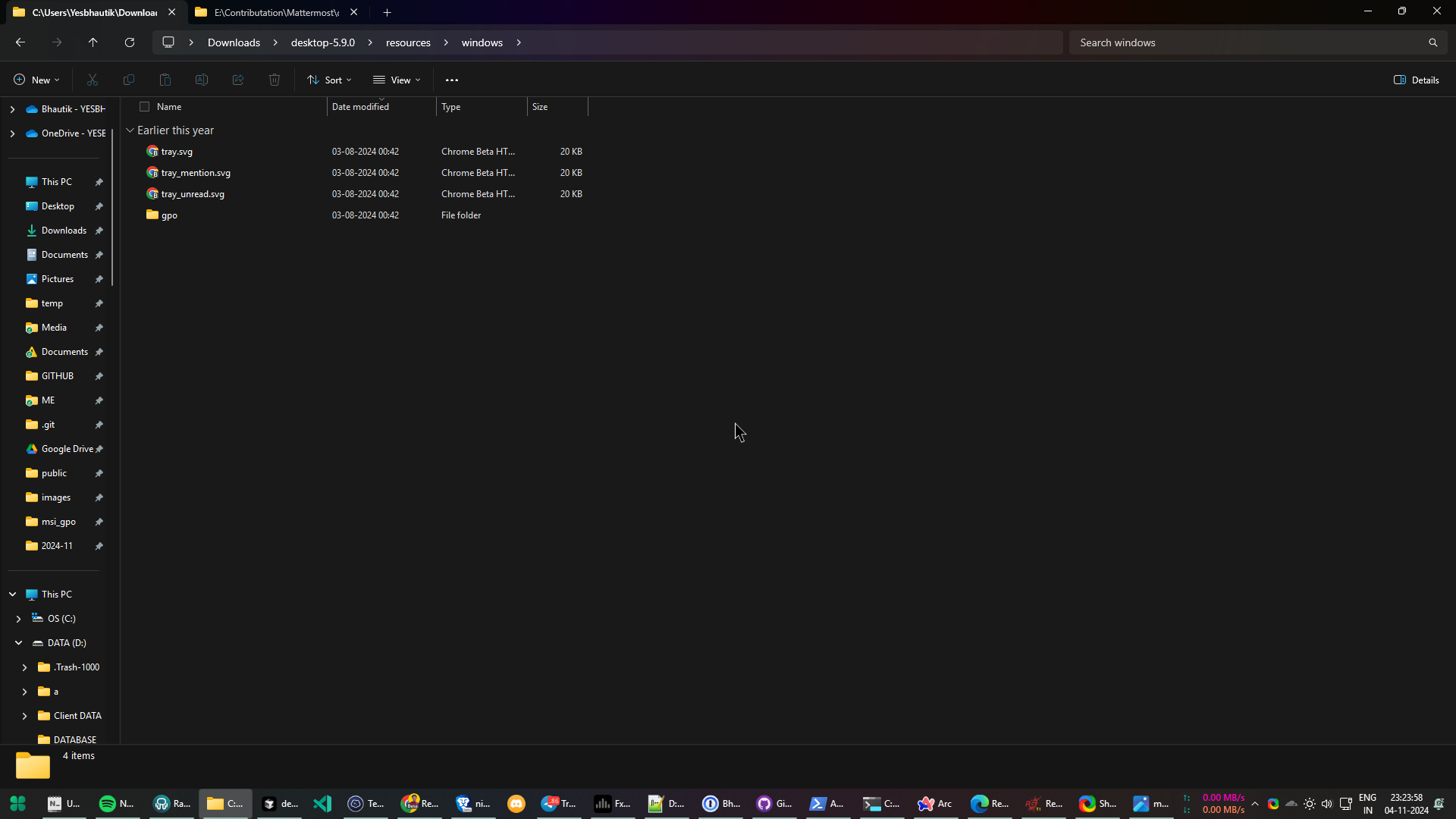
Navigate to the
C:\Windows\PolicyDefinitionsfolder and paste the files copied in the last step.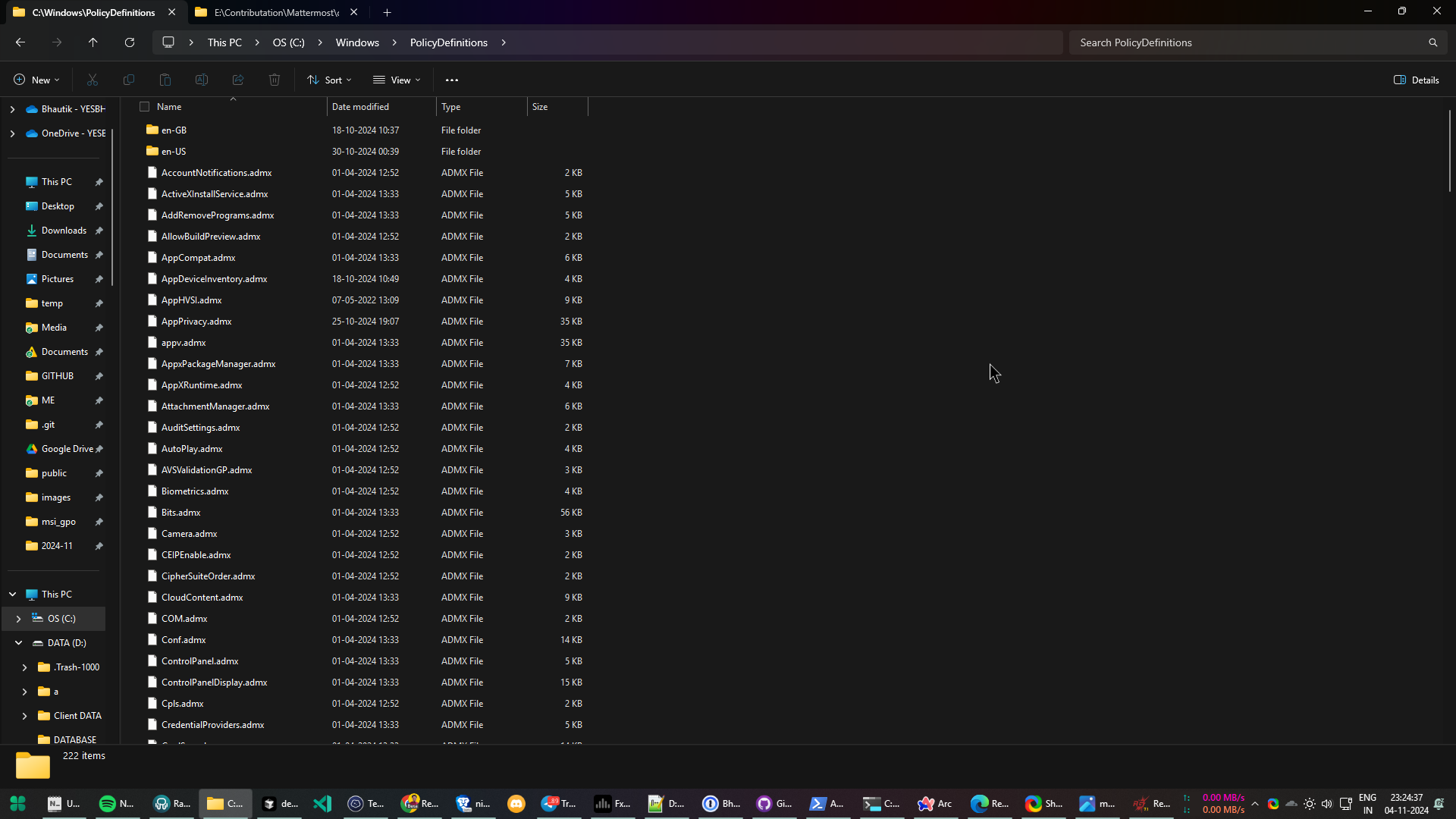
Verify the
mattermost.admxfile is in theC:\Windows\PolicyDefinitionsfolder.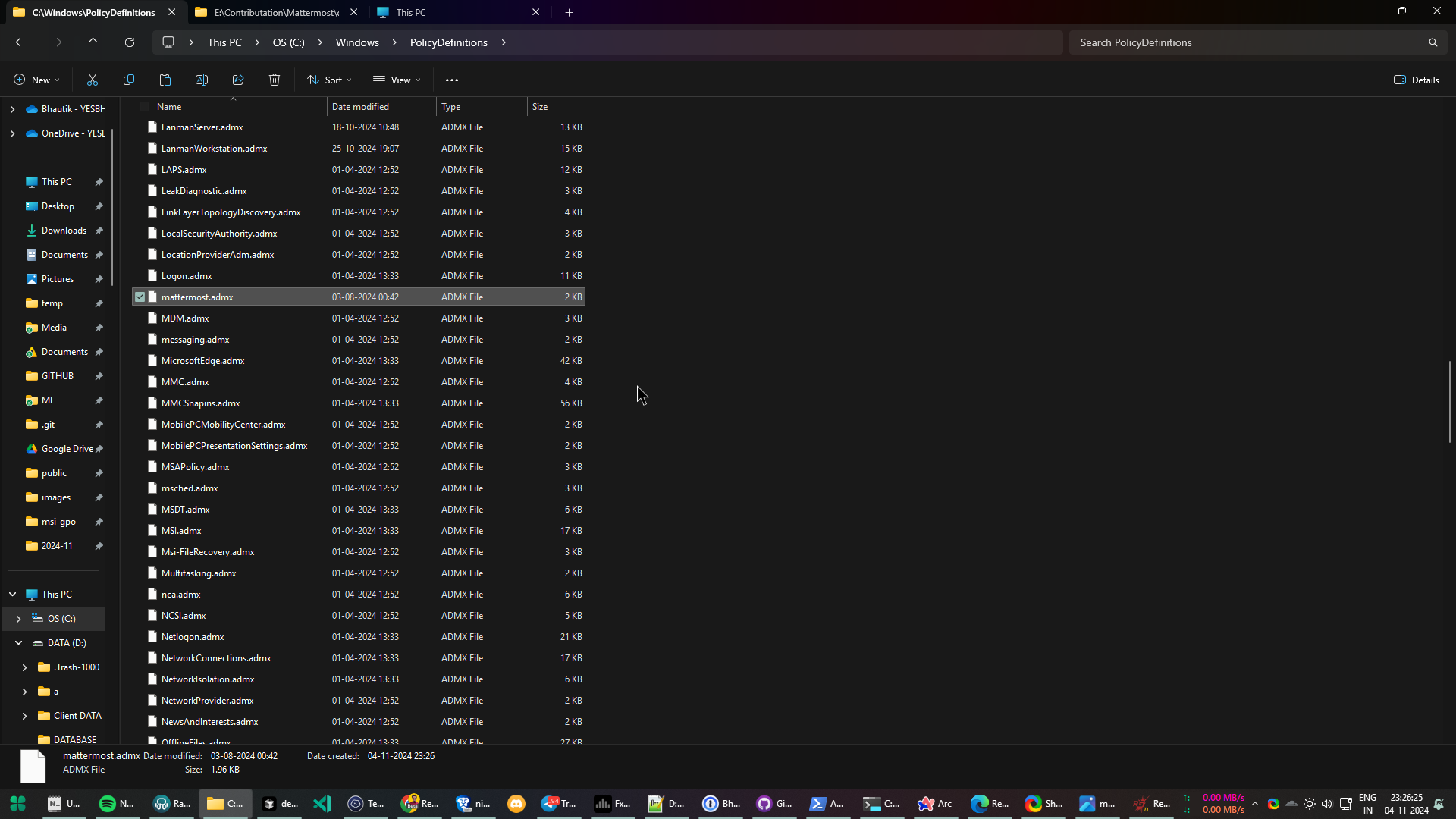
Verify the
mattermost.admlfile is in theC:\Windows\PolicyDefinitions\en-USfolder.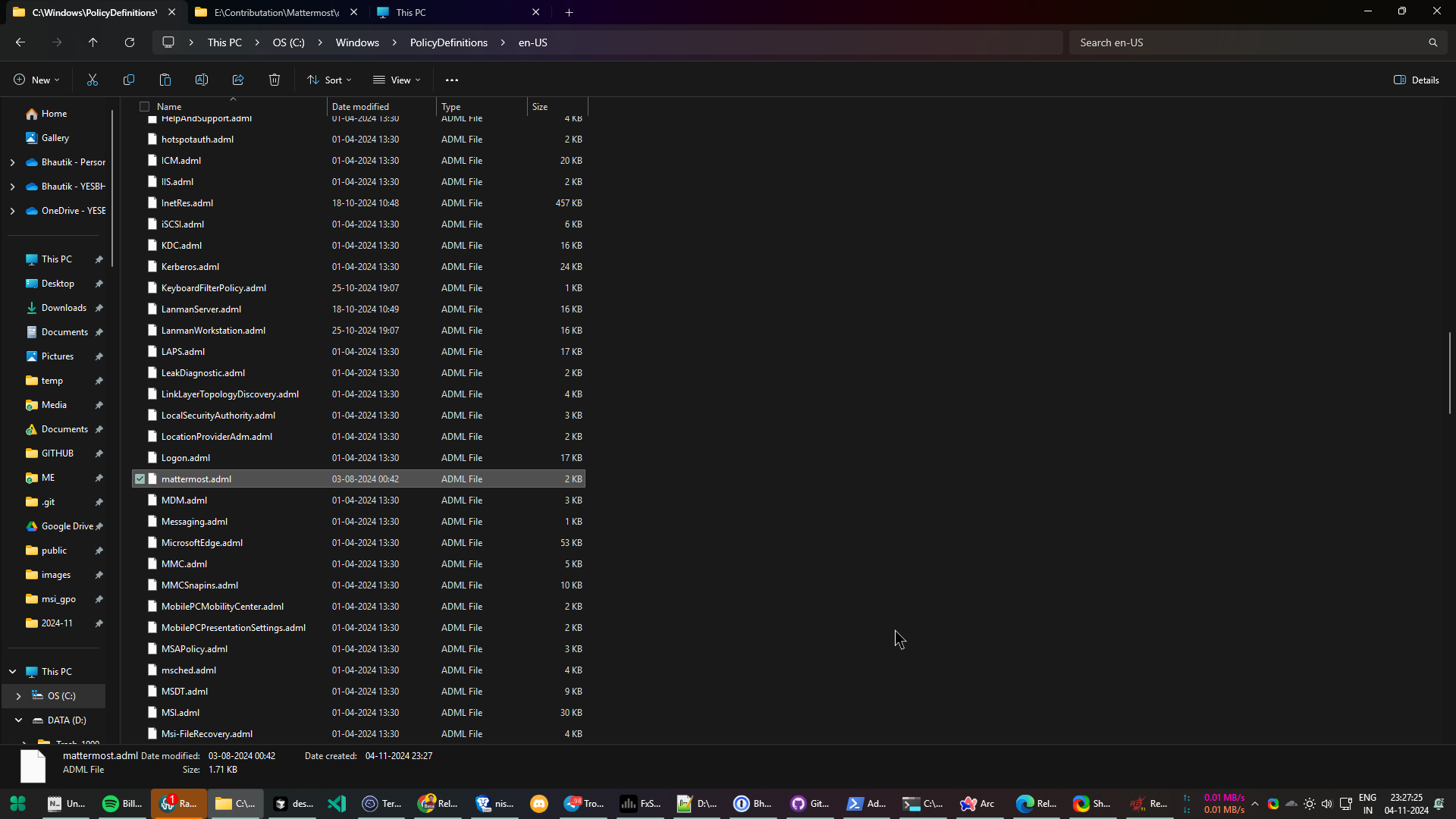
Note
\\FQDNDomain\sysvol\FQDNDomain\Policies\PolicyDefinitionscan be used instead ofC:\Windows\PolicyDefinitionsif available.\\FQDNDomain\sysvol\FQDNDomain\Policies\PolicyDefinitions\en-UScan be used instead ofC:\Windows\PolicyDefinitions\en-USif available.
Disable update notifications
Update notifications can be disabled by configuring the supported group policy. Changes to group policies require you to restart Mattermost for those changes to take effect.
Configure Mattermost using group policy settings
Run the
Edit group policyapplication by selecting Start, typinggpeditinto the search field, then selecting the resulting Edit group policy search option.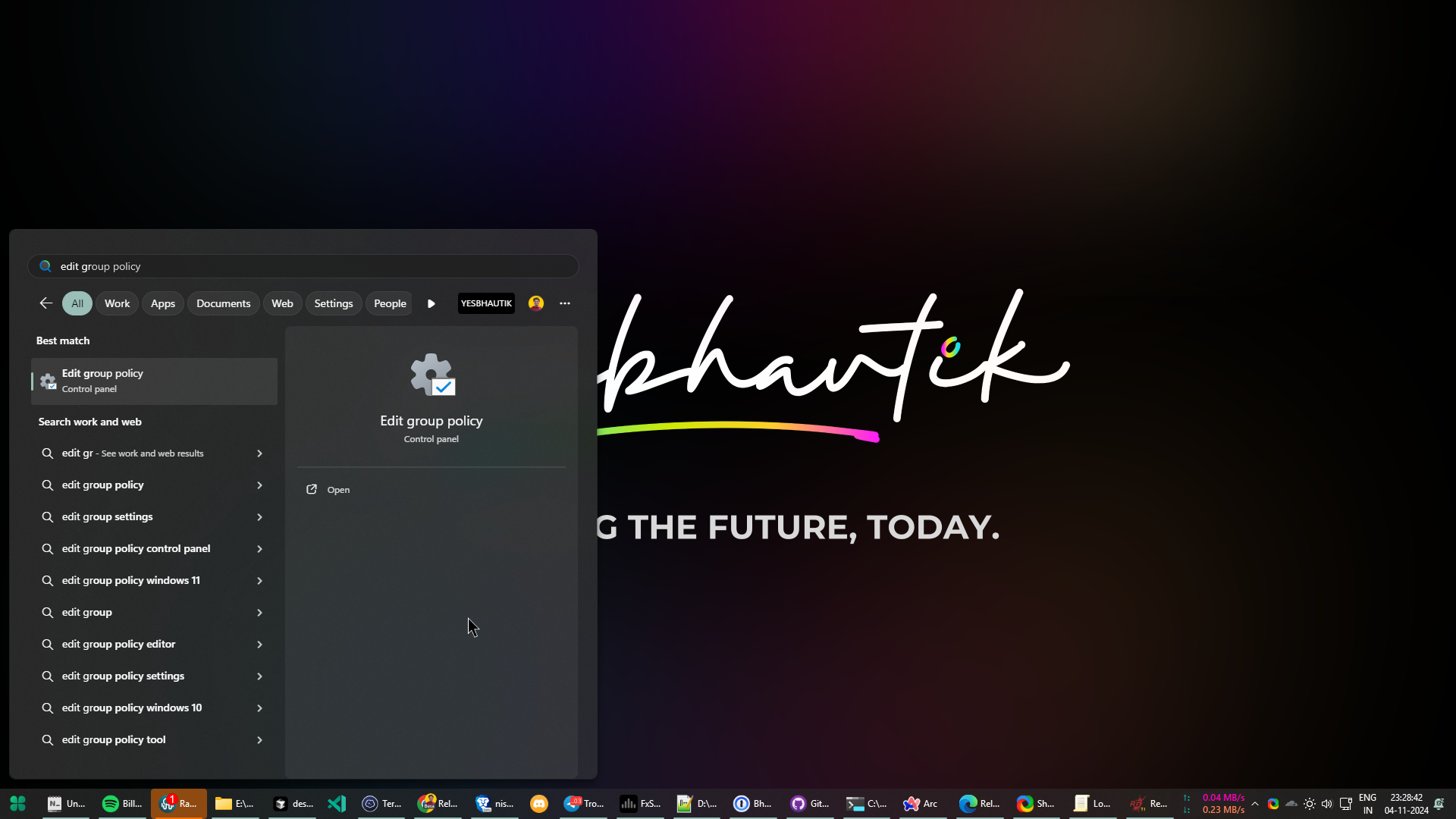
In the Edit group policy window, navigate to
Local Computer Policy\Computer Configuration\Administrative Templates\Mattermost. In this example, double-click onDefaultServerListto set one or more default servers that will appear on app launch.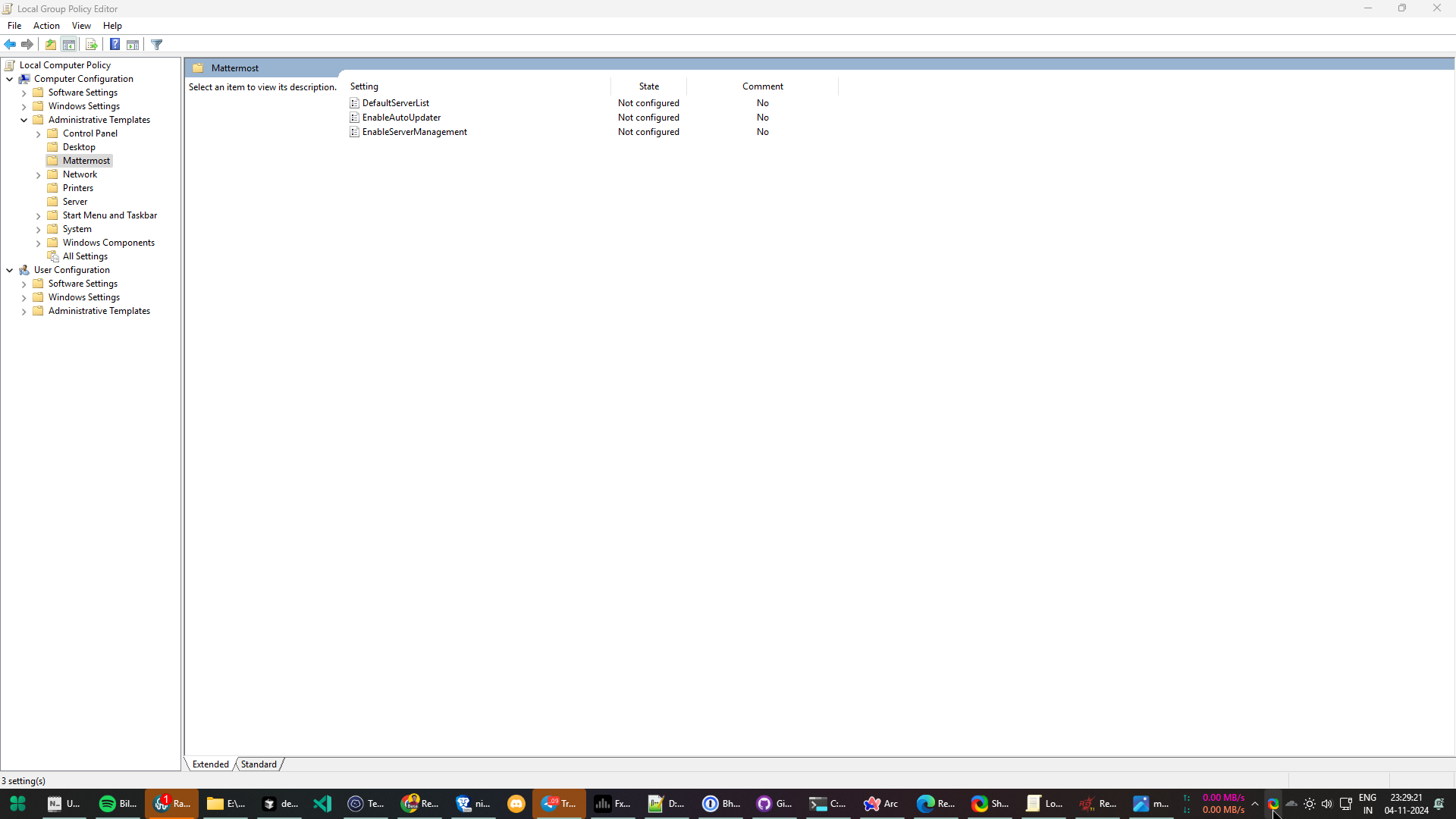
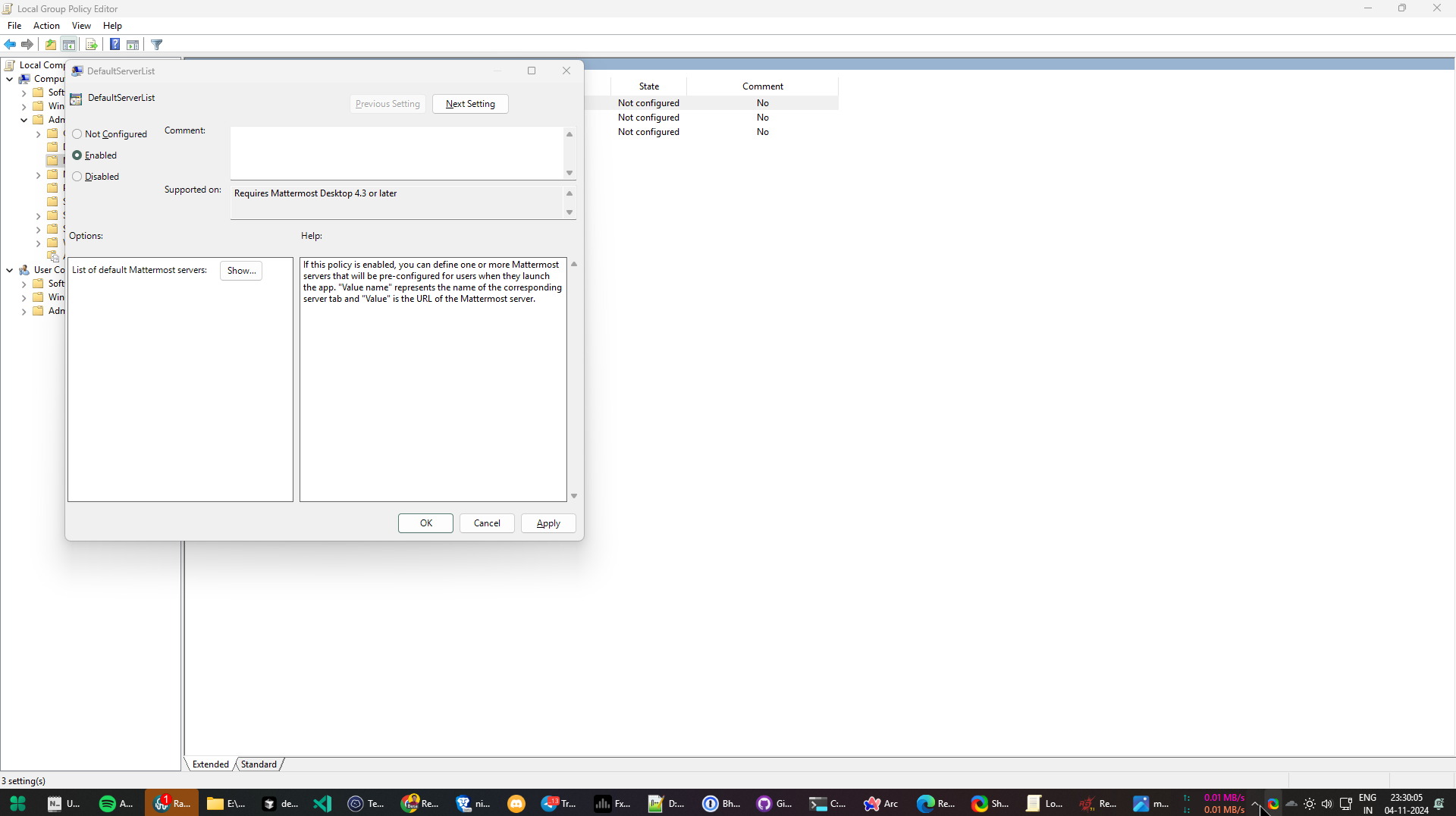
In the resulting window for DefaultServerList, select Enabled to turn the feature on, then select the Show… button in the Options: section of the window to add default servers.
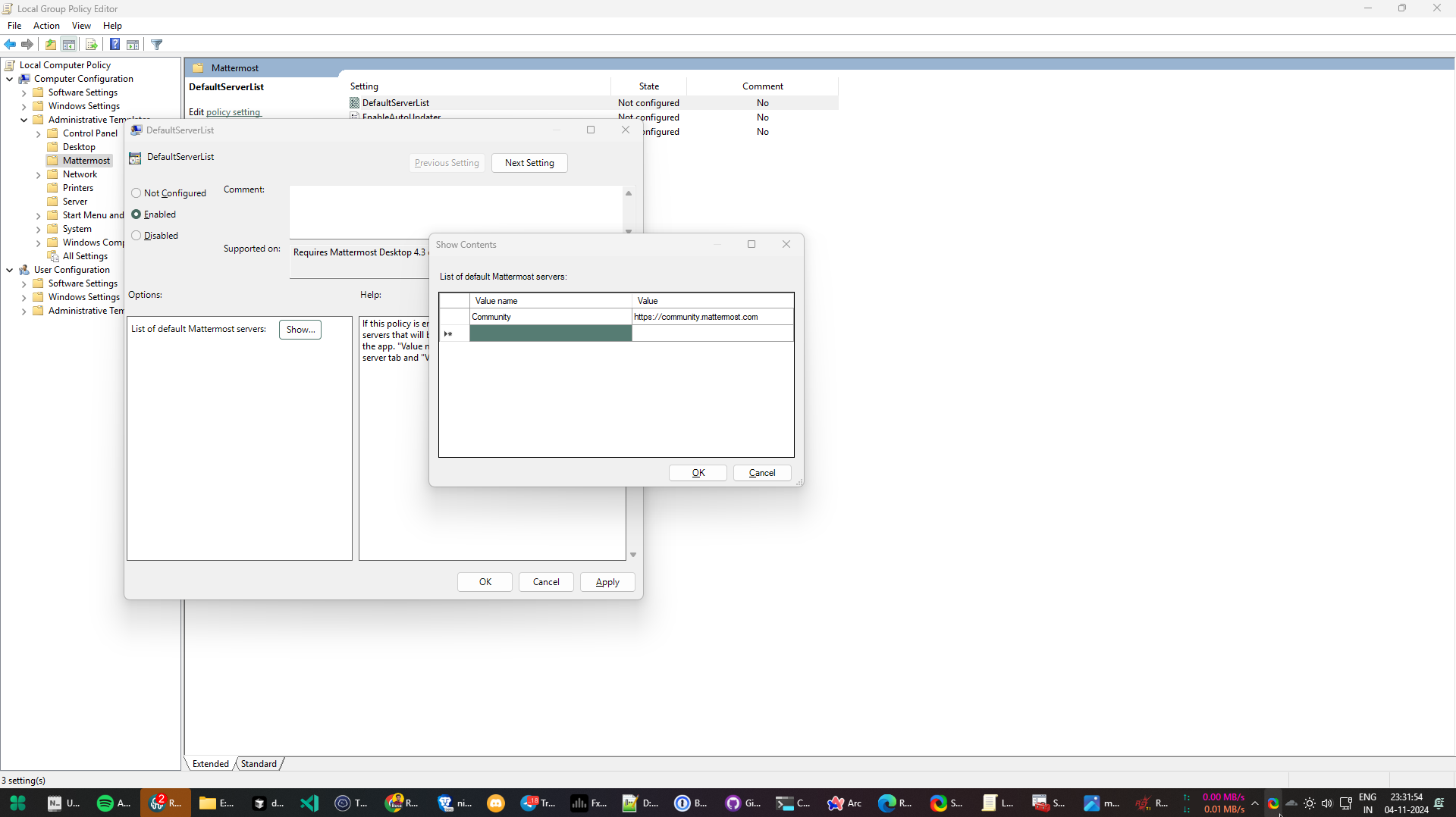
In the resulting window, add desired Mattermost servers using a memorable name (i.e., Community) and the web URL of the Mattermost server (i.e., https://community.mattermost.com).
Select OK twice, then close the Edit group policy app.
Deployment considerations for v6.1.0+
From Mattermost Desktop v6.1.0, the Windows MSI installer defaults to per-machine (system-wide) installation to meet enterprise compliance requirements. The application installs to C:\Program Files\Mattermost with registry keys in HKLM (HKEY_LOCAL_MACHINE), and requires administrator privileges for deployment.
Users upgrading from v5.9 to v6.0.4 with per-user installations must manually uninstall the old version before installing v6.1.0 to avoid duplicate installs. See Desktop troubleshooting for detailed upgrade instructions.
Multi-view and Group Policies
From desktop v6.0, users can run multiple Mattermost workspaces at the same time in the desktop app. Use existing methods to pre-provision multiple workspaces for users, as follows:
On Windows, seed the approved list using the
DefaultServerListGroup Policy.For scripted installs, seed
config.jsonon first run to include multiple entries in theteamsarray. See the Silent Windows desktop distribution documentation for details.To prevent users from adding or removing workspaces, use the existing
EnableServerManagementGroup Policy.Disable
EnableAutoUpdatesto turn off update notifications.
Verify group policy settings have been applied
Open up the Registry Editor by selecting Start, typing
Registry Editorin the search field, then selecting the Registry Editor option in the search results.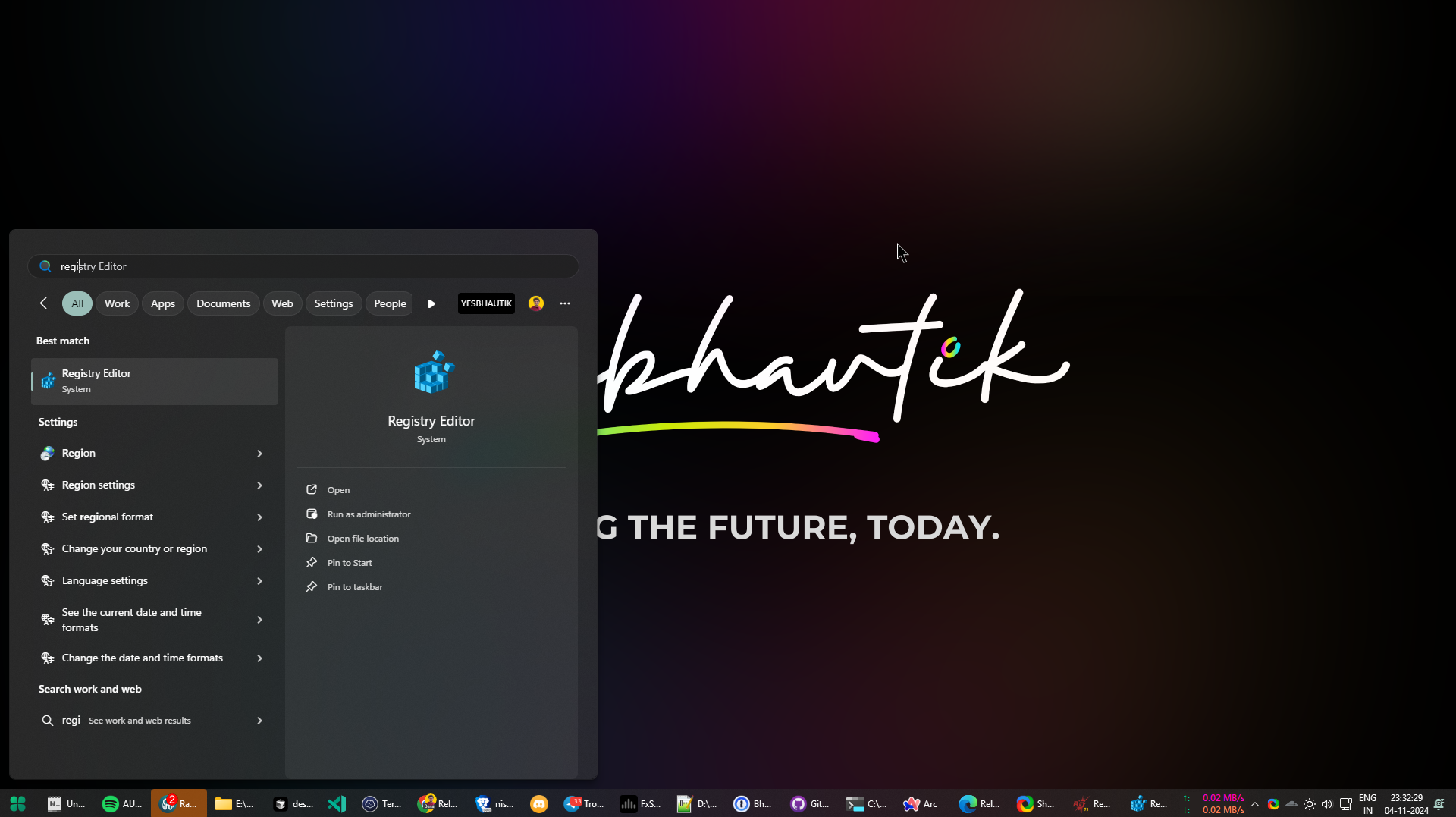
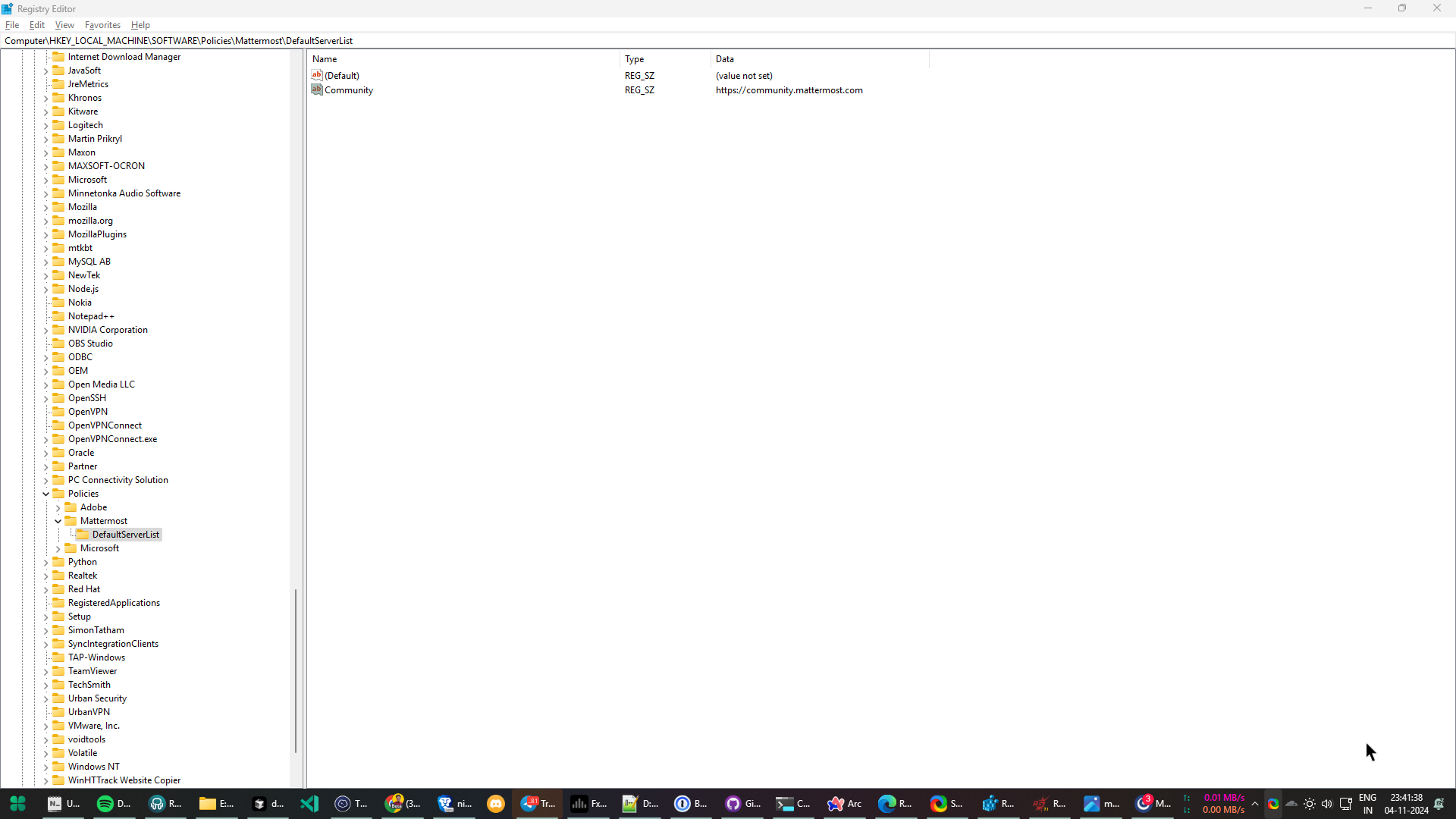
In the Registry Editor window, navigate to
Computer\HKEY_LOCAL_MACHINE\SOFTWARE\Policies\Mattermost\DefaultServerListand verify the servers you added using the Edit group policy app are listed.Once verified, close the Registry Editor.
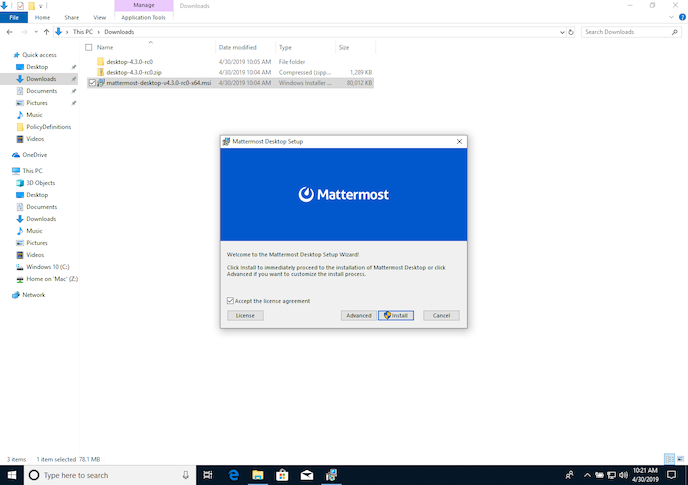
Install the Mattermost Desktop App using the MSI installer
Important
If the desktop app is running when you install via the MSI, Mattermost prompts you to close the app manually. After acknkowledging the prompt, select Retry to continue the MSI installation.
Avoid selecting Ignore. If you do, force close the desktop app using Task Manager, ensure the
Mattermost.exeprocess is stopped, and then restart the MSI installation.
Within the folder the MSI installer was downloaded to, double-click on the MSI installer to begin the Mattermost Desktop installation process.
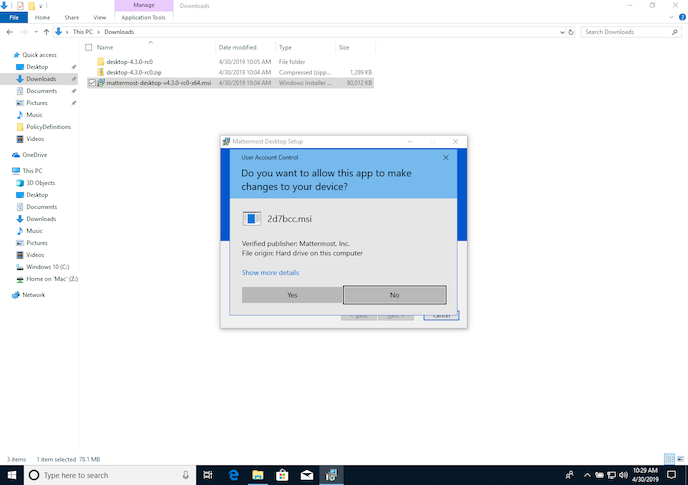
Installation of the MSI requires admin permission, so accept the resulting request to allow the installer to make changes to your device.
Select Finish when the installation is complete.
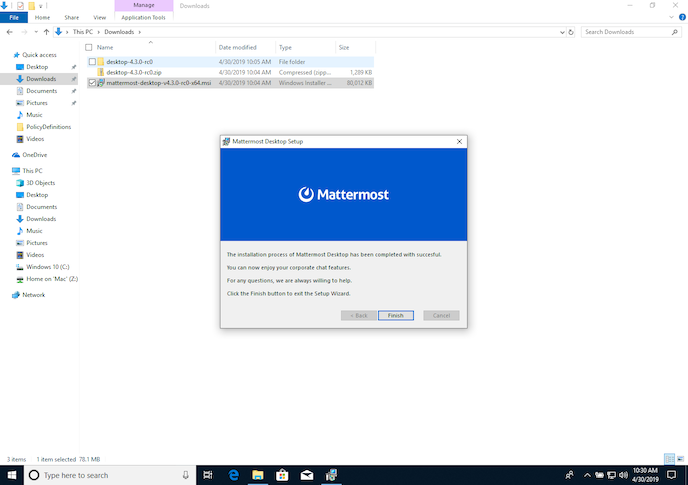
Verify group policy settings in the installed desktop app
Launch the newly installed Mattermost app from the Start menu.
Verify the app loads the first server you defined in the Edit group policy app.
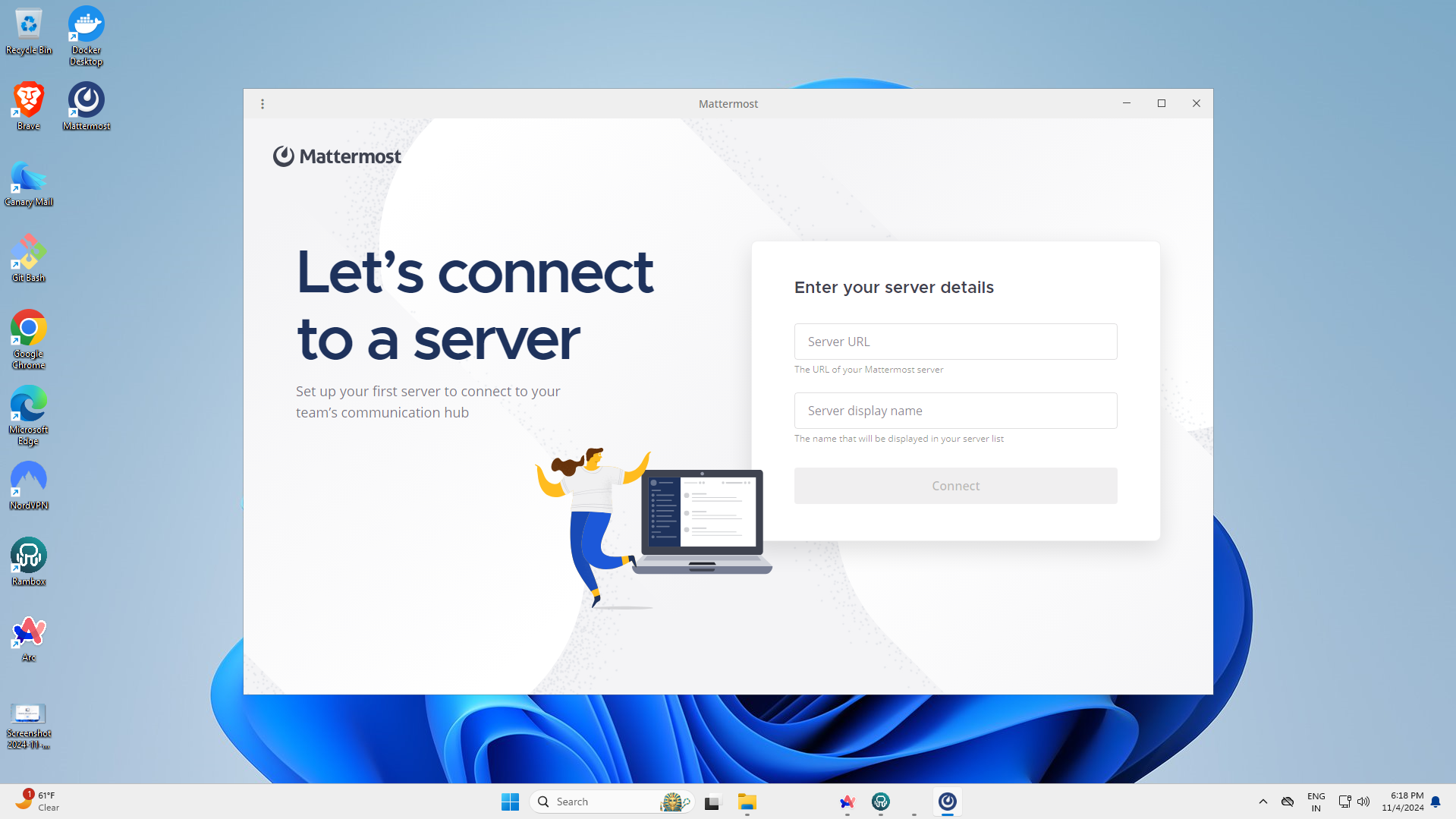
Advanced MSI options
Important
You must be a system admin to run these commands, or you must run them from an admin command prompt or PowerShell.
Silent installation
Perform a silent installation of the MSI by running the following command:
Important
Ensure the desktop app is closed before proceeding with a silent installation. Because it’s a silent installation, Mattermost won’t prompt you to close the desktop app.
Command Prompt: msiexec /i mattermost-desktop-v6.1.0-x64.msi /qn
PowerShell: Start-Process -FilePath "$env:systemroot\system32\msiexec.exe" -ArgumentList '/i mattermost-desktop-v6.1.0-x64.msi /qn'
Note
Replace
<version>with the actual version number (e.g.,v6.1.0).From v6.1.0, the MSI installs per-machine by default, requiring administrator privileges.
From version v5.9.0 of the Mattermost desktop app, the following silent MSI installation options are also available.
Specify an install directory
Use the APPLICATIONFOLDER parameter to specify an installation directory for the MSI installation:
Command Prompt:
msiexec /i mattermost-desktop-v6.1.0-x64.msi APPLICATIONFOLDER="<install directory>"PowerShell:
Start-Process -FilePath "$env:systemroot\system32\msiexec.exe" -ArgumentList '/i mattermost-desktop-v6.1.0-x64.msi APPLICATIONFOLDER="<install directory>"'
Change this command as new versions of the Mattermost Desktop App are released.