 Mattermost v11.0 is now available! Learn what's new »


Connect GitHub to Mattermost
 Available on
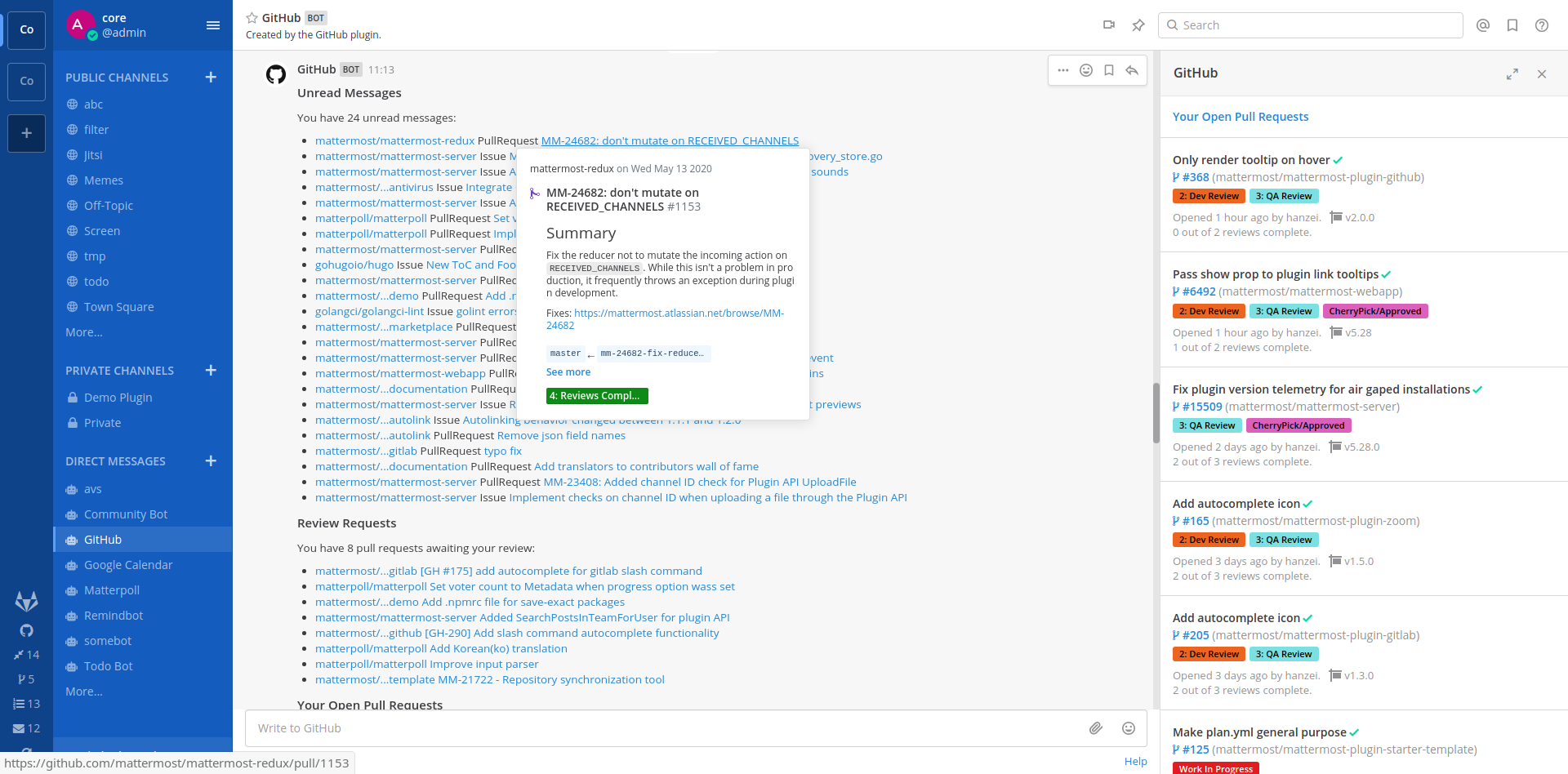
 Minimize distractions and reduce context switching between your GitHub code repositories and your communication platform by integrating GitHub with Mattermost. Help your teams stay focused and productive with real-time updates on commits, pull requests, issues, and more directly from Mattermost channels.
Deploy
A Mattermost system admin must perform the following steps to deploy the GitHub integration.
Install the integration
In Mattermost, from the Product menu
 , select App Marketplace.
Search for or scroll to GitHub, and select Install.
Set up the integration
You can configure the GitHub integration using either the built-in setup wizard (recommended) or by following the manual configuration steps.
The recommended way to configure the GitHub integration is using the built-in setup wizard. The wizard guides you through each step of the configuration process, including creating the OAuth app and webhook in GitHub.
In any Mattermost channel, run the
/github setupslash command.Follow the interactive prompts to complete the setup.
The wizard walks you through:
Creating and configuring an OAuth app in GitHub
Setting up the webhook connection between GitHub and Mattermost
Announcing the integration to your team
You can also run individual setup steps at any time using the following subcommands:
/github setup oauth: Configure the OAuth2 application in GitHub./github setup webhook: Create a webhook from GitHub to Mattermost./github setup announce: Announce the integration availability to designated channels.
If you prefer to configure the integration manually instead of using the setup wizard, follow the steps below.
Register an OAuth app in GitHub
Go to https://github.com/settings/applications/new to register an OAuth app with GitHub.
Set the following values:
Application name:
Mattermost GitHub Plugin - <YOUR COMPANY NAME>Homepage URL:
https://github.com/mattermost/mattermost-plugin-githubAuthorization callback URL:
https://YOUR-MATTERMOST-URL.COM/plugins/github/oauth/complete, replacinghttps://YOUR-MATTERMOST-URL.COMwith your Mattermost URL. This value must match the Mattermost server URL you use to log in.
Save your changes.
Select Generate a new client secret, and enter your GitHub password to continue.
Copy the Client ID and Client Secret in the resulting screen.
In Mattermost, go to System Console > Plugins > GitHub, and regenerate both a Webhook Secret and At Rest Encryption Key by selecting Regenerate next to each field. You’ll need a copy of the Webhook Secret value to create a webhook in GitHub.
Note
We recommend making a copy of your webhook secret and encryption key, as it will only be visible to you once.
Create a webhook in GitHub
Create a webhook in GitHub for each GitHub organization you want to set up.
In GitHub, go to the Settings page where you want to send notifications from, then select Webhooks in the sidebar.
Select Add Webhook.
Set the following values:
Payload URL:
https://YOUR-MATTERMOST-URL.COM/plugins/github/webhook. Replacehttps://YOUR-MATTERMOST-URL.COMwith your Mattermost URL.Content Type:
application/jsonSecret: The Webhook Secret value you copied earlier.
Under Which events would you like to trigger this webhook?, select Let me select individual events.
Select the following events:
Branch or Tag creation
Branch or Tag deletion
Discussions
Discussion comments
Issue comments
Issues
Pull requests
Pull request review
Pull request review comments
Pushes
Releases
Stars
Workflows
Select Add Webhook to save your changes.
Configure the integration in Mattermost
Confirm whether your Mattermost deployment has a
githubuser account. If it exists, that account posts GitHub messages in channels by default, and the messages won’t include a BOT tag. You can change this account behavior to include a BOT tag by using one of the following methods:
Convert the user account to a bot using mmctl user convert.
Change the existing
githubusername to something else. A new bot account calledgithubis created the Mattermost server is restarted when the enable bot account creation configuration setting is enabled.
In Mattermost, go to System Console > Plugins > GitHub and configure the following settings, then select Save:
Enter the GitHub OAuth Client ID and GitHub OAuth Client Secret obtained during registration.
(Optional) GitHub Organization: Lock the integration to GitHub organizations by specifying a comma seperated list of your GitHub organizations.
(GitHub Enterprise Only): Set Enterprise Base URL and Enterprise Upload URL values to your GitHub Enterprise URLs, e.g.
https://github.example.com. These values are often the same.(Mattermost desktop app only) Display Notification Counters in Left Sidebar: Display or hide GitHub notification counters in the Mattermost sidebar.
(Optional) Enable Private Repositories: Enable the ability to work with private repositories. Affected users are notified once private repositories are enabled, and must reconnect their GitHub accounts to gain access to private repositories.
(Optional) Connect to private Repositories by default: Connect to private GitHub repositories by default, when private repositories are enabled.
(Optional) Enable Code Previews: Expand permalinks to GitHub files with previews. You can can enable public repositories, public and private repositories, or disable this option.
(Optional) Enable Webhook Event Logging: Log webhook events when log level set to DEBUG by enabling the option.
(Optional) Show Author in commit notification: Show commit author instead of committer in GitHub push event notifications.
Upgrade
We recommend updating this integration as new versions are released. Generally, updates are seamless and don’t interrupt the user experience in Mattermost. Visit the Releases page for the latest release, available releases, and compatibiilty considerations.
Enable
Once you setup the integration, notify your teams that they can connect their GitHub accounts to Mattermost.
Use
Users who want to use GitHub interconnectivity must connect their GitHub account to Mattermost.
Once connected, you’ll receive direct messages from the GitHub bot in Mattermost when someone mentions you, requests a review, comments on, modifies one of your pull requests/issues (includes adding labels or reopening the issue), or assigns you to an issue on GitHub.
Connect a GitHub account to Mattermost
In Mattermost, run the
/github connectslash command in any Mattermost channel to link your Mattermost account with your GitHub account.Once connected, run the
/github helpslash command to see what you can do.
Get started
Here are some common slash commands you can get started with:
Run the /github subscriptions add slash command to subscribe a Mattermost channel to receive notifications for new pull requests, issues, branch creation, and more in a GitHub repository.
For example, to post notifications for issues, issue comments, and pull requests matching the label Help Wanted from the mattermost/mattermost-server GitHub repository, use: /github subscriptions add mattermost/mattermost-server --features issues,pulls,issue_comments,label:"Help Wanted". The following flags are supported:
--features: A comma-delimited list of one or more of: issues, pulls, pulls_merged, pulls_created, pushes, creates, deletes, issue_creations, issue_comments, pull_reviews, releases, workflow_success, workflow_failure, discussions, discussion_comments, label:”labelname”. Defaults topulls,issues,creates,deletes.--exclude-org-member: The events triggered by organization members that won’t be delivered. It will be locked to the organization configured and only works for users whose membership is public. Organization members and collaborators are not the same.--include-only-org-members: events triggered only by organization members will be delivered. It will be locked to the organization provided in the plugin configuration and it will only work for users whose membership is public. Note that organization members and collaborators are not the same.--render-style: Notifications are delivered in the specified style (for example, the body of a pull request will not be displayed). Supported values arecollapsed,skip-body, ordefault(which is the same as omitting the flag).--exclude: A comma-separated list of the repositories to exclude from getting the subscription notifications likemattermost/mattermost-server. Only supported for subscriptions to an organization.
Run the /github todo slash command to get a message with items to do in GitHub, including a list of unread messages and pull requests awaiting your review.
Run the /github settings slash command to update your settings for notifications and daily reminders.
Run the /github mute slash command to manage muted GitHub users. You won’t receive notifications for comments in your pull requests and issues from muted users.
Run the /github default-repo slash command to set a default repository for the current channel. This repository will be auto-filled in the Create GitHub Issue modal for convenience.
Frequently asked questions
How do I connect a repository instead of an organization?
Set up your GitHub webhook from the repository instead of the organization. Notifications and subscriptions will then be sent only for repositories you create webhooks for. The reminder and /github todo searches the whole organization, but only show items assigned to you.
How do I send notifications when a certain label is applied?
If you want to send notifications to a Mattermost channel when Severity/Critical label is applied to any issue in the mattermost/mattermost-plugin-github repository, run the following slash command to subscribe to these notifications: /github subscriptions add mattermost/mattermost-plugin-github issues,label:"Severity/Critical"
How does the integration save user data for each connected GitHub user?
GitHub user tokens are AES-encrypted with an At Rest Encryption Key generated in Mattermost. Once encrypted, the tokens are saved in the PluginKeyValueStore table in your Mattermost database.
Get help
Mattermost customers can open a Mattermost support case. To report a bug, please open a GitHub issue against the Mattermost GitHub plugin repository.
For questions, feedback, and assistance, join our pubic Integrations and Apps channel on the Mattermost Community Server for assistance.
Mattermost Team Edition and Free customers can visit the Mattermost peer-to-peer troubleshooting forum to access the global Mattermost Community for assistance.