 Mattermost v11.0 is now available! Learn what's new »


Invite people to your workspace
 Available on
 Anyone can invite people to Mattermost teams and channels, unless your system admin has disabled your ability to do so.
Select the team name at the top of the channel sidebar, and then select Invite People.
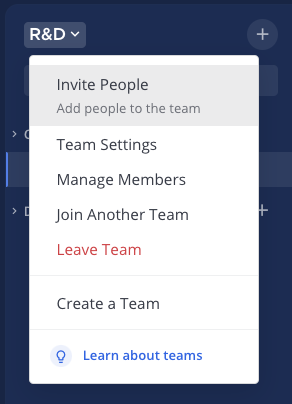
Choose how to invite people:
Copy invite link: Share an invitation link with others using apps on your mobile device.
Invite as member: Send an invitation by email to people who don’t have an account on your Mattermost workspace by specifying their email address and selecting Invite.
Add existing users: Add existing workspace users as members of the current team by specifying their username and selecting Invite.
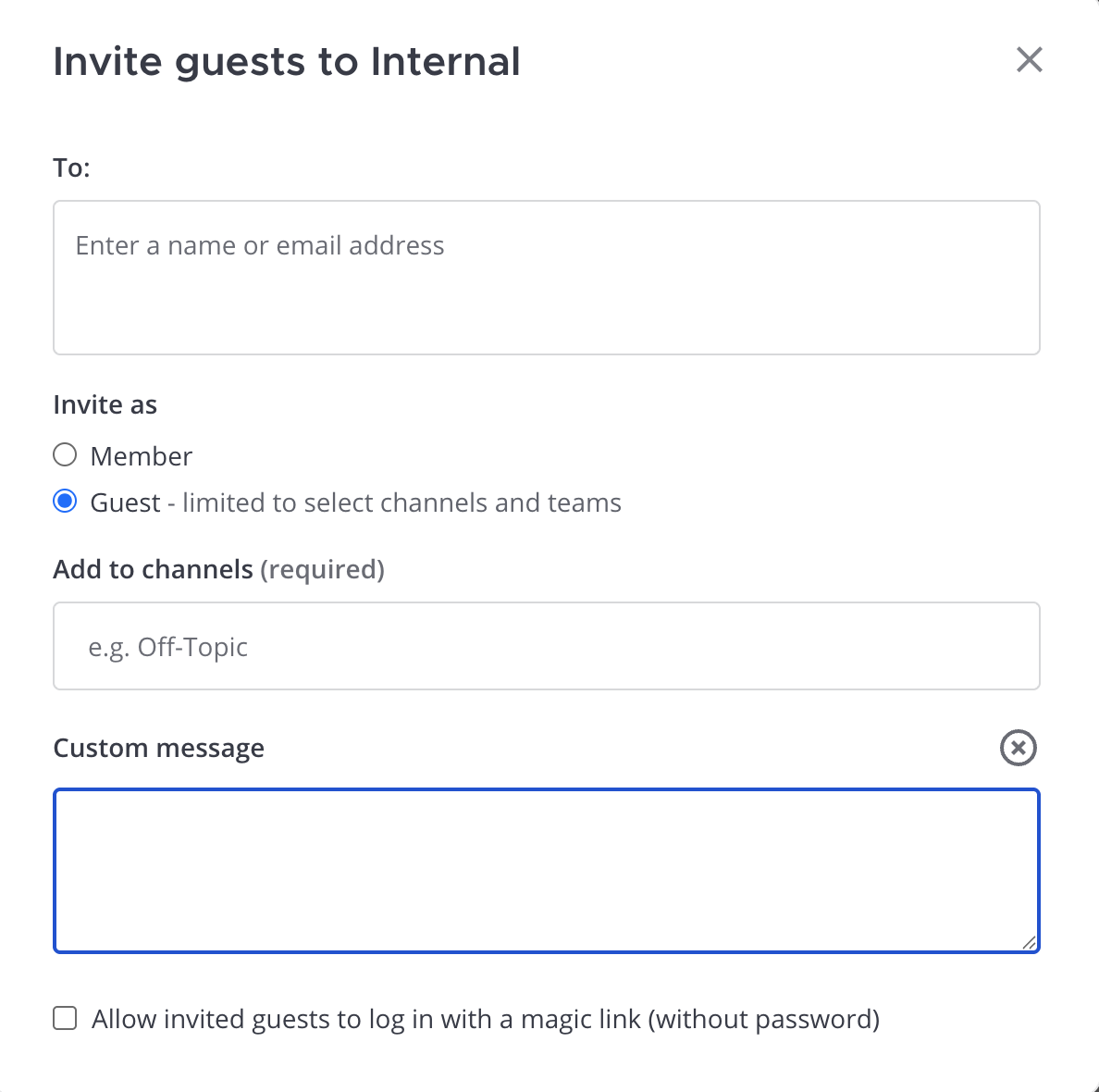
Invite as guest: Invite a guest temporarily with limited workspace access. Specify their email address, select the channels they can access, and optionally add a custom message. See the guest accounts documentation to learn more about guest accounts.
Use magic link: Invite guests to log in without a password using a magic link when enabled by your system admin. See the magic link login for guests documentation for login details.
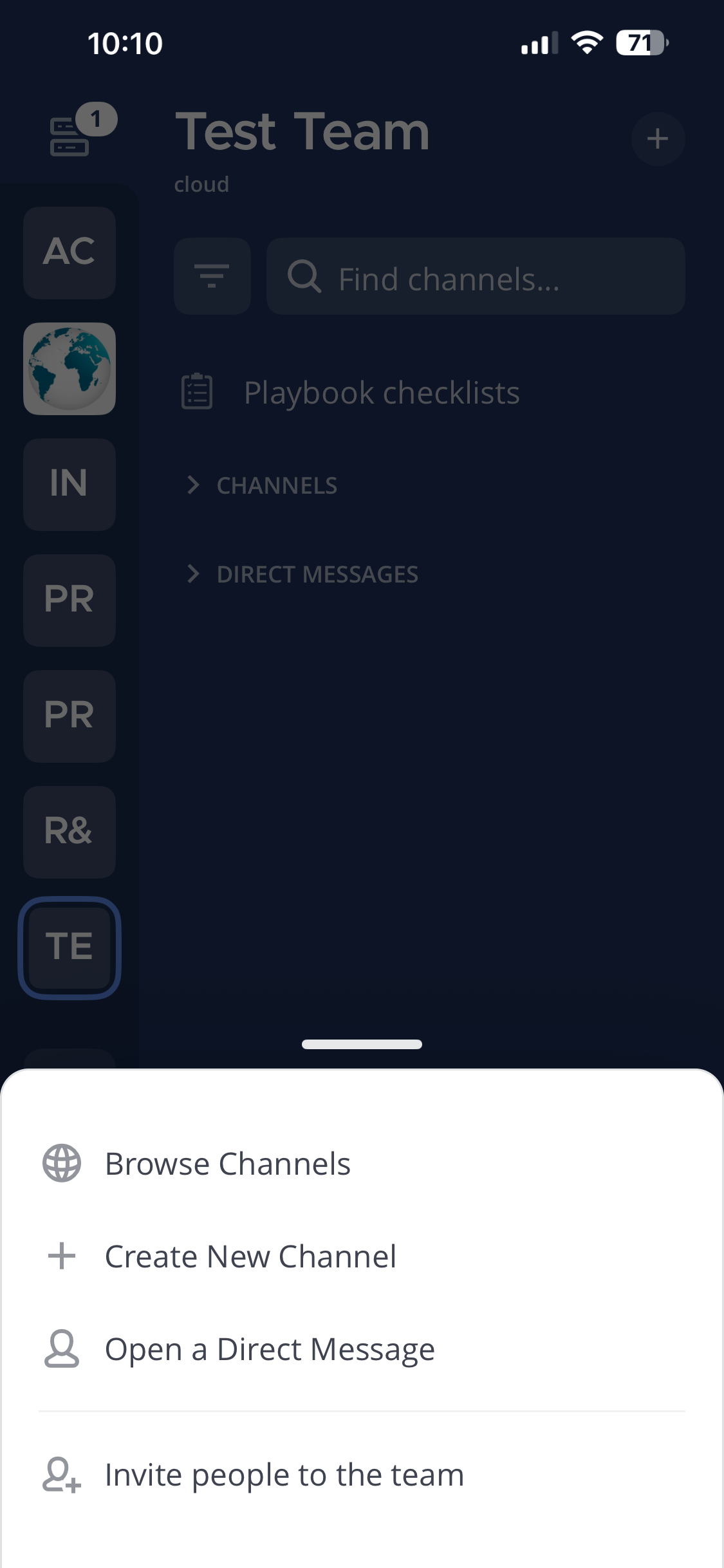
Tap the
 icon in the top right corner of the screen and tap Invite people to the team.
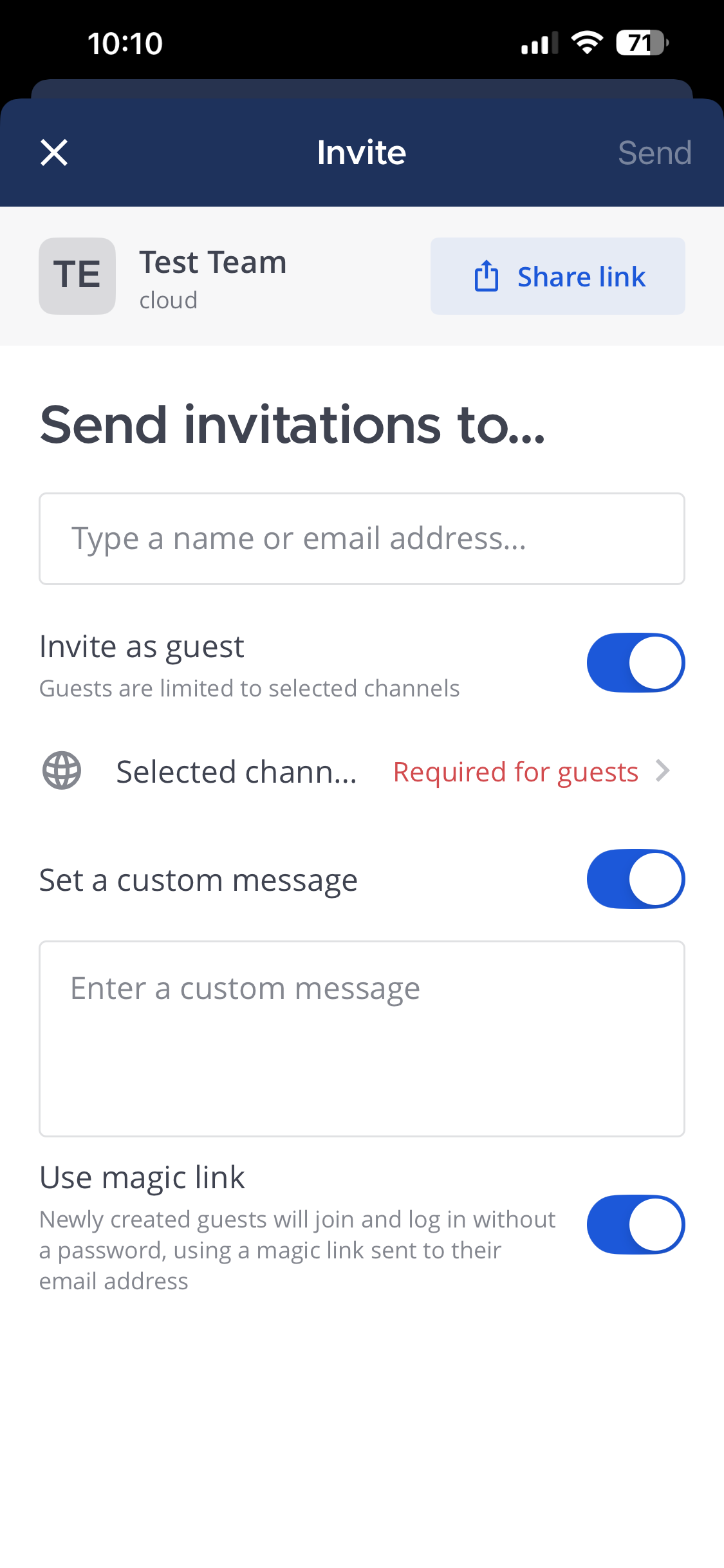
Choose how to invite people:
Invite as member: Send an invitation by email to people who don’t have an account on your Mattermost workspace by specifying their email address and tap Send.
Add existing users: Add existing workspace users as members of the current team by specifying their username and tap Send.
Share link: Share an invitation link with others using apps on your mobile device.
Invite as guest: Invite a guest temporarily with limited workspace access. See the guest accounts documentation to learn more about guest accounts. Specify their email address, select the channels they can access, and optionally add a custom message. Tap Send when ready.
Use magic link: Invite guests to log in without a password using a magic link when enabled by your system admin. See the magic link login for guests documentation for login details.
Note
Can’t share invitation links? Contact your Mattermost system admin for assistance. An SSL certificate (or a self-signed certificate) may be required for link-based invitations to work.
When inviting guests, you must select at least one channel they can access. Guests are limited to the channels you specify and cannot discover other channels.
An invite link can be used by anyone and doesn’t change unless it’s re-generated or revoked by a system admin or team admin via Team Settings > Access > Invite Code.
Your system admin must enable email invitations and configure email for Mattermost to send email-based invitations. - Invitation links sent by email expire after 48 hours and can only be used once.
Your system admin can cancel all email invitations that haven’t yet been accepted within the System Console.