 Mattermost v11.0 is now available! Learn what's new »


Send messages
 Available on
 You can send messages in public and private channels as well as to other users in Mattermost. Depending on when you compose a message, you can send it immediately, schedule it for later, or set its priority.
Mattermost may notify you when a recipient’s availability is set to Do Not Disturb, and the recipient’s local time is outside of regular business hours (between 10PM and 6AM). This warning displays directly above the message text field.
Enter a message in the text field, then select Send  to send the message.
Tip
You can also use a keyboard to send messages:
Press Enter on Windows or Linux, or ↵ on Mac.
You can configure Mattermost to require Shift Enter on Windows or Linux, or ⇧ ↵ on Mac to send multi-line messages. Select the gear
 icon to go to Settings, then select Advanced > Send messages on CTRL+ENTER.
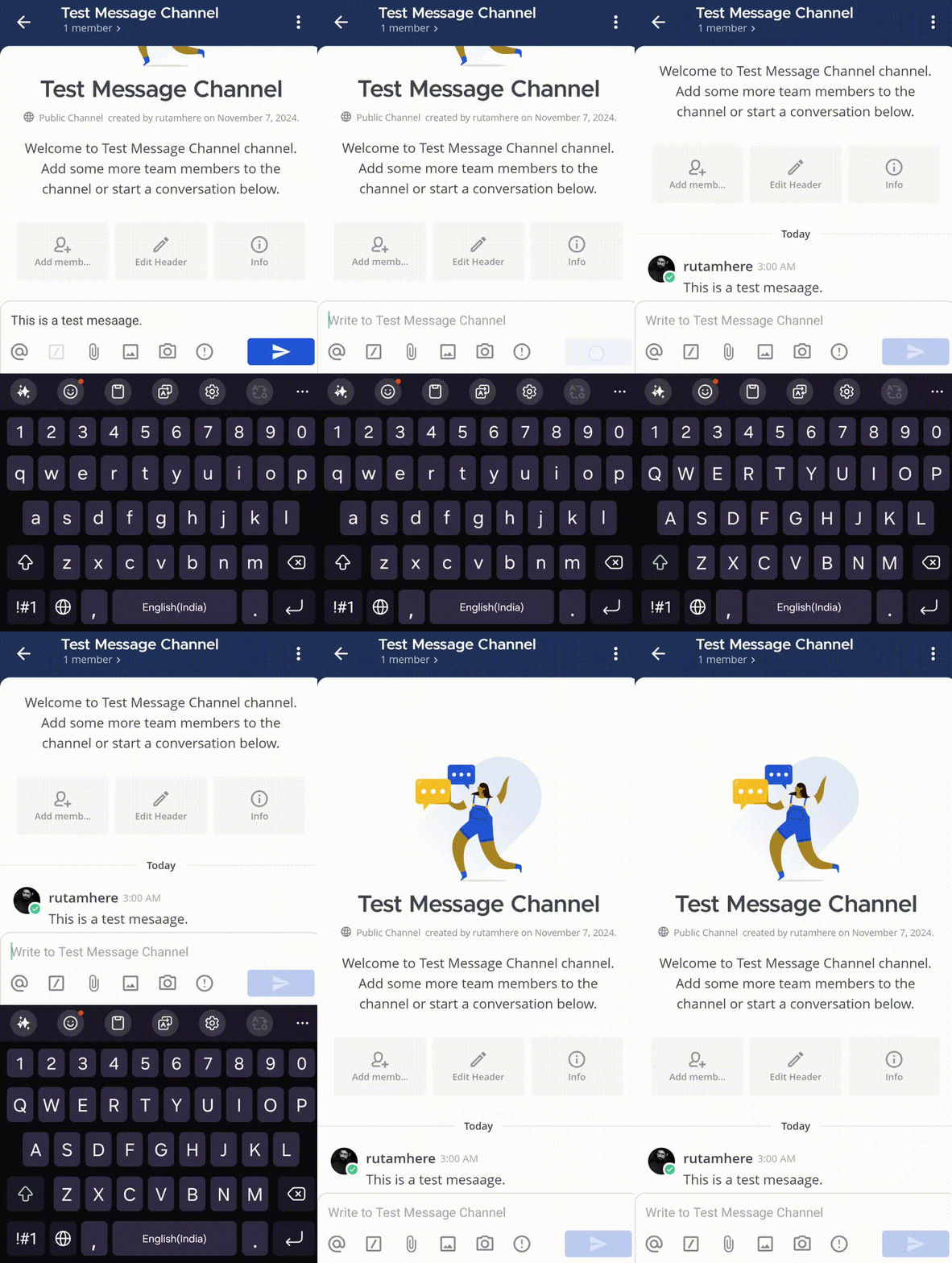
Tap the text field at the bottom of the Mattermost app to type a message.
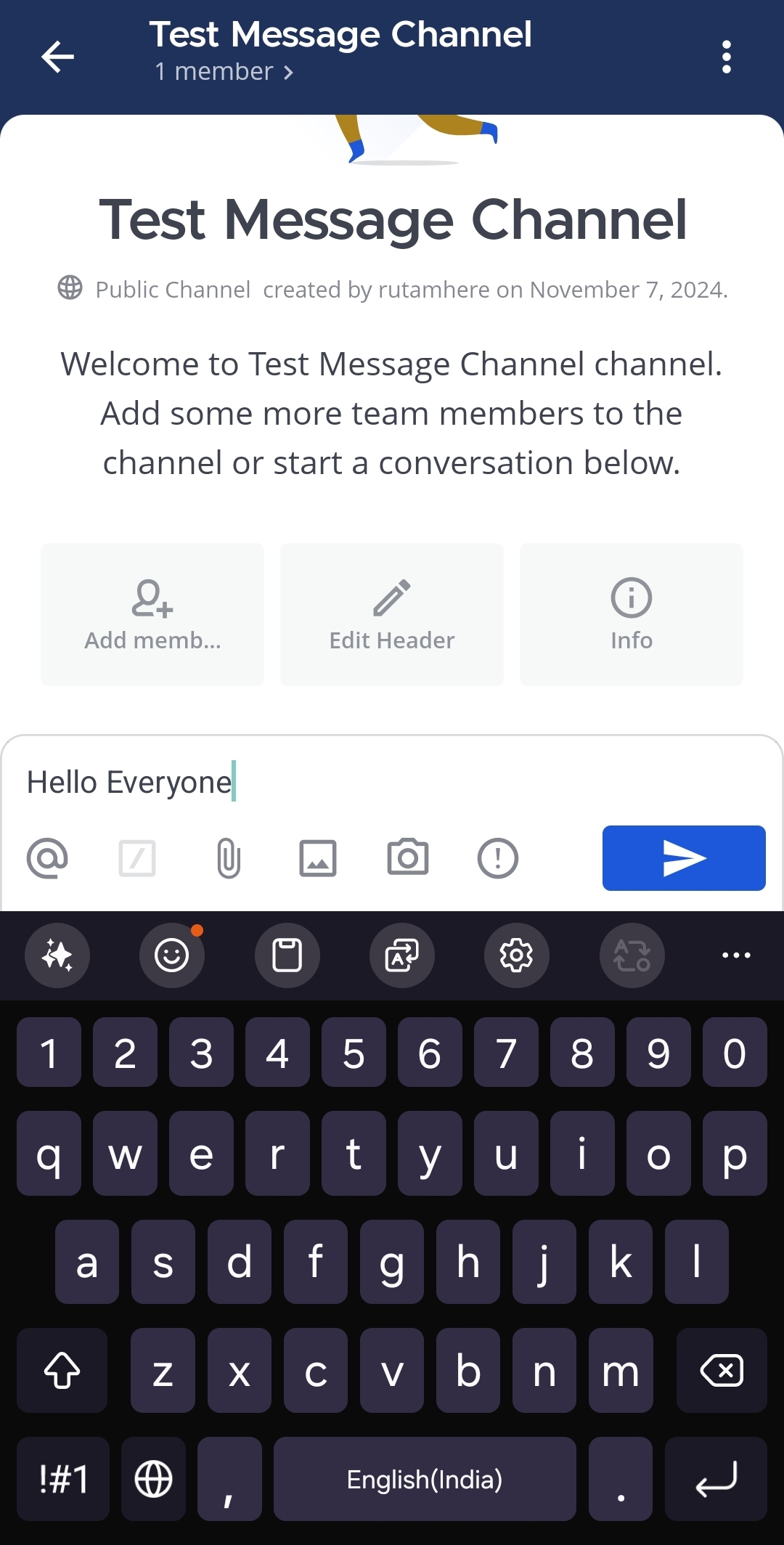
Tap Send
icon to send it in the channel.
Rewrite messages with AI
From Mattermost v11.2, you can use AI to enhance your messages before sending them. This feature helps you improve writing quality, fix spelling, adjust message length, or transform your text based on specific needs.
Type your message in the message compose field.
Select the Rewrite
 option from the message actions.
Select a bot from the list of available AI agents.
Choose from available rewrite options:
Improve writing: Enhance clarity and professionalism
Fix spelling: Correct spelling and grammar errors
Shorten: Make your message more concise
Elaborate: Add more detail and context
Simplify: Use clearer, easier-to-understand language
Summarize: Condense your message to key points
Custom prompt: Specify your own transformation instructions
Review the AI-generated suggestion. Select Regenerate to try again or Discard to return to your original message.
Select Send
to send your rewritten message.
AI rewriting functionality is available in the mobile app with the same rewrite options as the desktop and web experience.
Note
Messages that have been rewritten using AI are automatically marked as AI-generated content for transparency. Your system admin must configure AI agents for the rewrite feature to be available.
Draft messages
From Mattermost v7.7, when composing new messages, it’s easy to return to a message in progress later, unless your system admin has disabled global drafts in the System Console.
By default, message drafts are synchronized on the Mattermost server and are accessible everywhere you access Mattermost, including a web browser or the desktop app. Limit drafts to your current Mattermost client only by going to Settings > Advanced > Allow message drafts to sync with the server to disable draft synchronization.
Draft messages are added to a Drafts view available at the top of the channel sidebar.
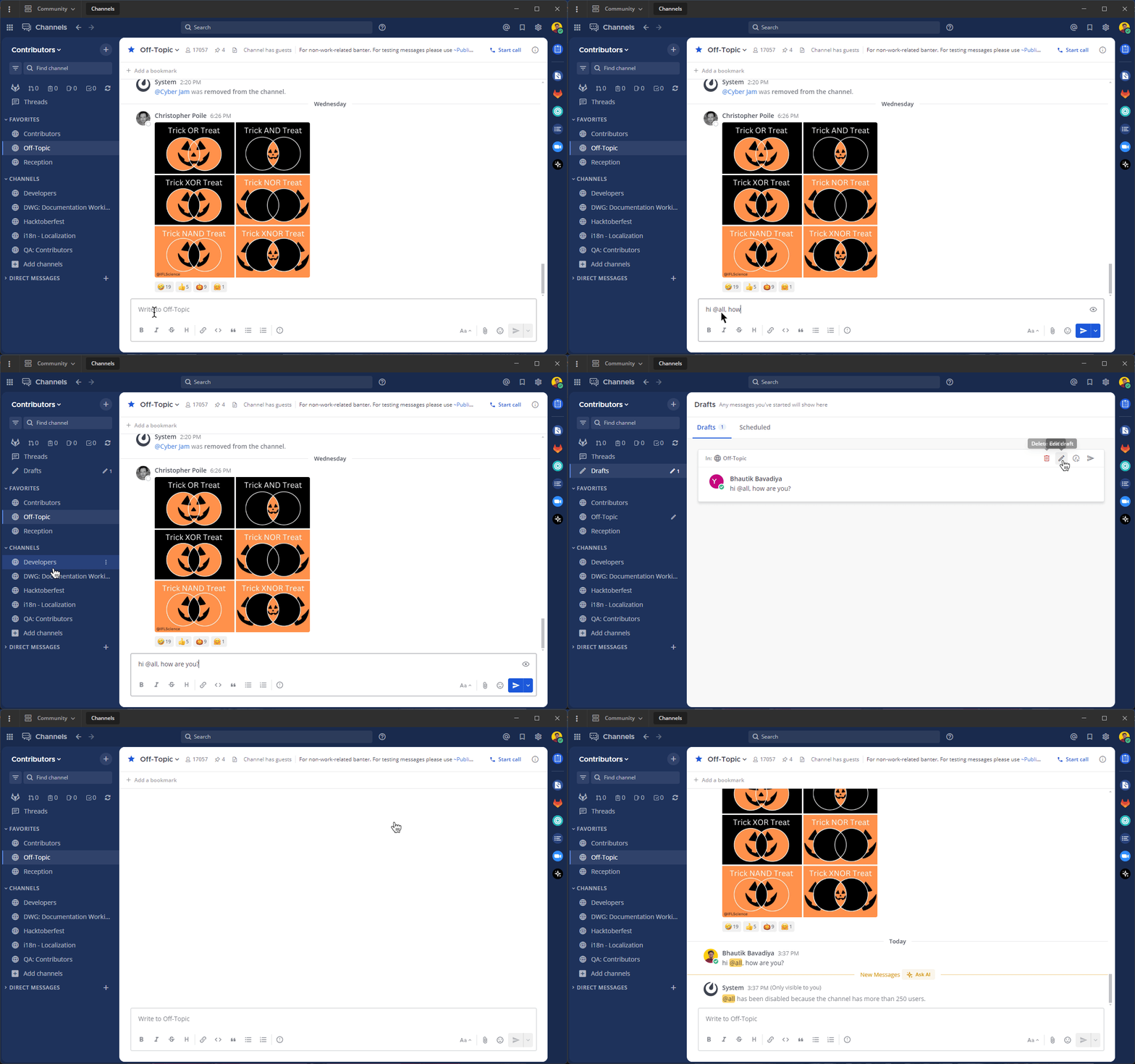
When composing a message, you can simply choose to complete it later. The partially composed message is kept in the text field and an Edit option  displays next to the channel name.
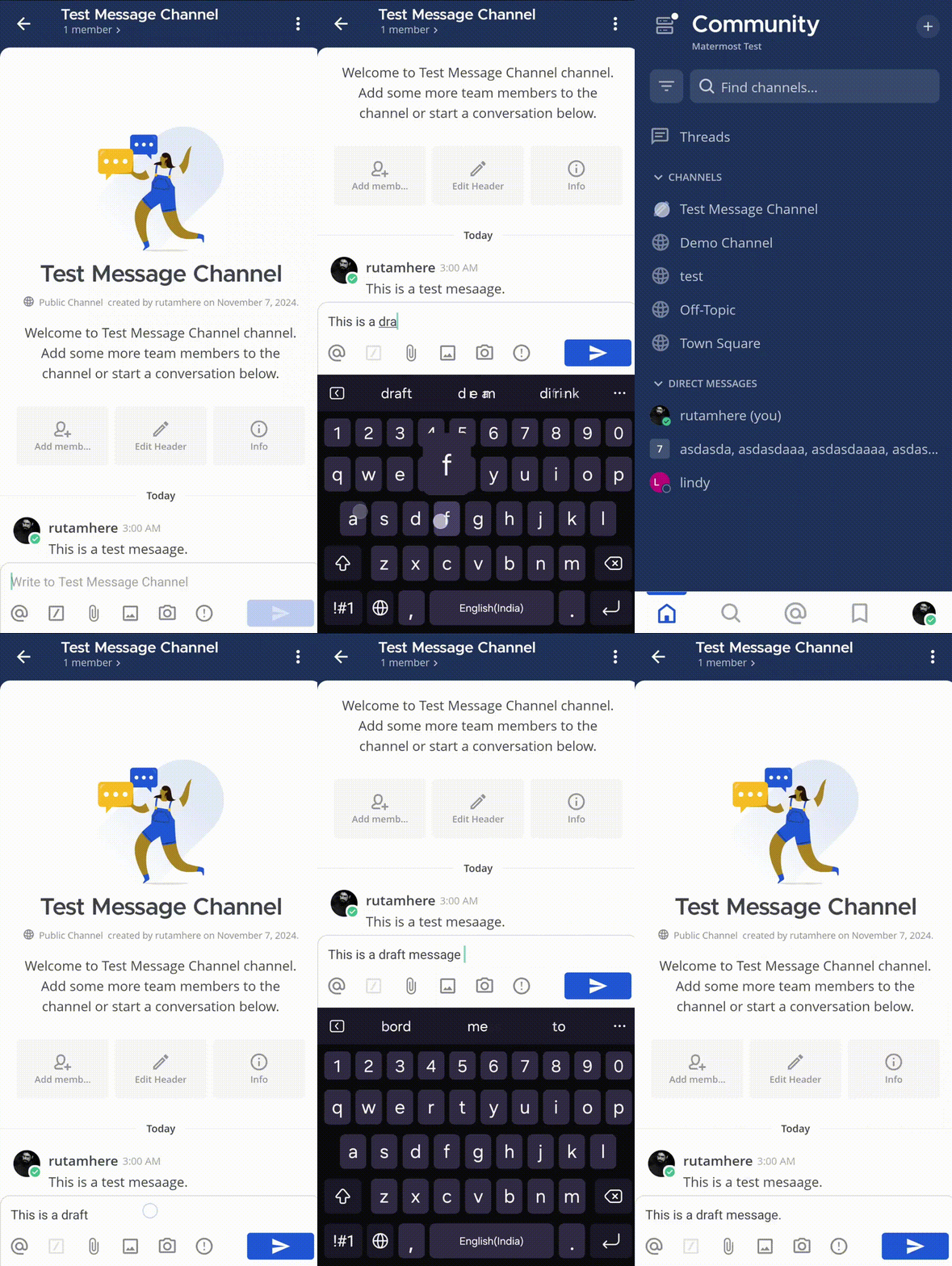
From Mattermost v10.5, you’ll find local draft messages under Drafts. Drafts synchronized to the Mattermost server will be listed under Drafts in a future mobile app release.
Edit messages
All users can edit their own sent messages, unless the system admin has restricted the ability to do so.
Using Mattermost in a web browser or the desktop app, select the More
 icon next to a message that you’ve sent.
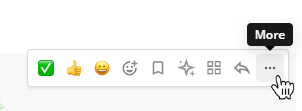
Select Edit to edit your own messages. Editing a message won’t trigger new @mention notifications, or desktop notifications.
Tip
From Mattermost v10.5, using a web browser or the Mattermost Desktop app, you can also change or remove message attachments when editing your sent messages.
Long press on the message that you want to edit and tap on Edit.
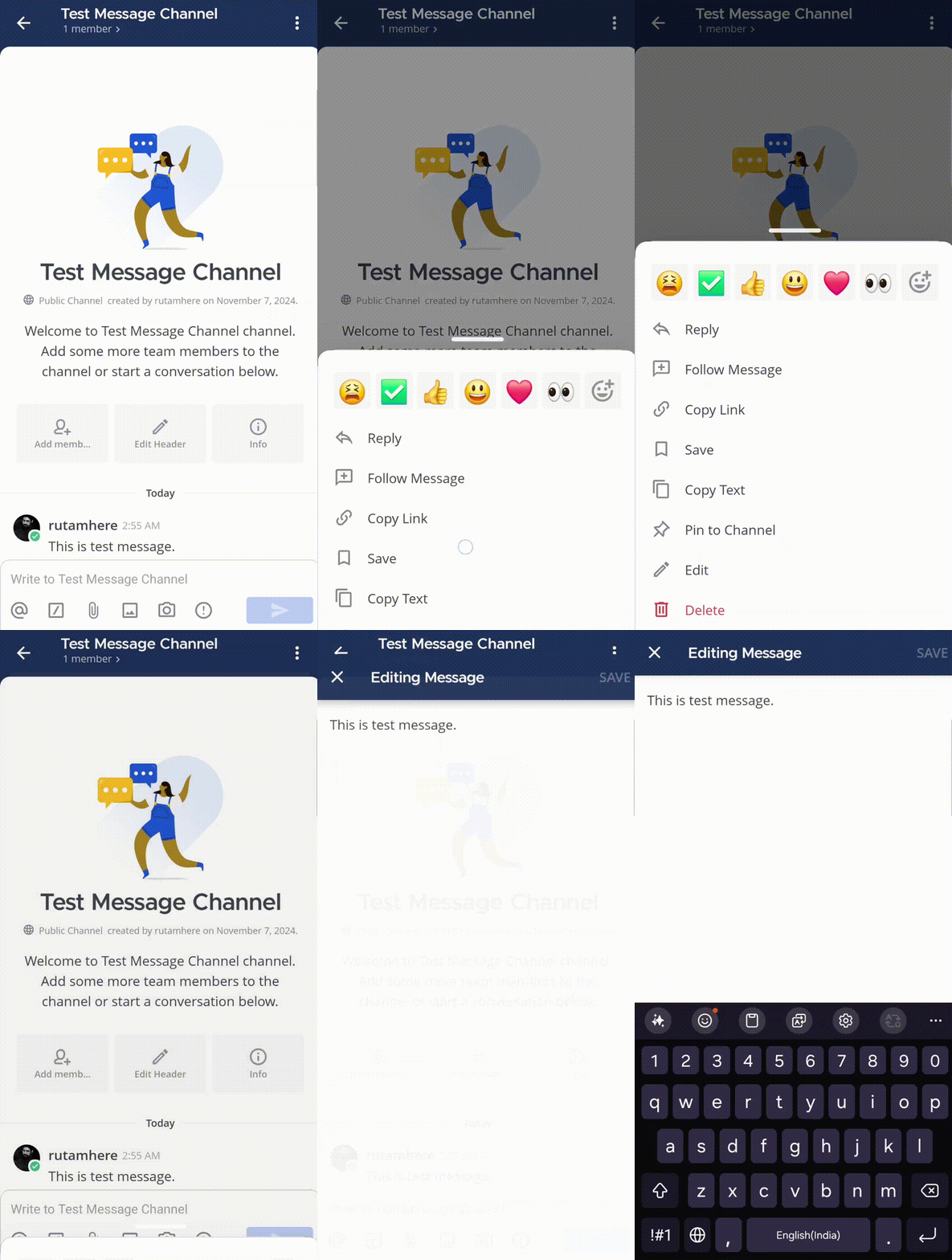
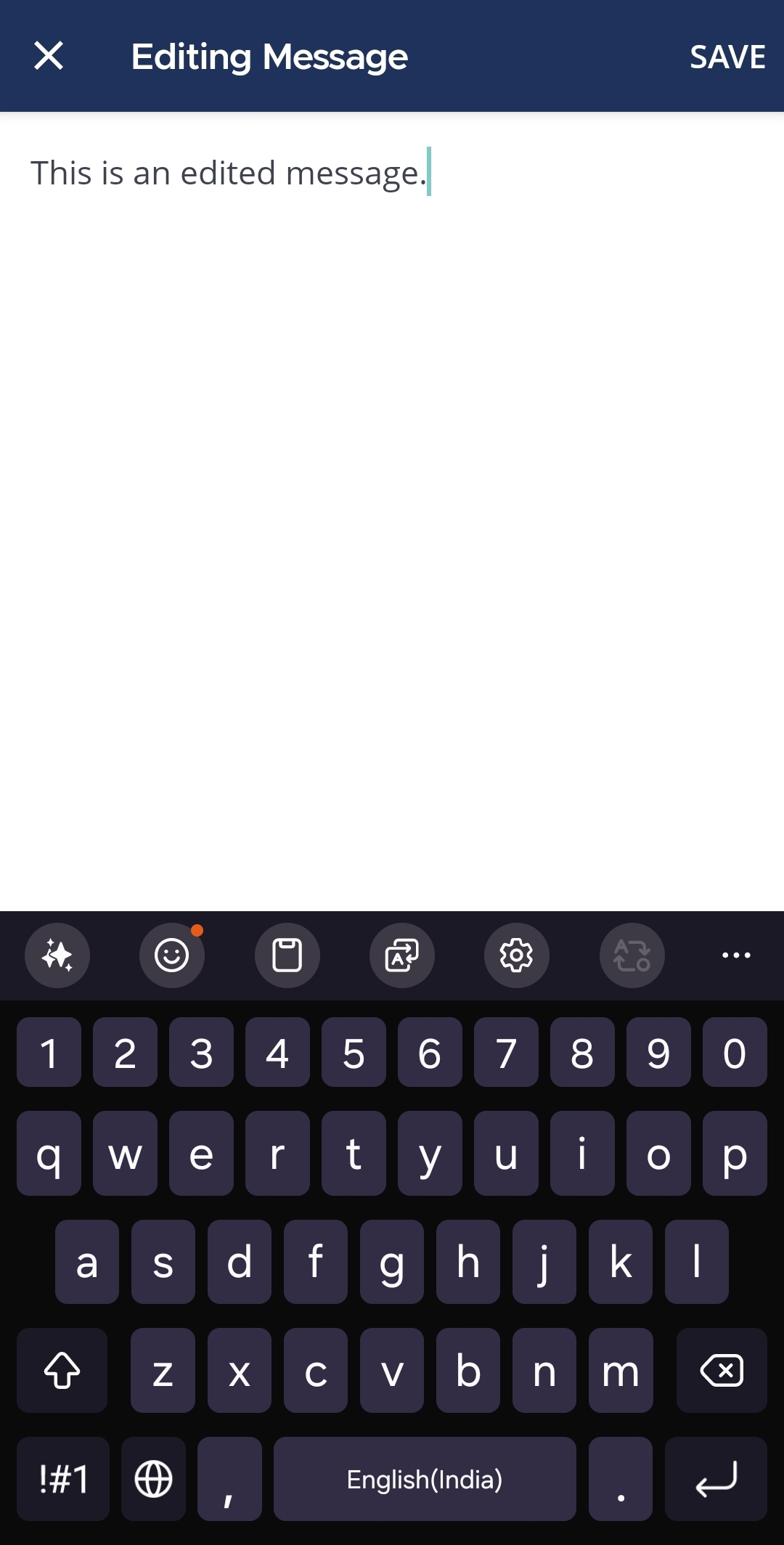
Type the updated message and tap on Save.
Tip
From Mattermost v10.11 and mobile app v2.31.0, when editing messages on mobile, you can also view, delete, and save message attachments as you would when using Mattermost in a web browser or the desktop app.
Delete messages
All users can delete their own sent messages, unless the system admin has restricted the ability to do so.
Using Mattermost in a web browser or the desktop app, select the More
icon next to a message that you want to delete.Select Delete to delete your own messages. Select Delete again to confirm.
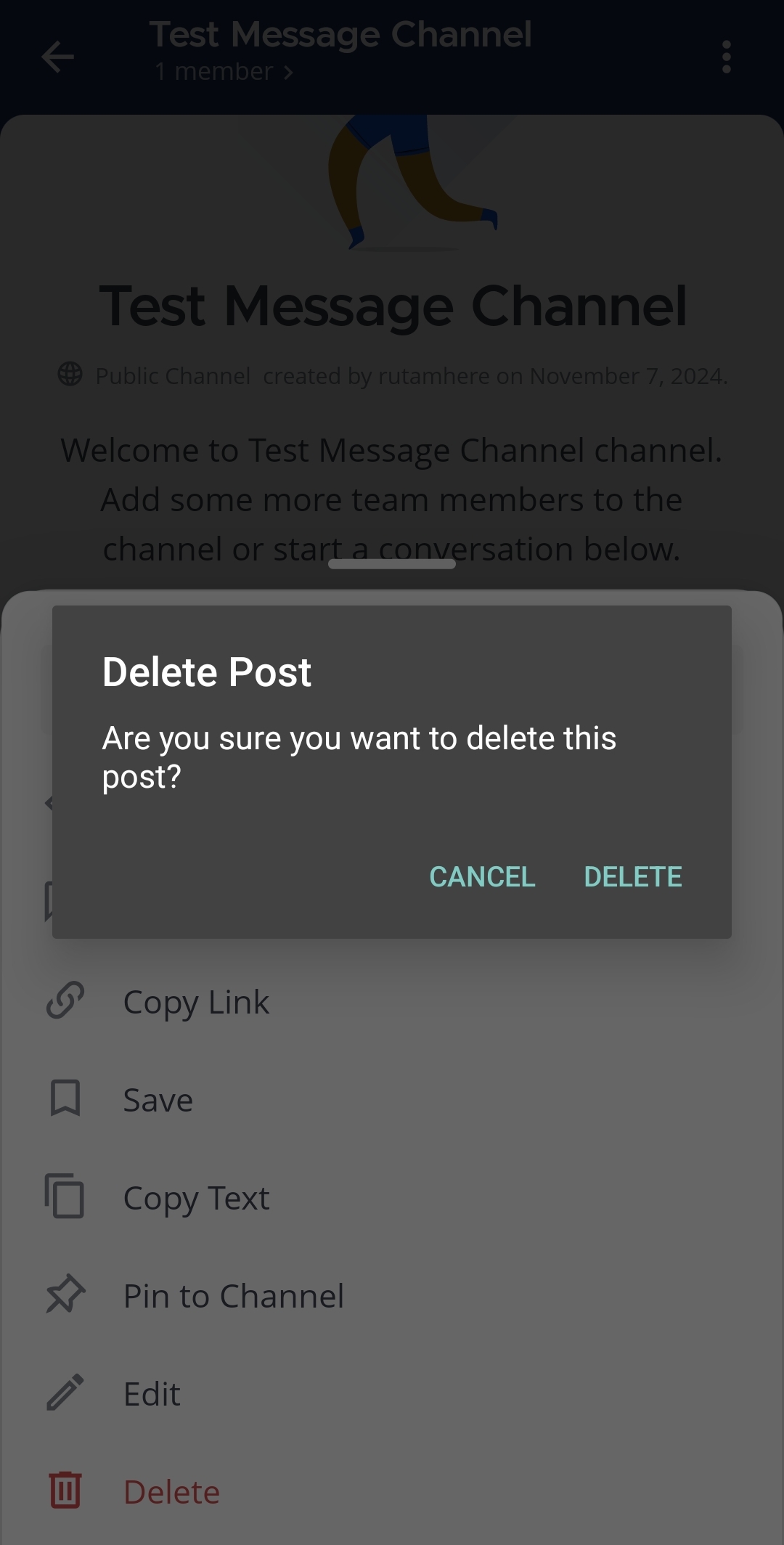
Long Press on the message you want to delete and tap on Delete.
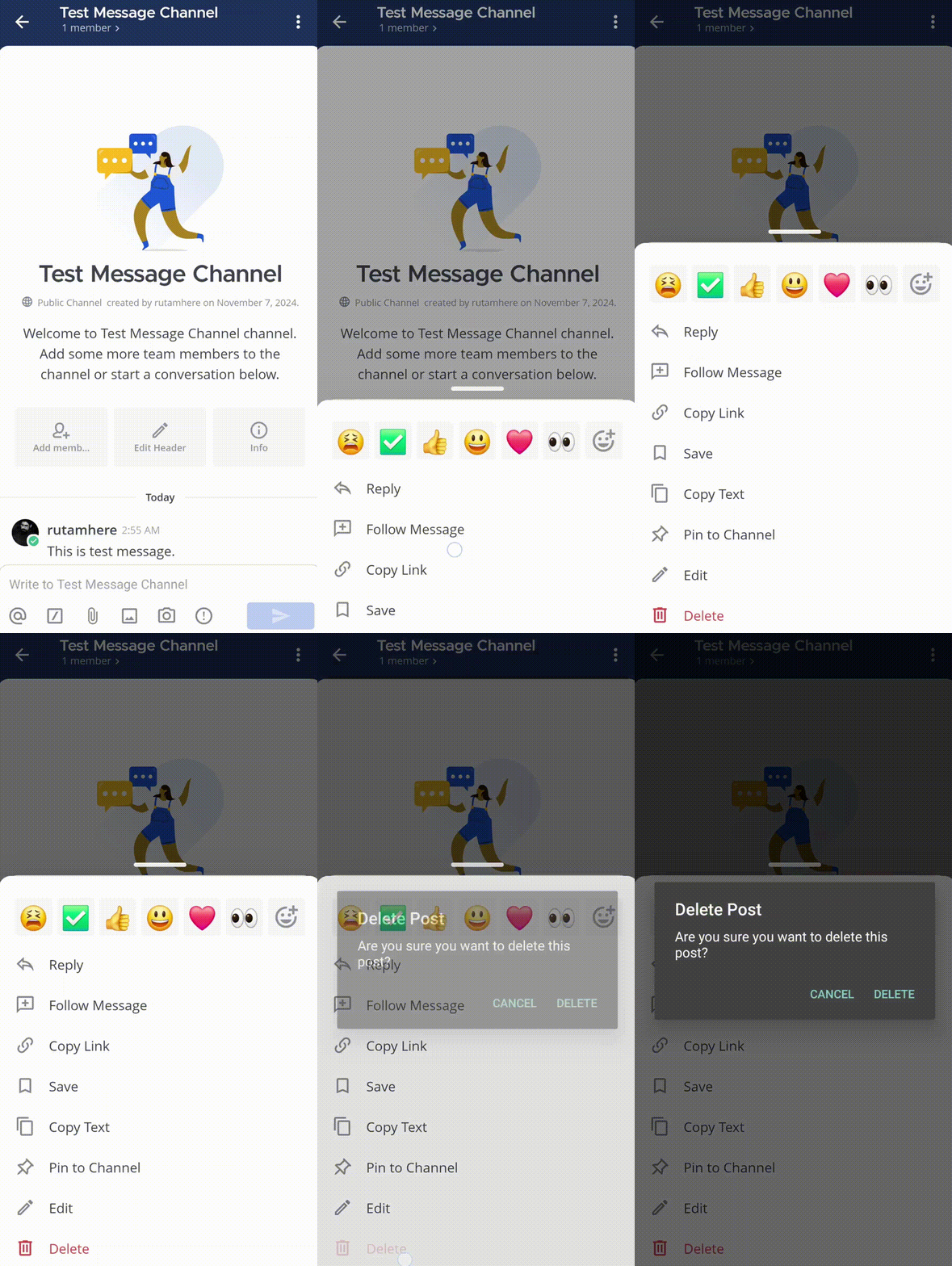
Tap on Delete again to confirm your choice.
Restore a previous version of an edited message
From Mattermost v7.9, Mattermost Enterprise or Professional customers can edit or delete messages after sending them if your system admin hasn’t restricted the ability to do so using advanced permissions.
Message recipients can’t see your message edit history, and restoring a previous message version won’t trigger new @mention notifications.
Note
Restoring a previous version of the message is available in the Mattermost desktop app or a web browser. The ability to restore using the mobile app isn’t supported.
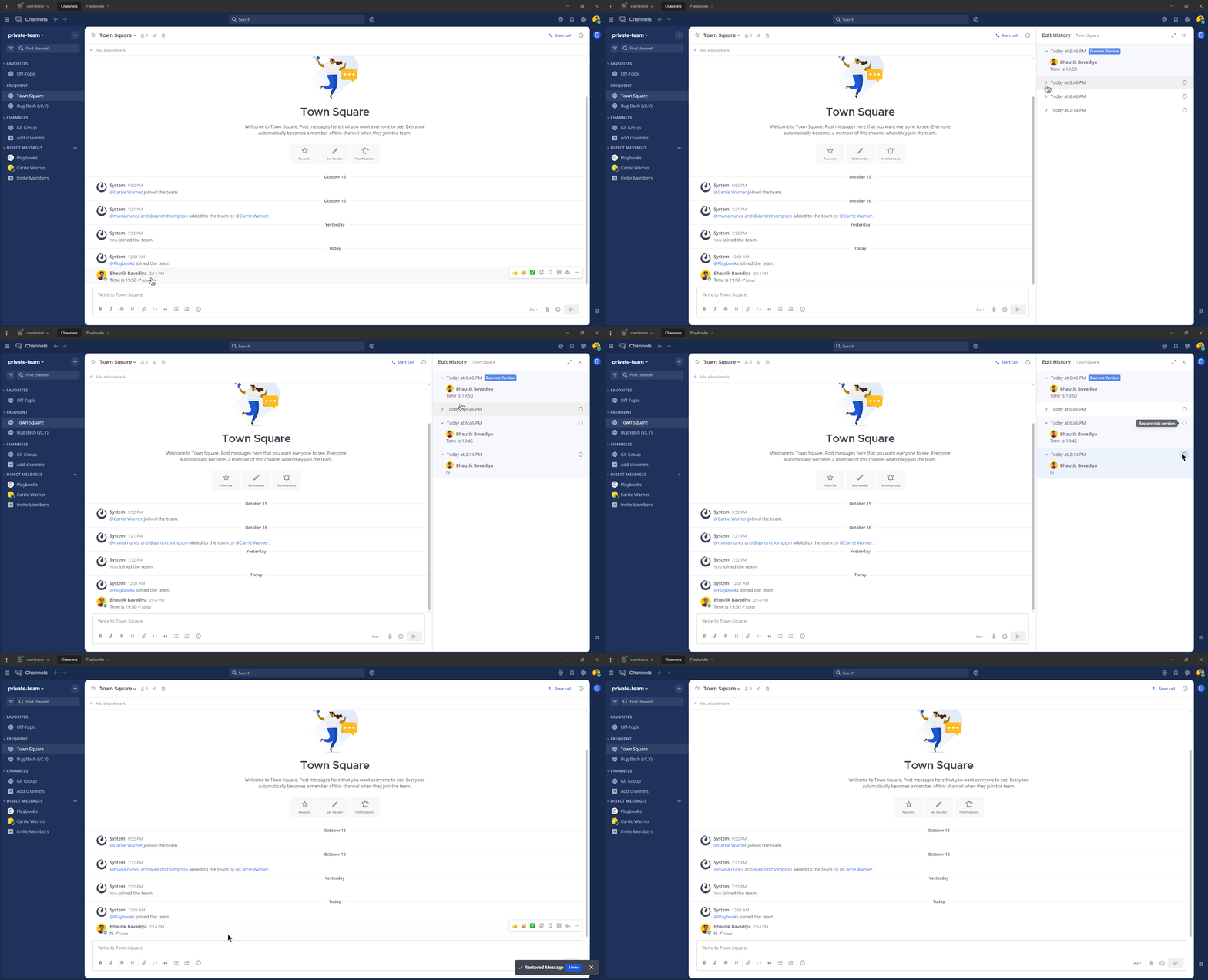
Select the word Edited next to your message.
In the right pane, review all previous versions of the message.
Select the Restore
 icon next to the version you want to restore.
Select Confirm.
Do more with your messages
Tip
Using a RTL plugin, Mattermost can automatically detect and display messages written using right-to-left scripts, such as Arabic, Hebrew, or Persian. Your system admin must install the RTL Plugin to enable this functionality.
Do more with your Mattermost messages using the following features: