Create channels
 Available on all plans
 Cloud and self-hosted deployments
Anyone can create public channels, private channels, direct messages, and group messages unless the system admin has restricted permissions to do so using advanced permissions.
To create a public or private channel
Select the + symbol at the top of the channel sidebar, then select Create New Channel.
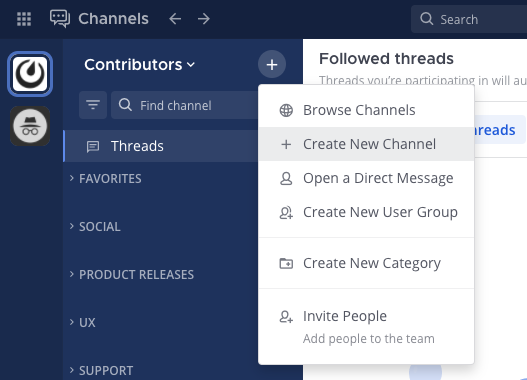
Enter a channel name.
Choose whether this is a public or private channel. See the channel types documentation to learn more about public and private channels.
(Optional) Describe the channel’s focus or purpose. This text is visible to all channel members in the channel header.
(Optional) Select the Create a board for this channel option, and then select a boards template to use. See the Mattermost Boards documentation to learn more about managing tasks with boards, see the link a board to a channel documentation to learn about the benefits of linking boards to channels, and see the choose a board template documentation for details on available templates.
To start a direct or group message
Select the + symbol next to the Direct Messages category in the channel sidebar.
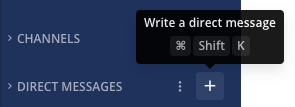
Select up to seven users by searching or browsing.
Tip
Alternatively, select the + symbol at the top of the channel sidebar, then select Open a Direct Message. In the Direct Messages list, you’ll see your most recent conversations.
To create a public or private channel in the mobile app
Select the + symbol in the top right corner of the app, then select Create New Channel. Channels are created as public by default. If you want to make the channel private select the Make Private option.
To start a direct or group message in the mobile app
Select the + symbol in the top right corner of the app, then select Open a Direct Message. You can select one person for a direct message or multiple people for a group message. Select Start to start the conversation.
Tip
Automate with channel actions
The person who creates a channel automatically becomes the channel admin. Channel admins can access Channel Actions from the channel name drop-down menu in the center pane to set up automatic actions when users join the channel or post a message to the channel.
Automatic actions include:
Displaying a temporary welcome message for new channel members.
Automatically adding the channel to a category in the user’s channel sidebar.
Prompting to run a playbook based on the contents of a message.
The Playbooks plugin must be enabled for channel admins to use channel actions.