Authentication configuration settings
 Available on all plans
 Cloud and self-hosted deployments
Access the following configuration settings in the System Console by going to Authentication, or by editing the config.json file as described in the following tables:
Signup
Available on all plans
Cloud and self-hosted deployments
Access the following configuration settings in the System Console by going to Authentication > Signup.
Enable account creation
True: Ability to create new accounts is enabled via inviting new members or sharing the team invite link.
False: Ability to create accounts is disabled. The Create Account button displays an error when trying to signup via an email invite or team invite link.
This feature’s |
Restrict account creation to specified email domains
Teams and user accounts can only be created by a verified email from this list of comma-separated domains (e.g. “corp.mattermost.com, mattermost.com”).
This setting only affects email login. For domain restrictions to be effective, you must also set Require Email Verification to true.
This feature’s |
Enable open server
True: Users can sign up to the server from the root page without an invite.
False: Users can only sign up to the server if they receive an invite.
This feature’s |
Available on all plans
Cloud and self-hosted deployments
Access the following configuration settings in the System Console by going to Authentication > Email.
Enable account creation with email
True: Allow team creation and account signup using email and password.
False: Email signup is disabled. This limits signup to single sign-on services like OAuth or AD/LDAP.
This feature’s |
Require Email Verification
True: Require email verification after account creation prior to allowing login.
False: Users do not need to verify their email address prior to login. Developers may set this field to false to skip sending verification emails for faster development.
This feature’s |
Enable sign-in with email
True: Mattermost allows account creation using email and password.
False: Log in with email is disabled and does not appear on the login screen. Use this value when you want to limit sign up to a Single Sign-on service like AD/LDAP, SAML, or GitLab.
This feature’s |
Enable sign-in with username
True: Mattermost allows users with email login to log in using their username and password. This setting does not affect AD/LDAP login.
False: Log in with username is disabled and does not appear on the login screen.
This feature’s |
Password
Available on all plans
Cloud and self-hosted deployments
Access the following configuration settings in the System Console by going to Authentication > Password.
Minimum password length
This feature was moved to Team Edition in Mattermost v5.0, released June 16th, 2018. Prior to v5.0, this feature is available in legacy Enterprise Edition E10 and E20.
Minimum number of characters required for a valid password. Must be a whole number greater than or equal to 5 and less than or equal to 64.
This feature’s |
Password requirements
This feature was moved to Team Edition in Mattermost v5.0, released June 16th, 2018. Prior to v5.0, this feature is available in legacy Enterprise Edition E10 and E20.
Set the required character types to be included in a valid password. Defaults to allow any characters unless otherwise specified by the checkboxes. The error message previewed in the System Console will appear on the account creation page if a user enters an invalid password.
At least one lowercase letter: Select this checkbox if a valid password must contain at least one lowercase letter.
At least one uppercase letter: Select this checkbox if a valid password must contain at least one uppercase letter.
At least one number: Select this checkbox if a valid password must contain at least one number.
At least one symbol: Select this checkbox if a valid password must contain at least one symbol. Valid symbols include:
!"#$%&'()*+,-./:;<=>?@[]^_`|~.
This feature’s config.json settings are, respectively:
|
|
|
|
MFA
Available on all plans
Cloud and self-hosted deployments
Configure security settings for multi-factor authentication (MFA) in the System Console by going to Authentication > MFA.
The default recommendation for secure deployment is to host Mattermost within your own private network, with VPN clients on mobile, so everything works under your existing security policies and authentication protocols, which may already include multi-factor authentication.
If you choose to run Mattermost outside your private network, bypassing your existing security protocols, we recommend you set up a multi-factor authentication service specifically for accessing Mattermost.
Enable multi-factor authentication
True: Users with LDAP and email authentication will be given the option to require a phone-based passcode, in addition to their password-based authentication, to log in to the Mattermost server. Specifically, they’ll be asked to download the Google Authenticator app to their iOS or Android mobile device, connect the app with their account, and then enter a passcode generated by the app on their phone whenever they log in to the Mattermost server.
False: Multi-factor authentication is disabled.
This feature’s |
Enforce multi-factor authentication
Note
 Available only on Enterprise and Professional plans
Available in legacy Enterprise Edition E10 and E20
True: Multi-factor authentication (MFA) is required for login. New users will be required to configure MFA on signup. Logged in users without MFA configured are redirected to the MFA setup page until configuration is complete. If your system has users with login options other than AD/LDAP and email, MFA must be enforced with the authentication provider outside of Mattermost.
False: Multi-factor authentication is optional.
This feature’s |
AD/LDAP
Available on Enterprise and Professional plans
Cloud and self-hosted deployments
Access the following configuration settings in the System Console by going to Authentication > AD/LDAP.
Enable sign-in with AD/LDAP
Available in legacy Enterprise Edition E10 and E20
True: Mattermost allows login using AD/LDAP or Active Directory.
False: Login with AD/LDAP is disabled.
This feature’s |
Enable synchronization with AD/LDAP
True: Mattermost periodically synchronizes users from AD/LDAP.
False: AD/LDAP synchronization is disabled.
This feature’s |
Login field name
The placeholder text that appears in the login field on the login page. Typically this would be whatever name is used to refer to AD/LDAP credentials in your company, so it is recognizable to your users. Defaults to AD/LDAP Username.
This feature’s |
AD/LDAP server
The domain or IP address of the AD/LDAP server.
This feature’s |
AD/LDAP port
The port Mattermost will use to connect to the AD/LDAP server. Defaults to 389.
This feature’s |
Connection security
The type of connection security Mattermost uses to connect to AD/LDAP.
None: No encryption, Mattermost will not attempt to establish an encrypted connection to the AD/LDAP server.
TLS: Encrypts the communication between Mattermost and your server using TLS.
STARTTLS: Takes an existing insecure connection and attempts to upgrade it to a secure connection using TLS.
If the “No encryption” option is selected it is highly recommended that the AD/LDAP connection is secured outside of Mattermost, for example, by adding a stunnel proxy.
This feature’s |
Skip certificate verification
True: Skips the certificate verification step for TLS or STARTTLS connections. Not recommended for production environments where TLS is required. For testing only.
False: Mattermost does not skip certificate verification.
This feature’s |
Private key
(Optional) The private key file provided by your LDAP Authentication Provider and uploaded if TLS client certificates are being used as the primary authentication mechanism.
This feature’s |
Public certificate
(Optional) The public TLS certificate file provided by your LDAP Authentication Provider and uploaded if TLS client certificates are being used as the primary authentication mechanism.
This feature’s |
Bind username
The username used to perform the AD/LDAP search. This should be an account created specifically for use with Mattermost. Its permissions should be limited to read-only access to the portion of the AD/LDAP tree specified in the Base DN field. When using Active Directory, Bind Username should specify domain in "DOMAIN/username" format. This field is required, and anonymous bind is not currently supported.
This feature’s |
Bind password
Password of the user given in Bind Username. Anonymous bind is not currently supported.
This feature’s |
Base DN
The Base Distinguished Name of the location where Mattermost should start its search for users in the AD/LDAP tree.
This feature’s |
User filter
(Optional) Enter an AD/LDAP Filter to use when searching for user objects (accepts general syntax). Only the users selected by the query will be able to access Mattermost.
Sample filters for Active Directory:
To filter out disabled users:
(&(objectCategory=Person)(!(UserAccountControl:1.2.840.113556.1.4.803:=2))).To filter out by group membership, determine the distinguishedName of your group, then use the group membership general syntax format as your filter.
For example, if the security group distinguishedName is
CN=group1,OU=groups,DC=example,DC=com, then the user filter to use is:(memberOf=CN=group1,OU=groups,DC=example,DC=com). Note that the user must explicitly belong to this group for the filter to apply.
This filter uses the permissions of the Bind Username account to execute the search. Administrators should make sure to use a specially created account for Bind Username with read-only access to the portion of the AD/LDAP tree specified in the Base DN field.
This feature’s |
Group filter
Note
Available only on Enterprise plans
Available in legacy Enterprise Edition E20
(Optional) Enter an AD/LDAP Filter to use when searching for group objects (accepts general syntax). Only the groups selected by the query will be able to access Mattermost.
This filter is defaulted to (|(objectClass=group)(objectClass=groupOfNames)(objectClass=groupOfUniqueNames)) when blank.
Note
This filter is used only when AD/LDAP Group Sync is enabled. See AD/LDAP Group Sync documentation for more information on enabling and configuring AD/LDAP Group Sync.
This feature’s |
Enable admin filter
True: Enables System Admins to configure an AD/LDAP filter.
False: Disables the ability for System Admins to configure an AD/LDAP filter.
Admin filter
Available in legacy Enterprise Edition E20
(Optional) Enter a filter to use for designating the System Admin role to users. When enabled the user is promoted to this role on their next login or at the next scheduled AD/LDAP sync. If the Admin Filter is removed, users who are currently logged in retain their Admin role. When they log out this is revoked and on their next login they will no longer have Admin privileges.
This filter default is false and must be set to true in order for the Admin Filter to be used.
This feature’s |
Guest filter
Available in legacy Enterprise Edition E20
(Optional) Enter an AD/LDAP Filter to use when searching for external users who have Guest Access to Mattermost. Only the users selected by the query will be able to log in to and use Mattermost as Guests. This filter default is blank.
See the Guest Accounts documentation for more information.
This feature’s |
ID attribute
The attribute in the AD/LDAP server used as a unique identifier in Mattermost. It should be an AD/LDAP attribute with a value that does not change.
If a user’s ID Attribute changes, a new Mattermost account (unassociated with the previous one) is created. To prevent this, it’s recommended that a unique attribute such as objectGUID in Active Directory and entryUUID in LDAP be used instead.
Before making any changes confirm with your LDAP provider whether these attributes are available in your environment.
If you need to change this field after users have already logged in, use the mattermost ldap idmigrate CLI tool.
This feature’s |
Login ID attribute
The attribute in the AD/LDAP server used to log in to Mattermost. Normally this attribute is the same as the Username Attribute field above.
If your team typically uses domainusername to log in to other services with AD/LDAP, you may enter domainusername in this field to maintain consistency between sites.
This feature’s |
Username attribute
The attribute in the AD/LDAP server used to populate the username field in Mattermost. This may be the same as the Login ID Attribute.
This attribute will be used within the Mattermost user interface to identify and mention users. For example, if a Username Attribute is set to john.smith a user typing @john will see @john.smith in their auto-complete options and posting a message with @john.smith will send a notification to that user that they’ve been mentioned.
The Username Attribute may be set to the same value used to log in to the system, called a Login ID Attribute, or it can be mapped to a different value.
This feature’s |
Email attribute
The attribute in the AD/LDAP server used to populate the email address field in Mattermost.
Email notifications will be sent to this email address, and this email address may be viewable by other Mattermost users depending on privacy settings chosen by the System Admin.
This feature’s |
First name attribute
(Optional) The attribute in the AD/LDAP server used to populate the first name of users in Mattermost. When set, users cannot edit their first name, since it is synchronized with the LDAP server. When left blank, users can set their first name as part of their profile settings.
This feature’s |
Last name attribute
(Optional) The attribute in the AD/LDAP server used to populate the last name of users in Mattermost. When set, users cannot edit their last name, since it is synchronized with the LDAP server. When left blank, users can set their last name as part of their profile settings.
This feature’s |
Nickname attribute
(Optional) The attribute in the AD/LDAP server used to populate the nickname of users in Mattermost. When set, users cannot edit their nickname, since it is synchronized with the LDAP server. When left blank, users can set their nickname as part of their profile settings.
This feature’s |
Position attribute
(Optional) The attribute in the AD/LDAP server used to populate the position field in Mattermost. When set, users cannot edit their position, since it is synchronized with the LDAP server. When left blank, users can set their position as part of their profile settings.
This feature’s |
Profile picture attribute
The attribute in the AD/LDAP server used to synchronize (and lock) the profile picture used in Mattermost.
The Mattermost server will replace the user’s profile image upon login (not at the sync interval as with other attributes). The sync will not occur if the current Mattermost profile image matches the image associated with that user in AD/LDAP.
This feature’s |
Group display name attribute
Note
Available only on Enterprise plans
Available in legacy Enterprise Edition E20
(Required) Enter an AD/LDAP Group Display name attribute used to populate Mattermost Group names.
Note
This attribute is used only when AD/LDAP Group Sync is enabled. See AD/LDAP Group Sync documentation for more information on enabling and configuring AD/LDAP Group Sync.
This feature’s |
Group ID attribute
Note
Available only on Enterprise plans
Available in legacy Enterprise Edition E20
(Required) Enter an AD/LDAP Group ID attribute to use as a unique identifier for Groups. This should be an AD/LDAP value that does not change. This is usually entryUUID for LDAP and objectGUID for AD.
Note
This attribute is used only when AD/LDAP Group Sync is enabled. See AD/LDAP Group Sync documentation for more information on enabling and configuring AD/LDAP Group Sync.
This feature’s |
Synchronization interval (minutes)
Set how often Mattermost accounts synchronize attributes with AD/LDAP, in minutes.
When synchronizing, Mattermost queries AD/LDAP for relevant account information and updates Mattermost accounts based on changes to attributes (first name, last name, and nickname).
When accounts are disabled in AD/LDAP users are made inactive in Mattermost, and their active sessions are revoked once Mattermost synchronizes attributes. To synchronize immediately after disabling an account, use the AD/LDAP Synchronize Now button.
This feature’s |
Note
LDAP syncs cause a large number of database read queries. Ensure that you monitor database load during a sync to determine how often these syncs should happen in your environment in order to minimize performance degradation.
Maximum page size
The maximum number of users the Mattermost server will request from the AD/LDAP server at one time. Use this setting if your AD/LDAP server limits the number of users that can be requested at once.
A value of 0 is unlimited and does not paginate the results.
A value of 1500 is recommended to align with the default AD/LDAP
MaxPageSizesetting.
This feature’s |
Query timeout (seconds)
The timeout value for queries to the AD/LDAP server. Increase this value if you are getting timeout errors caused by a slow AD/LDAP server.
This feature’s |
AD/LDAP test
This button can be used to test the connection to the AD/LDAP server. If the test is successful, it shows a confirmation message and if there is a problem with the configuration settings it will show an error message.
AD/LDAP synchronize now
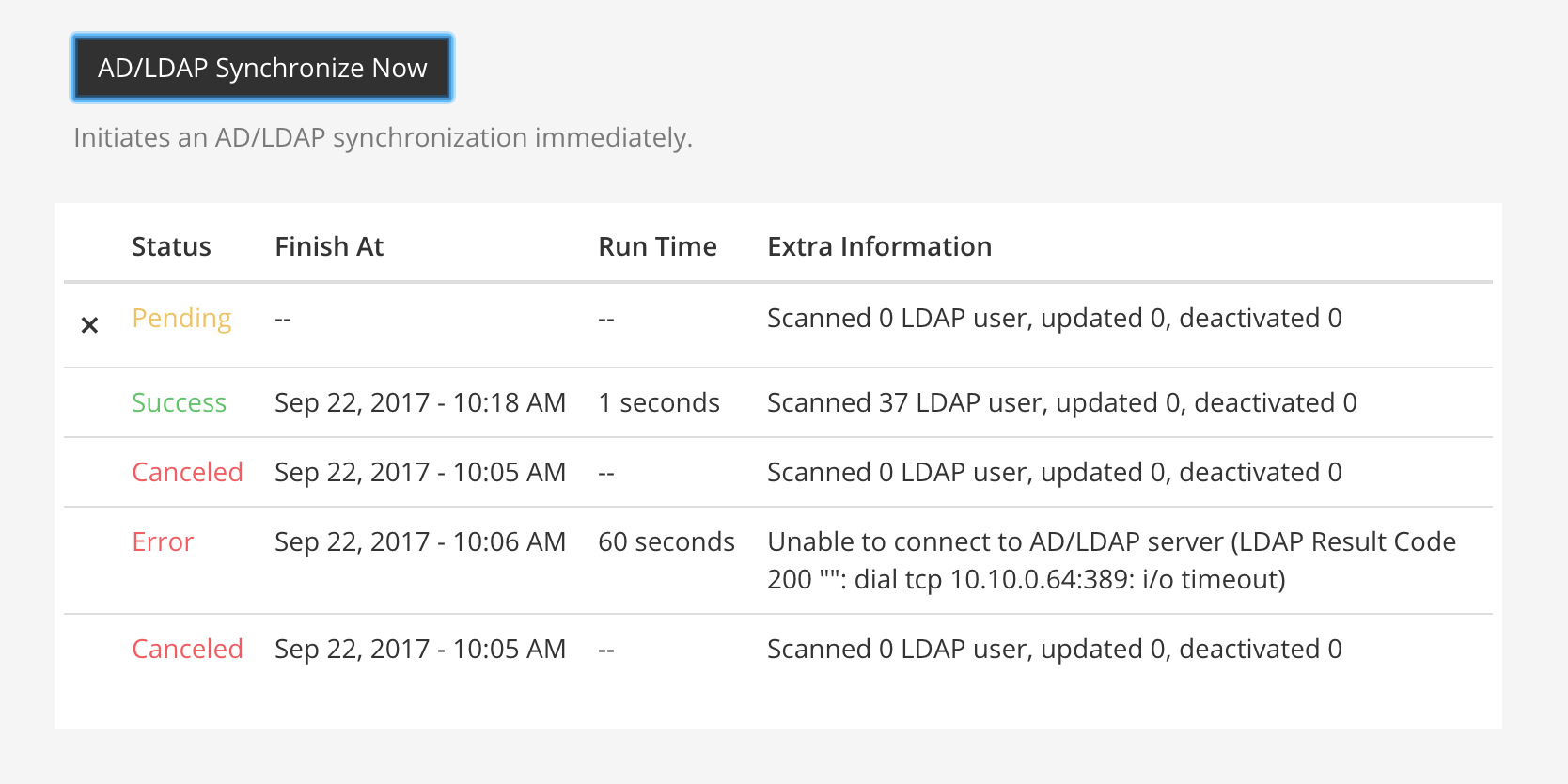
This button causes AD/LDAP synchronization to occur as soon as it is pressed. Use it whenever you have made a change in the AD/LDAP server you want to take effect immediately. After using the button, the next AD/LDAP synchronization will occur after the time specified by the Synchronization Interval.
You can monitor the status of the synchronization job in the table below this button.
Note
If synchronization Status displays as Pending and does not complete, make sure that the Enable Synchronization with AD/LDAP setting is set to true.
SAML 2.0
Available on Enterprise and Professional plans
Cloud and self-hosted deployments
Access the following configuration settings in the System Console by going to Authentication > SAML 2.0.
Note
In line with Microsoft ADFS guidance we recommend configuring intranet forms-based authentication for devices that do not support WIA.
Enable login with SAML
Note
Available only on Enterprise and Professional plans
Available in legacy Enterprise Edition E20
True: Mattermost allows login using SAML. Please see documentation to learn more about configuring SAML for Mattermost.
False: Login with SAML is disabled.
This feature’s |
Enable synchronizing SAML accounts with AD/LDAP
Note
Available only on Enterprise and Professional plans
Available in legacy Enterprise Edition E20
True: Mattermost periodically synchronizes SAML user attributes, including user deactivation and removal, with AD/LDAP. Enable and configure synchronization settings at Authentication > AD/LDAP. See documentation to learn more.
False: Synchronization of SAML accounts with AD/LDAP is disabled.
This feature’s |
Ignore guest users when synchronizing with AD/LDAP
Note
Available only on Enterprise and Professional plans
Available in legacy Enterprise Edition E20
Available when Enable Synchronizing SAML Accounts With AD/LDAP is set to true.
True: Mattermost ignores Guest Users identified by the Guest Attribute when synchronizing with AD/LDAP on user deactivation and removal. Manage guest deactivation manually via System Console > Users. See documentation to learn more.
False: Synchronization of SAML deactivates and removes Guest Users when synchronizing with AD/LDAP.
This feature’s |
Override SAML bind data with AD/LDAP information
Note
Available only on Enterprise and Professional plans
Available in legacy Enterprise Edition E20
True: Mattermost overrides the SAML ID attribute with the AD/LDAP ID attribute if configured or overrides the SAML Email attribute with the AD/LDAP Email attribute if SAML ID attribute is not present. See documentation to learn more.
False: Mattermost uses the email attribute to bind users to SAML.
Note
Moving from true to false will prevent the override from happening. To prevent the disabling of user accounts, SAML IDs must match the LDAP IDs when this feature is enabled. This setting should be set to false unless LDAP sync is enabled.
This feature’s |
Identity provider metadata URL
Note
Available only on Enterprise and Professional plans
Available in legacy Enterprise Edition E20
The URL where Mattermost sends a request to obtain setup metadata from the provider.
This feature’s |
SAML SSO URL
Note
Available only on Enterprise and Professional plans
Available in legacy Enterprise Edition E20
The URL where Mattermost sends a SAML request to start login sequence.
This feature’s |
Identity provider issuer URL
Note
Available only on Enterprise and Professional plans
Available in legacy Enterprise Edition E20
The issuer URL for the Identity Provider you use for SAML requests.
This feature’s |
Identity provider public certificate
Note
Available only on Enterprise and Professional plans
Available in legacy Enterprise Edition E20
The public authentication certificate issued by your Identity Provider.
This feature’s |
Verify signature
Note
Available only on Enterprise and Professional plans
Available in legacy Enterprise Edition E20
True: Mattermost verifies that the signature sent from the SAML Response matches the Service Provider Login URL.
False: Not recommended for production environments. For testing only.
This feature’s |
Service provider login URL
Note
Available only on Enterprise and Professional plans
Available in legacy Enterprise Edition E20
Enter https://<your-mattermost-url>/login/sso/saml (example: https://example.com/login/sso/saml). Make sure you use HTTP or HTTPS in your URL depending on your server configuration. This field is also known as the Assertion Consumer Service URL.
This feature’s |
Service provider identifier
Note
Available only on Enterprise and Professional plans
Available in legacy Enterprise Edition E20
The unique identifier for the Service Provider, usually the same as Service Provider Login URL. In ADFS, this must match the Relying Party Identifier.
This feature’s |
Enable encryption
Note
Available only on Enterprise and Professional plans
Available in legacy Enterprise Edition E20
True: Mattermost will decrypt SAML Assertions encrypted with your Service Provider Public Certificate.
False: Not recommended for production environments. For testing only.
This feature’s |
Service provider private key
Note
Available only on Enterprise and Professional plans
Available in legacy Enterprise Edition E20
The private key used to decrypt SAML Assertions from the Identity Provider.
This feature’s |
Service provider public certificate
Note
Available only on Enterprise and Professional plans
Available in legacy Enterprise Edition E20
The certificate file used to generate the signature on a SAML request to the Identity Provider for a service provider initiated SAML login, when Mattermost is the Service Provider.
This feature’s |
Sign request
Note
Available only on Enterprise and Professional plans
Available in legacy Enterprise Edition E20
When true, Mattermost signs the SAML request using your Service Provider Private Key. When false, Mattermost does not sign the SAML request.
This feature’s |
Signature algorithm
Note
Available only on Enterprise and Professional plans
Available in legacy Enterprise Edition E20
The signature algorithm used to sign the request. Supported options are RSAwithSHA1, RSAwithSHA256, and RSAwithSHA512.
This feature’s |
Canonical algorithm
Note
Available only on Enterprise and Professional plans
Available in legacy Enterprise Edition E20
The canonicalization algorithm. Supported options are Canonical1.0 for Exclusive XML Canonicalization 1.0 (omit comments) (http://www.w3.org/2001/10/xml-exc-c14n#) and Canonical1.1 for Canonical XML 1.1 (omit comments) (http://www.w3.org/2006/12/xml-c14n11).
This feature’s |
Email attribute
Note
Available only on Enterprise and Professional plans
Available in legacy Enterprise Edition E20
The attribute in the SAML Assertion that will be used to populate the email addresses of users in Mattermost.
Email notifications will be sent to this email address, and this email address may be viewable by other Mattermost users depending on privacy settings chosen by the System Admin.
This feature’s |
Username attribute
Note
Available only on Enterprise and Professional plans
Available in legacy Enterprise Edition E20
The attribute in the SAML Assertion that will be used to populate the username field in Mattermost user interface. This attribute will be used within the Mattermost user interface to identify and mention users. For example, if a Username Attribute is set to john.smith a user typing @john will see @john.smith in their auto-complete options and posting a message with @john.smith will send a notification to that user that they’ve been mentioned.
This feature’s |
Id attribute
Note
Available only on Enterprise and Professional plans
Available in legacy Enterprise Edition E20
(Optional) The attribute in the SAML Assertion used to bind users from SAML to users in Mattermost.
This feature’s |
Guest attribute
Note
Available only on Enterprise and Professional plans
Available in legacy Enterprise Edition E20
(Optional) The attribute in the SAML Assertion used to apply a Guest role to users in Mattermost.
See the Guest Accounts documentation for more information.
This feature’s |
Enable admin attribute
Note
Available only on Enterprise and Professional plans
Available in legacy Enterprise Edition E20
True: Enables System Admins to configure the SAML Assertion.
False: Disables the ability for System Admins to configure the SAML Assertion.
Admin attribute
Note
Available only on Enterprise and Professional plans
Available in legacy Enterprise Edition E20
(Optional) The attribute in the SAML Assertion for designating System Admins. The user is automatically promoted to this role on their next login. If the Admin Attribute is removed, users who are currently logged in retain their Admin role. When they log out this is revoked and on their next login they will no longer have Admin privileges.
This attribute’s default is false and must be set to true in order for the Admin Attribute to be used.
This feature’s |
First name attribute
Note
Available only on Enterprise and Professional plans
Available in legacy Enterprise Edition E20
(Optional) The attribute in the SAML Assertion that will be used to populate the first name of users in Mattermost.
This feature’s |
Last name attribute
Note
Available only on Enterprise and Professional plans
Available in legacy Enterprise Edition E20
(Optional) The attribute in the SAML Assertion that will be used to populate the last name of users in Mattermost.
This feature’s |
Nickname attribute
Note
Available only on Enterprise and Professional plans
Available in legacy Enterprise Edition E20
(Optional) The attribute in the SAML Assertion that will be used to populate the nickname of users in Mattermost.
This feature’s |
Position attribute
Note
Available only on Enterprise and Professional plans
Available in legacy Enterprise Edition E20
(Optional) The attribute in the SAML Assertion that will be used to populate the position field for users in Mattermost (typically used to describe a person’s job title or role at the company).
This feature’s |
Preferred language attribute
Note
Available only on Enterprise and Professional plans
Available in legacy Enterprise Edition E20
(Optional) The attribute in the SAML Assertion that will be used to populate the language of users in Mattermost.
This feature’s |
Login button text
Note
Available only on Enterprise and Professional plans
Available in legacy Enterprise Edition E20
(Optional) The text that appears in the login button on the login page. Defaults to SAML.
This feature’s |
OAuth 2.0
Available on Enterprise and Professional plans
Cloud and self-hosted deployments
Access the following configuration settings in the System Console by going to Authentication > OAuth 2.0.
Note
OAuth 2.0 is being deprecated and will be replaced by OpenID Connect in a future release.
Settings to configure OAuth login for account creation and login.
Select OAuth 2.0 service provider
Available in legacy Enterprise Edition E20
Choose whether OAuth can be used for account creation and login. Options include:
Do not allow login via an OAuth 2.0 provider
GitLab (available in all plans; see GitLab Settings for details)
Google Apps (Available in Mattermost Enterprise and Professional; see Google Settings for details)
Office 365 (Available in Mattermost Enterprise and Professional; see Office 365 Settings for details)
This feature’s setting does not appear in config.json.
GitLab
Available on all plans
Cloud and self-hosted deployments
Enable authentication with GitLab
True: Allow team creation and account signup using GitLab OAuth. To configure, input the Secret and Id credentials.
False: GitLab OAuth cannot be used for team creation or account signup.
Note
For Enterprise subscriptions, GitLab settings can be found under OAuth 2.0
This feature’s |
Application ID
Obtain this value by logging into your GitLab account. Go to Profile Settings > Applications > New Application, enter a Name, then enter Redirect URLs https://<your-mattermost-url>/login/gitlab/complete (example: https://example.com:8065/login/gitlab/complete and https://<your-mattermost-url>/signup/gitlab/complete.
This feature’s |
Application secret key
Obtain this value by logging into your GitLab account. Go to Profile Settings > Applications > New Application, enter a Name, then enter Redirect URLs https://<your-mattermost-url>/login/gitlab/complete (example: https://example.com:8065/login/gitlab/complete and https://<your-mattermost-url>/signup/gitlab/complete.
This feature’s |
GitLab site URL
Specify the URL of your GitLab instance (example https://example.com:3000). If your GitLab instance is not set up with SSL, start the URL with http:// instead of https://.
User API endpoint
Enter https://<your-gitlab-url>/api/v3/user (example: https://example.com:3000/api/v3/user). Use HTTP or HTTPS depending on how your server is configured.
This feature’s |
Available on Enterprise and Professional plans
Cloud and self-hosted deployments
Enable authentication with Google by selecting Google Apps from OAuth 2.0 > Select OAuth 2.0 service provider.
True: Allow team creation and account signup using Google OAuth. To configure, input the Client ID and Client Secret credentials. See the documentation for more detail.
False: Google OAuth cannot be used for team creation or account signup.
This feature’s |
Client ID
Available in legacy Enterprise Edition E20
Obtain this value by registering Mattermost as an application in your Google account.
This feature’s |
Client secret
Available in legacy Enterprise Edition E20
Obtain this value by registering Mattermost as an application in your Google account.
This feature’s |
User API endpoint
Available in legacy Enterprise Edition E20
We recommend you use https://people.googleapis.com/v1/people/me?personFields=names,emailAddresses,nicknames,metadata as the User API Endpoint. Otherwise, enter a custom endpoint in config.json with HTTP or HTTPS depending on how your server is configured.
This feature’s |
Auth endpoint
Available in legacy Enterprise Edition E20
We recommend you use https://accounts.google.com/o/oauth2/v2/auth as the Auth Endpoint. Otherwise, enter a custom endpoint in config.json with HTTP or HTTPS depending on how your server is configured.
This feature’s |
Token endpoint
Available in legacy Enterprise Edition E20
We recommend that you use https://www.googleapis.com/oauth2/v4/token as the Token Endpoint. Otherwise, enter a custom endpoint in config.json with HTTP or HTTPS depending on how your server is configured.
This feature’s |
Office 365
Available on Enterprise and Professional plans
Cloud and self-hosted deployments
Note
In line with Microsoft ADFS guidance we recommend configuring intranet forms-based authentication for devices that do not support WIA.
Enable authentication with Office 365 by selecting Office 365 from System Console > Authentication > OAuth 2.0 > Select OAuth 2.0 service provider.
True: Allow team creation and account signup using Office 365 OAuth. To configure, input the Application ID and Application Secret Password credentials. See the documentation for more detail.
False: Office 365 OAuth cannot be used for team creation or account signup.
This feature’s |
Application ID
Available in legacy Enterprise Edition E20
Obtain this value by registering Mattermost as an application in your Microsoft or Office account.
This feature’s |
Application secret password
Available in legacy Enterprise Edition E20
Obtain this value by registering Mattermost as an application in your Microsoft or Office account.
This feature’s |
Directory (tenant) ID
Available in legacy Enterprise Edition E20
This value is the ID of the application’s AAD directory.
This feature’s |
User API endpoint
Available in legacy Enterprise Edition E20
We recommend using https://graph.microsoft.com/v1.0/me as the User API Endpoint. Otherwise, enter a custom endpoint in config.json with HTTP or HTTPS depending on how your server is configured.
This feature’s |
Auth endpoint
Available in legacy Enterprise Edition E20
We recommend using https://accounts.google.com/o/oauth2/v2/auth as the Auth Endpoint. Otherwise, enter a custom endpoint in config.json with HTTP or HTTPS depending on how your server is configured.
This feature’s |
Token endpoint
Available in legacy Enterprise Edition E20
We recommend that you use https://login.microsoftonline.com/common/oauth2/v2.0/token as the Token Endpoint. Otherwise, enter a custom endpoint in config.json with HTTP or HTTPS depending on how your server is configured.
This feature’s |
OpenID Connect
Available on Enterprise and Professional plans
Cloud and self-hosted deployments
Access the following configuration settings in the System Console by going to Authentication > OpenID Connect.
Select OpenID Connect service provider
Available in legacy Enterprise Edition E20
Choose whether OpenID Connect can be used for account creation and login. Options include:
Do not allow login via an OpenID provider
GitLab (available in all plans; see GitLab Settings for details)
Google Apps (Available in Mattermost Enterprise and Professional; see Google Settings for details)
Office 365 (Available in Mattermost Enterprise and Professional; see Office 365 Settings for details)
OpenID Connect (Other) (Available in Mattermost Enterprise and Professional; see OpenID Connect Settings for more detail)
This feature’s setting does not appear in config.json.
GitLab settings
Available on all plans
Cloud and self-hosted deployments
GitLab site URL
Available in legacy Enterprise Edition E10 and E20. Not available in Cloud Starter.
Specify the URL of your GitLab instance (example https://example.com:3000). If your GitLab instance is not set up with SSL, start the URL with http:// instead of https://.
Discovery endpoint
Available in legacy Enterprise Edition E10 and E20 Not available in Cloud Starter
Obtain this value by registering Mattermost as an application in your service provider account. Should be in the format https://myopenid.provider.com/{my_company}/.well-known/openid-configuration where the value of {my_company} is replaced with your organization.
Google Settings
Available on Enterprise and Professional plans
Cloud and self-hosted deployments
Enable authentication with Google by selecting Google Apps from System Console > Authentication > OpenID Connect > Select service provider.
True: Allow team creation and account signup using Google OpenID Connect. To configure, input the Client ID, Client Secret, and DiscoveryEndpoint credentials. See the documentation for more detail.
False: Google OpenID Connect cannot be used for team creation or account signup.
This feature’s |
Discovery endpoint
Available in legacy Enterprise Edition E20
This value is prepopulated with https://accounts.google.com/.well-known/openid-configuration.
This feature’s |
Office 365 Settings
Available on Enterprise and Professional plans
Cloud and self-hosted deployments
Note
In line with Microsoft ADFS guidance, we recommend configuring intranet forms-based authentication for devices that do not support WIA.
Enable authentication with Office 365 by selecting Office 365 from System Console > Authentication > OpenID Connect > Select service provider.
True: Allow team creation and account signup using Office 365 OpenID Connect. To configure, input the Application ID and Application Secret Password credentials. See the documentation for more detail.
False: Office 365 OpenID Connect cannot be used for team creation or account signup.
This feature’s |
Directory (tenant) ID
Available in legacy Enterprise Edition E20
This value is the ID of the application’s AAD directory.
Discovery endpoint
Available in legacy Enterprise Edition E20
This value is prepopulated with https://login.microsoftonline.com/common/v2.0/.well-known/openid-configuration.
OpenID Connect (other)
Available on Enterprise and Professional plans
Cloud and self-hosted deployments
Enable authentication with a service provider by selecting OpenID Connect (Other) from System Console > Authentication > OpenID Connect > Select service provider.
True: Allow team creation and account signup using OpenID Connect. To configure, input the Client ID, Client Secret, and DiscoveryEndpoint credentials. See the documentation for more detail.
False: OpenID Connect cannot be used for team creation or account signup.
This feature’s |
Button name
Available in legacy Enterprise Edition E20
Specify the text that displays on the OpenID login button.
This feature’s |
Button color
Specify the color of the OpenID login button for white labeling purposes. Use a hex code with a #-sign before the code, for example #145DBF.
This feature’s |
Discovery endpoint
Available in legacy Enterprise Edition E20
Obtain this value by registering Mattermost as an application in your service provider account. Should be in the format https://myopenid.provider.com/{my_company}/.well-known/openid-configuration where the value of {my_company} is replaced with your organization.
This feature’s |
Guest access
Available on Enterprise and Professional plans
Cloud and self-hosted deployments
Access the following configuration settings in the System Console by going to Authentication > Guest Access.
Enable guest access
Available in legacy Enterprise Edition E10 and E20
True: Allow guest invitations to channels within teams. Please see Guest Accounts documentation for more information.
False: Email signup is disabled. This limits signup to Single sign-on services like OAuth or AD/LDAP.
This feature’s |
Whitelisted guest domains
Available in legacy Enterprise Edition E10 and E20
When populated, guest accounts can only be created by a verified email from this list of comma-separated domains.
This feature’s |
Enforce multi-factor authentication
Available in legacy Enterprise Edition E10 and E20
This setting defaults to false and is read-only if multi-factor authentication is not enforced for regular users.
True: Multi-factor authentication (MFA) is required for login. New guest users will be required to configure MFA on sign-up. Logged in guest users without MFA configured are redirected to the MFA setup page until configuration is complete.
False: Multi-factor authentication for guests is optional.
This feature’s |